
Smooth Streaming Starts Here: Your Complete Guide to Optimizing a Gaming PC
Easy Ways to Get the Best Out of Your Streaming and Gaming Setup

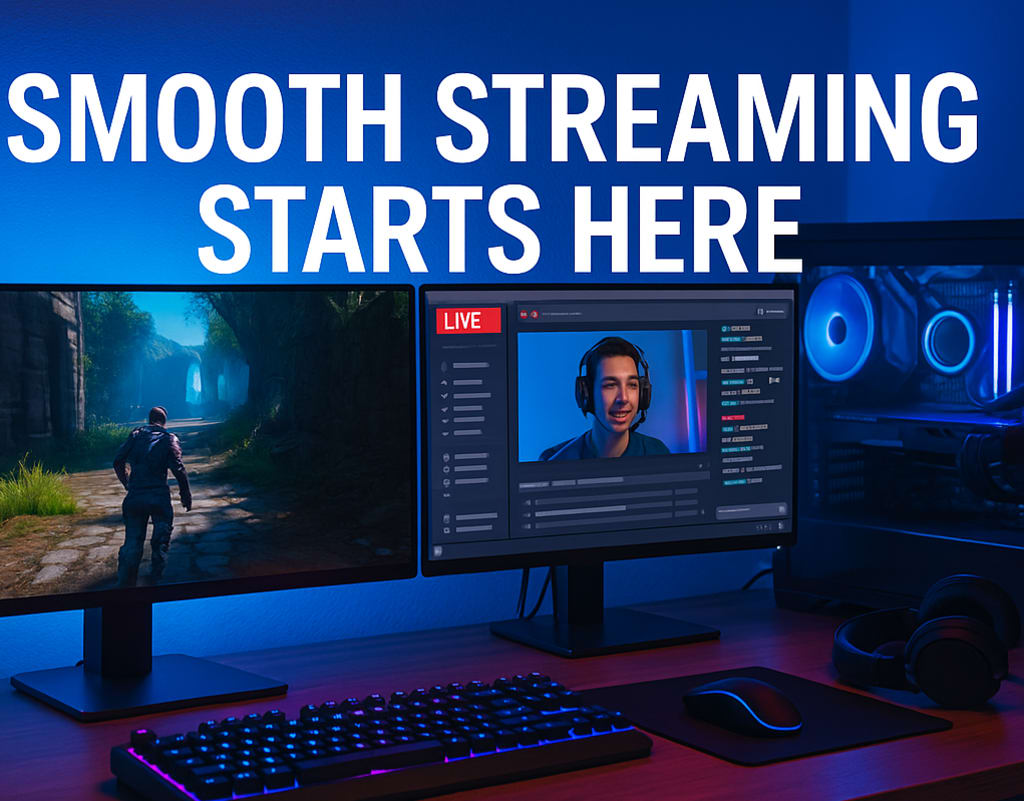
Game streaming has become a huge part of online life. Players everywhere want to share wins, chat with viewers, and build loyal followings. But a shaky, laggy stream can spoil the fun fast. You need more than a fast game to keep an audience you need a system that runs steady every time you go live.
This guide explains how to make sure your gaming PC handles streaming with ease. With these steps, you will have a setup that keeps your gameplay and stream looking sharp from start to finish.
Check Your Core Hardware
A smooth stream starts with solid hardware. Your computer’s processor (CPU) and graphics card (GPU) are at the heart of the action. If either one is too old or slow, your stream will stutter or drop frames. Pick a CPU with several cores and threads. Modern games and streaming software need multitasking power. Aim for at least a mid-range GPU, so your game visuals look clear and crisp for everyone watching.
RAM matters more than you might think. Most streamers do well with 16GB, but heavy multitasking or new titles can use even more. Fast RAM helps you run your stream, game, and background apps without bottlenecks.
Storage plays a part, too. An SSD loads games, videos, and software much faster than an old hard drive. Your whole system feels quicker and more reliable.
Get Your Streaming Software Ready
Once your hardware is set, look at your streaming software. Popular choices like OBS Studio, Streamlabs, or Twitch Studio let you adjust the quality and performance of your broadcast. Use the auto-setup wizards in these apps to find settings that match your PC’s power.
Resolution and FPS are key settings. Most people stream in 720p or 1080p. Higher resolutions look better but use more resources. Start at 30 FPS and move to 60 FPS if your PC keeps up.
Bitrate also affects stream quality. Pick a number that matches your internet speed. Too high, and your stream may buffer. Too low, and your video looks fuzzy. Run speed tests to check your upload speed, then set your streaming app’s bitrate to a safe level.
If your GPU supports it, turn on hardware encoding. This setting (NVENC or AMD VCE) takes pressure off your processor, leaving more power for your game.
Keep Your PC Running Cool and Clean
Heat slows down every part of your PC. Dust, blocked fans, or tight cases can make things worse. Clean your computer’s fans and vents often. Make sure cables don’t block airflow. Good cable management keeps your parts cool and also makes upgrades easier later.
If your PC still gets hot, add more case fans or upgrade your CPU cooler. Lower temperatures mean more stable gaming and streaming.
Close unused programs before you start streaming. Web browsers, music apps, and downloads all use up memory and CPU. Keep only the tools you need open your game, streaming app, and maybe a chat monitor.
How Much Power Does Your PC Use? Cut Costs with These Smart Tips
Internet Connection Makes or Breaks Streams
A strong internet connection is just as important as good hardware. Use a wired connection if possible. Wi-Fi can drop out, causing buffering or a sudden loss of stream. Test your speed before going live. Try to have at least double the upload speed of your planned bitrate. If your internet is slow, lower your stream resolution and bitrate.
Background downloads and updates slow down your connection. Pause or schedule them for after your stream ends.
Test, Adjust, and Upgrade
Test your full setup before you stream to an audience. Most streaming software has a local record or private test stream option. Watch the results for any drops, stutters, or issues.
If you run into problems, adjust one setting at a time. Lower your resolution, reduce your bitrate, or close extra programs. Sometimes the smallest change fixes the biggest problems.
Upgrades can also help. More RAM, a better GPU, or a faster SSD all improve your stream’s quality. Upgrade what fits your budget and your PC’s design.
If you want a deep dive on picking the right gaming PC for streaming, Gamehunt360.com shares honest reviews, build guides, and expert tips for any skill level. Check their latest posts to find the setup that fits your goals.
Wrapping Up
Streaming adds a new level of fun and challenge to your gaming life. Your viewers want smooth, clear video and steady sound. With the right setup, you can deliver every time.
Start with strong hardware, use smart software settings, keep your system cool, and always test before you stream. Make these habits part of your routine and enjoy the rewards more followers, better streams, and the best online gaming moments.
About the Creator
Talha Zulfqar
Expert Content Publisher and Digital Marketer at Growlinko.com
Keep reading
More stories from Talha Zulfqar and writers in Gamers and other communities.
The Complete Guide to Choosing a Turtle Beach Headset
A good headset changes how you hear games. Clear sound helps you react faster, enjoy details, and stay fully immersed. Turtle Beach makes some of the most trusted gaming headsets on the market. The brand offers models for every budget and platform.
By Talha Zulfqar7 months ago in Gamers
Halo Infinite Will Completely Change How You See Xbox Games Forever
Few games carry the weight of expectation like Halo Infinite. As one of the flagship titles for Xbox, it was never just another release. It had to prove that the legendary franchise still had the power to evolve while staying true to its roots. What emerged is a game that balances legacy and innovation in a way that feels both familiar and surprisingly bold.
By Lukáš Hrdlička5 days ago in Gamers
Call of Duty: Ghosts (2013)
So, I've reviewed a handful of Call of Duty titles by now, and I've had a great time doing it. World at War was a dark, grim portrayal of WWII that was really good. Black Ops was a Cold War thrill and the Modern Warfare trilogy was an action-movie extravaganza.
By Greg Seebregts7 days ago in Gamers
Tatt~Master
— Assembly Line Tatt Machine ~ Impressions to Impress — As I begin to understand more about the Tattoo Phenomenon. I've written silly, yet verbatim, dating site anecdotes in 'Frazzled.' So let me ask you: Would you be More attracted to someone slathered with tattoos, or Less?
By Jay Kantor6 days ago in Humor



Comments (1)
I've been there with laggy streams. Check your core hardware like you said. I upgraded my RAM and got an SSD, and it made a huge difference. Also, adjusting settings in streaming software is crucial.