
How to Restart Derail Valley: Your Step-by-Step Guide to a Fresh Start
Fix Errors, Start Fresh, and Optimize Your Gameplay in Derail Valley with This Easy Guide!

If you’ve been playing Derail Valley, you know that it’s an immersive, complex, and highly detailed train simulation game. But what happens when things go wrong, or you want to start over? Whether you’re facing glitches, technical issues, or simply feel like a fresh start, knowing how to restart Derail Valley can be incredibly helpful. Fortunately, restarting the game isn’t as complicated as it may seem, and with our step-by-step guide, you’ll be back on track in no time!
Why You Might Want to Restart Derail Valley
Before diving into the process, it’s worth understanding why you might want to restart the game. Here are a few common reasons players decide to restart Derail Valley:
- Game Errors or Bugs: If you're encountering recurring crashes, freezes, or performance issues, a restart might help fix the problem. It can also clear out corrupted game data or settings that might be causing instability.
- Fresh Start: Sometimes, after a long gaming session, players feel the need to wipe the slate clean. Restarting the game allows you to start over from scratch, giving you a new challenge and the excitement of building up your train empire again.
- Saved Data Corruption: If your saved data becomes corrupted or you encounter unexpected bugs that prevent you from continuing your game, restarting can help by clearing out the corrupted files.
- Reinstalling the Game: Sometimes, reinstalling Derail Valley can be the most effective way to fix serious issues. Whether you’re facing performance problems or simply want to reset the game’s settings, a fresh installation could be the solution.
How to Restart Derail Valley: A Step-by-Step Guide
Now that we’ve established why you might want to restart, let’s walk through the process. Whether you're restarting to fix a problem or just to start fresh, follow these steps:
1. Backup Your Saved Data (If Necessary)
Before resetting your game, consider backing up your saved data, especially if you’re going to reinstall Derail Valley or clear the game’s files. You may want to keep your progress, achievements, and settings. To backup your data:
- Navigate to your game’s saved files on your computer. These are usually stored in the game's install directory or a folder within your user profile (e.g., C:\Users\[YourName]\Saved Games\Derail Valley).
- Copy and paste the saved data files to a different location on your computer or an external drive.
Once you’ve backed up the data, you’re ready to proceed with the restart.
2. Clear Game Data and Settings
If you’re facing issues like errors or bugs, clearing the game’s local data and settings can often resolve the problem. Here’s how you can do that:
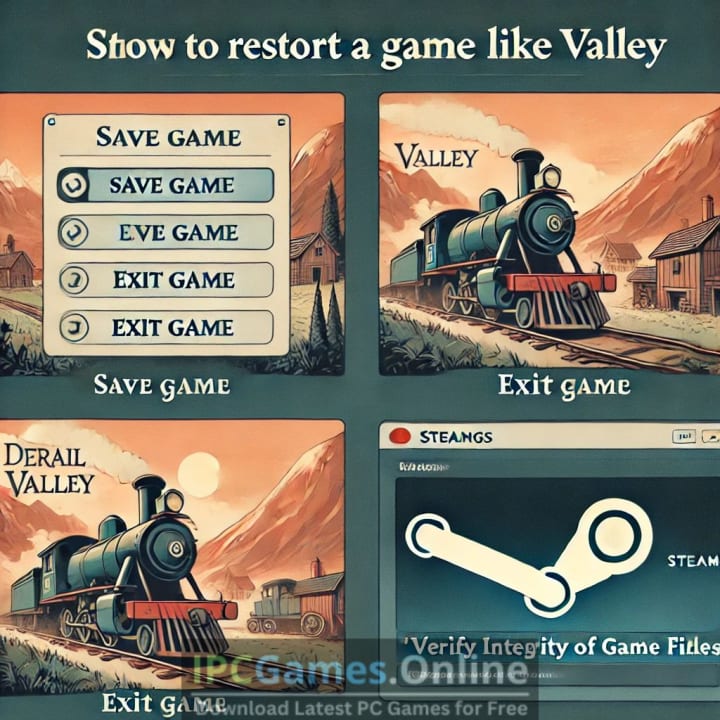
- On Steam: If you’re playing Derail Valley on Steam, you can clear the game’s settings by navigating to your Steam library, right-clicking on Derail Valley, and selecting Properties. Under the Local Files tab, click Verify Integrity of Game Files. This will ensure that any corrupted or missing files are replaced, essentially restarting the game from a clean slate.
- Manual Data Deletion: If you need to completely reset your progress, you can delete your saved game data manually by locating the save files and removing them. This will allow you to start over from the beginning.
3. Reinstall Derail Valley (Optional)
If clearing the data doesn’t solve the issue or you simply want to completely reset the game, reinstalling Derail Valley is an option. This step will ensure that you get a fresh, clean version of the game without any old settings or data interfering with your gameplay.
To reinstall the game:
- Uninstall Derail Valley via your game client (Steam, for example) or through your system’s control panel.
- After uninstalling, go to your game’s directory and ensure all files have been removed.
- Reinstall Derail Valley through Steam or the platform you used to install it. Once reinstalled, you’ll be able to start fresh!
4. Adjust Your Settings and Preferences
After reinstalling the game or clearing your data, you may want to customize the settings according to your preferences. This includes adjusting graphics settings, control preferences, and other in-game options.
Take the time to experiment with different settings to optimize your gameplay experience.
5. Start a New Game
Once you’ve successfully cleared the data or reinstalled the game, you’re ready to start a new adventure in Derail Valley! From here, you can jump back into the game with a fresh start, free of bugs, crashes, or corrupted files.
Additional Tips for a Smooth Restart
- Update Your Game: Always ensure that Derail Valley is updated to the latest version. This helps avoid bugs that may have been fixed in newer updates.
- Check for Mods: If you’ve been using mods and experiencing problems, make sure to remove them before restarting. Some mods can cause compatibility issues or prevent the game from running correctly.
- Optimize System Performance: Derail Valley is a heavy simulation game, so it’s important to optimize your system for the best performance. Check your system’s specs against the game’s recommended requirements, and adjust in-game graphics settings to improve performance.
Conclusion
Knowing how to restart Derail Valley can save you time and frustration when things aren’t working right. Whether you’re trying to fix game errors, starting over for a fresh experience, or reinstalling the game entirely, following this step-by-step guide will help you get back on track.
For a more detailed walkthrough of each step, check out our full guide here.
Happy gaming, and enjoy the ride! 🚂🎮
About the Creator
Jon Smith
Hey!
My name is Jon Smith, I am an avid game player and a free game provider, immersed in the world of gaming for over a decade.
Palworld TCG Guide: Release Date, How to Play, and Bushiroad Card List
The survival gaming world was recently rocked by an announcement that many saw coming but few expected to be this ambitious. Pocketpair has officially pulled back the curtain on the Palworld Trading Card Game, a physical tabletop experience developed in partnership with the industry giants at Bushiroad.
By Richard Bailey5 days ago in Gamers


Comments
There are no comments for this story
Be the first to respond and start the conversation.