
How to Check What Motherboard I Have Windows 10? (Simple Guide)
Need to find your motherboard model on Windows 10? Learn the easiest methods using built-in tools, Command Prompt, and third-party software.

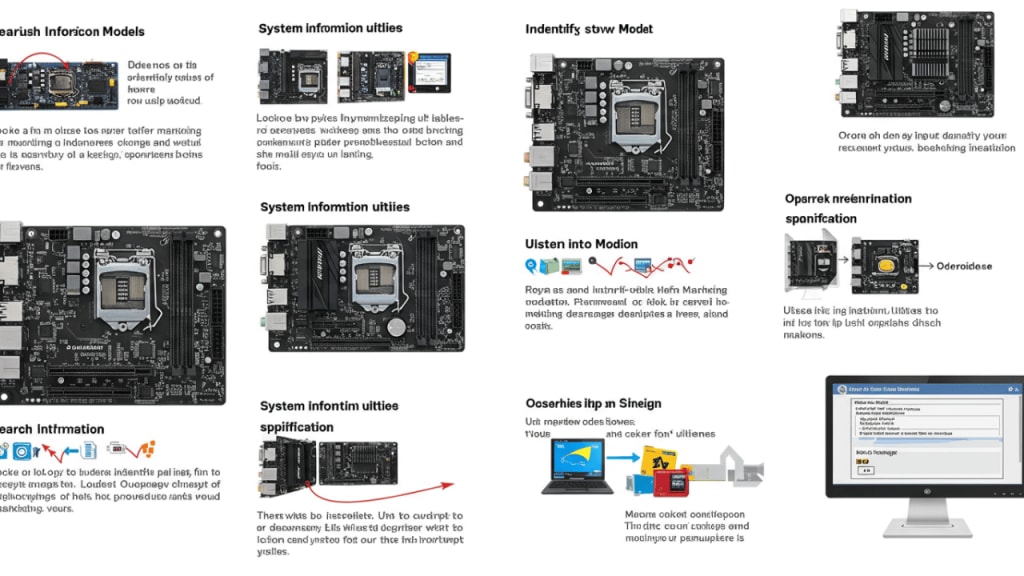
Have you ever wondered what motherboard is inside your Windows 10 PC? Knowing your motherboard model can be crucial for upgrading components, troubleshooting issues, or downloading the latest drivers.
The good news is that checking your motherboard's details doesn’t require opening your computer. In this guide, we will walk you through various simple methods to find your motherboard information.
Why You Need to Know Your Motherboard Model
Your motherboard plays a vital role in your system’s performance. Whether you're planning to upgrade your CPU, RAM, or want to check compatibility with newer hardware, knowing your motherboard specifications can help.
Common Reasons to Check Your Motherboard
- Upgrading hardware – Ensuring compatibility with new components.
- Installing drivers – Finding the latest motherboard drivers for performance improvements.
- Troubleshooting issues – Diagnosing problems related to motherboard malfunctions.
- Understanding features – Checking available ports, RAM slots, and chipset details.
Method 1: Using System Information Tool
One of the simplest ways to check your motherboard details is by using the Windows 10 built-in System Information tool.
Steps to Check Your Motherboard in System Information
- Press Win + R on your keyboard to open the Run dialog box.
- Type msinfo32 and press Enter.
- In the System Information window, look for BaseBoard Manufacturer and BaseBoard Product.
The values next to these fields display your motherboard's brand and model.
This method provides essential information, including the manufacturer and model, but might not list all motherboard details.
Method 2: Using Command Prompt
The Command Prompt is another quick way to retrieve your motherboard's information.
Steps to Use Command Prompt
- Press Win + S and type Command Prompt.
- Click Run as administrator.
- Type the following command and press Enter:
wmic baseboard get product,manufacturer,version,serialnumber
4. You will now see the motherboard's manufacturer, model, version, and serial number displayed in the Command Prompt window.
This method is useful for getting detailed motherboard specifications without third-party software.
Method 3: Using Third-Party Software
If you prefer a graphical interface with more details, third-party software can help.
Recommended Software for Checking Motherboard Details
- CPU-Z – Provides extensive details about your motherboard, CPU, RAM, and GPU.
- Speccy – Offers a user-friendly view of your PC’s hardware specifications.
- HWInfo – Gives in-depth technical details about your motherboard and other components.
How to Check Motherboard Details Using CPU-Z
- Download and install CPU-Z from its official website.
- Open the software and navigate to the Mainboard tab.
- Here, you’ll see detailed information, including the motherboard model, manufacturer, chipset, and BIOS version.
Using third-party software allows you to see advanced details that Windows built-in tools may not provide.
Method 4: Physically Checking Your Motherboard
If your PC doesn’t boot or software solutions don’t work, you may need to physically inspect the motherboard.
How to Identify Your Motherboard Manually
- Power off your computer and unplug it.
- Open the PC case using a screwdriver.
- Look for the model number printed near the RAM slots or CPU socket.
- Note the brand and model number for reference.
This method requires handling hardware carefully, so it's best suited for users comfortable with opening their PC.
Conclusion
Checking your motherboard model in Windows 10 is simple and doesn't require technical expertise. Whether using built-in tools, third-party software, or physically inspecting your motherboard, these methods will help you find the information you need. Keeping track of your motherboard details can assist with upgrades, driver installations, and troubleshooting hardware issues.
Frequently Asked Questions (FAQ)
1. How do I find my motherboard details without opening my PC?
Using System Information or Command Prompt are the easiest ways.
2. Can I check my motherboard model without third-party software?
Yes, by using Command Prompt or the System Information tool.
3. What is the best software for checking motherboard details?
CPU-Z, Speccy, and HWInfo are reliable options.
4. Why is my motherboard model not showing in System Information?
Some motherboard details may not be displayed due to system limitations or manufacturer settings.
Also Read: Best and Cheap Motherboard for Gaming
About the Creator
Perfect Tech Views
Welcome to Perfect Tech Views—your go-to source for clear, unbiased, and insightful tech knowledge. Whether you're a pro, a beginner, or just exploring gadgets, we've got you covered with expert guidance!
Keep reading
More stories from Perfect Tech Views and writers in Gamers and other communities.
Best Motherboard For i9 9900K (Ultimate Choices)
Choosing the best motherboard for i9 9900K is crucial for unlocking the full potential of your Intel processor. With so many motherboards available, the task of picking the right one might feel overwhelming. But don’t worry, I’ve done the research for you! Whether you’re into gaming, content creation, or just want a fast and reliable system, the perfect motherboard is waiting for you.
By Perfect Tech Views10 months ago in Gamers
U4gm Energy Shield, Spirit, and Skill: Witch Meta Explained
If you’ve been diving into Path of Exile 2 lately, you’ve probably noticed that some Witch builds just feel… unstoppable. Fast clears, consistent DPS, and solid survivability seem baked into the top-tier setups. The secret isn’t a single skill or flashy item—it’s a combination of Energy Shield, Spirit stacking, and skill scaling, carefully balanced to create a meta-defining powerhouse.
By Billo Naliabout 20 hours ago in Gamers
Best GPU for Ryzen 5 3600 in 2026: The Ultimate Guide
The Ryzen 5 3600 remains one of the most popular processors in the world. Even in 2026, it powers millions of gaming rigs. But as modern games like Grand Theft Auto VI and The Elder Scrolls VI push graphics fidelity to new heights, your old GPU might be struggling.
By Aveloria Thessar5 days ago in Gamers



Comments