
How Do You Delete Your Order History on Amazon? (Step-by-Step Guide)
Want to know how do you delete your order history on Amazon? This easy guide explains step-by-step methods, tips, and FAQs to manage or hide your Amazon orders.


How do you delete your order history on Amazon?
How do you delete your order history on Amazon? If you shop on Amazon often, you might have items in your order list that you don’t want others to see. Maybe you bought a surprise gift, a personal item, or something you simply want to keep private.
While Amazon does not allow you to fully delete your order history, there are ways to hide it from view. In this guide, we will explain how to manage, archive, and hide your Amazon orders so your history stays private.
Why You Might Want to Delete Your Order History on Amazon
There are many reasons people want to hide or remove their Amazon orders:
- 🎁 Surprise gifts – You don’t want your family to see what you bought.
- 🛍 Personal purchases – Some items are private.
- 📦 Shared accounts – If you share your Amazon account, others can see your orders.
- 🗂 Decluttering – You want a cleaner order list.
Because Amazon keeps a record of all purchases for returns, warranties, and customer service, it does not allow complete deletion. However, you can archive orders so they are hidden from your main order list.
How Do You Delete Your Order History on Amazon? (The Truth)
Before we start, it’s important to know:
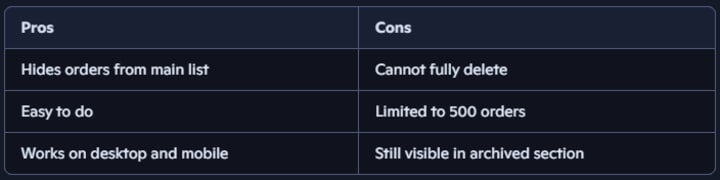
- You cannot permanently delete orders from Amazon’s system.
- You can hide them from your main order list by archiving them.
- Archived orders are still accessible in a separate section.
So, when we say “delete,” we really mean hide or archive.
Step-by-Step: How to Archive Orders on Amazon (Desktop)
Follow these steps if you are on a computer:
- Log in to your Amazon account.
- Go to “Returns & Orders” at the top right of the page.
- Find the order you want to hide.
- Click “Archive order” on the bottom left of the order box.
- Confirm by clicking “Archive order” again.
💡 Tip: You can archive up to 500 orders in total.

If you want to get the Best Amazon Deals Daily with the highest rating, then click here 👉: Best Amazon Deals Daily
How to Archive Orders on Amazon (Mobile App)
If you use the Amazon app on your phone:
- Open the Amazon app and sign in.
- Tap the three-line menu (☰) in the bottom right.
- Go to “Your Orders.”
- Find the order you want to hide.
- Tap “Order details.”
- Scroll down and tap “Archive order.”
How to View Archived Orders
Even after hiding them, you can still see archived orders:
- On desktop, go to “Accounts & Lists” → “Your Account.”
- Click “Archived orders.”
- You will see all the orders you have hidden.
Can You Delete Amazon Order History Completely?
No. Amazon keeps your order history for:
- Returns and refunds
- Warranty claims
- Customer service
- Legal and tax purposes
However, archiving is the best way to hide them from your main list.
Extra Privacy Tips for Amazon Orders
If you want more privacy:
- Use Amazon Household – Create separate profiles for family members.
- Turn off browsing history – Go to “Browsing History” and click “Remove” or “Manage History.”
- Use gift cards – Avoid showing certain purchases on shared payment methods.
- Sign out after shopping – Especially on shared devices.

If you want to get the Best Amazon Deals Daily with the highest rating, then click here 👉: Best Amazon Deals Daily
How to Hide Browsing History on Amazon
Sometimes, even if you hide your orders, your browsing history can give away your purchases. To clear it:
- Go to Browsing History (found under “Accounts & Lists”).
- Click “Remove from view” for each item.
- Or click “Manage history” → “Turn off browsing history.”
How to Cancel an Order Before It Ships
If you ordered something by mistake and want it gone from your history:
- Go to “Your Orders.”
- Find the order and click “Cancel items.”
- Select the reason and confirm.
If the order is canceled before shipping, it may not appear in your history.
How to Hide Digital Orders (Kindle, eBooks, Apps)
Digital orders like Kindle books or apps also appear in your account. To hide them:
- Go to “Manage Your Content and Devices.”
- Find the item.
- Click “Actions” → “Delete” or “Hide from library.”
How to Use Amazon Household for Privacy
Amazon Household lets you share Prime benefits without sharing order history:
- Create separate accounts for each adult.
- Link them under Amazon Household.
- Each person’s orders stay private.
How to Contact Amazon Support for Order Privacy
If you have a special privacy concern:
- Go to Help → Contact Us.
- Choose “Something else” → “Chat” or “Call.”
- Explain your request.
While they cannot delete orders, they may suggest privacy options.
Pros and Cons of Archiving Orders
Common Mistakes to Avoid
- Thinking archived orders are deleted forever.
- Forgetting to clear browsing history.
- Sharing accounts without Amazon Household.
Conclusion
Learning how do you delete your order history on Amazon is really about understanding how to hide it. While Amazon does not allow complete deletion, you can archive orders to keep them out of your main list.
You can also clear browsing history, use Amazon Household, and hide digital purchases for extra privacy. By following these steps, you can shop without worrying about others seeing your past orders. Privacy on Amazon is possible—you just need to know the right tools.
FAQ – How Do You Delete Your Order History on Amazon?
Q1: Can I delete my Amazon order history permanently? A: No. You can only hide it by archiving orders.
Q2: How many orders can I archive? A: Up to 500 orders.
Q3: Can I hide orders on the Amazon app? A: Yes, you can archive orders on both desktop and mobile.
Q4: Will archived orders still show in returns or warranty claims? A: Yes, they remain in Amazon’s system.
Q5: Can I hide digital orders like Kindle books? A: Yes, you can hide them in “Manage Your Content and Devices.”
About the Creator
Perfect Tech Views
Welcome to Perfect Tech Views—your go-to source for clear, unbiased, and insightful tech knowledge. Whether you're a pro, a beginner, or just exploring gadgets, we've got you covered with expert guidance!
Keep reading
More stories from Perfect Tech Views and writers in Gamers and other communities.
How to Get Free Amazon Gift Cards (15 Easy & Legit Ways That Work )
How to Get Free Amazon Gift Cards How to get free Amazon gift cards is a question millions of shoppers ask every year. Amazon is one of the largest online stores in the world, offering everything from electronics and books to groceries and home furniture. Because of this, Amazon gift cards are almost as good as cash. The good news is that there are many safe and legal ways to earn them without spending your own money.
By Perfect Tech Views4 months ago in Gamers
Pathologic 3 Officially Announced & January 9, 2026
The official announcement of Pathologic 3 confirms the continuation of Ice-Pick Lodge’s critically acclaimed narrative series. Known for its intense psychological storytelling, challenging moral decisions, and immersive world-building, the series has attracted a dedicated audience. With the recent confirmation of its planned release date—January 9, 2026—interest in the next chapter is growing.
By Games Mode On6 days ago in Gamers




Comments