
Can You Connect Bluetooth Headphones to PS5? (Complete Guide with Easy Steps)
Can you connect Bluetooth headphones to PS5? Yes — but not directly. Learn step-by-step methods, tips, and FAQs to use your wireless headphones with PlayStation 5.

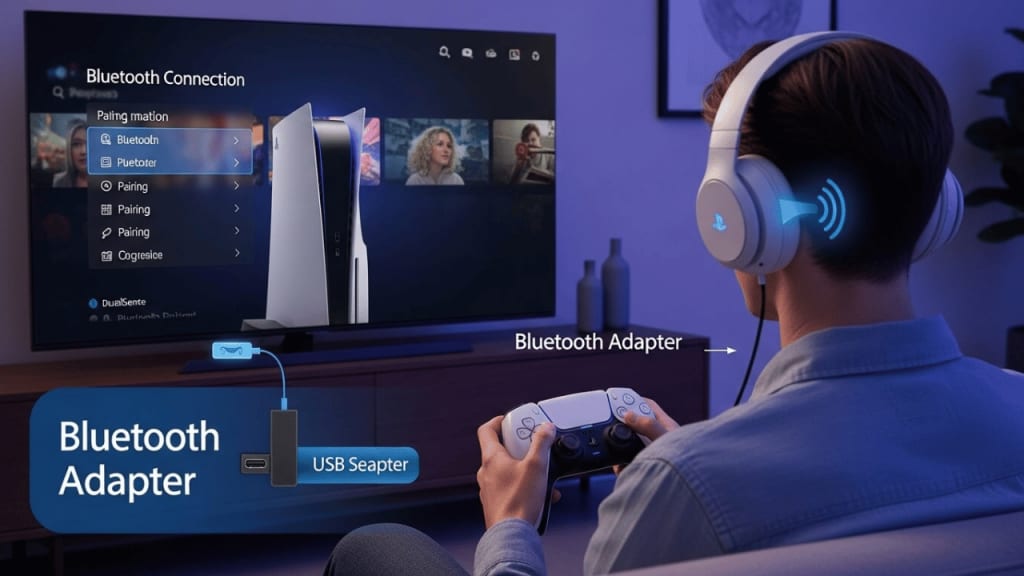
Can You Connect Bluetooth Headphones to PS5?
Can you connect Bluetooth headphones to PS5? This is a question many PlayStation 5 owners ask the moment they unbox their console. After all, wireless headphones are now a part of everyday life. They give you freedom, comfort, and a cleaner gaming setup.
However, the PS5 does not support Bluetooth audio directly. This can be surprising, especially since most modern devices — from smartphones to TVs — allow easy pairing.
But don’t worry. Even though the PS5 has this limitation, there are several simple ways to connect your Bluetooth headphones. In this guide, we will explain why the PS5 doesn’t support Bluetooth audio, and we will walk you through different methods to make it work. We will also share tips to avoid lag, improve sound quality, and answer common questions.
Why the PS5 Doesn’t Support Bluetooth Audio
Before we jump into the solutions, it’s important to understand why Sony made this choice. The main reason is latency — the delay between the sound being produced and you hearing it. In fast-paced games, even a small delay can affect your performance.
Sony wants players to have the best possible audio experience, especially with features like 3D Audio. Wired or specially designed wireless headsets (like the Pulse 3D) can deliver this without lag. However, standard Bluetooth headphones often have a slight delay, which can be noticeable in competitive gaming.
Methods to Connect Bluetooth Headphones to PS5
Even though the PS5 doesn’t allow direct pairing, you can still connect your Bluetooth headphones using a few workarounds. Let’s go through them step-by-step.
1. Connect Using a Bluetooth Adapter (Dongle)
One of the most popular solutions is to use a Bluetooth audio transmitter. This small device plugs into your PS5 and sends audio to your headphones.
Steps:
- Buy a Bluetooth transmitter that supports audio (USB-A, USB-C, or 3.5mm jack).
- Plug the transmitter into your PS5’s USB port or controller’s headphone jack.
- Put your Bluetooth headphones in pairing mode.
- Press the pairing button on the transmitter.
- Wait for the devices to connect — usually indicated by a steady light.
Pros:
- Works with almost all Bluetooth headphones.
- Easy to set up.
- No need to change TV settings.
Cons:
- May still have slight audio delay.
- Requires buying extra hardware.
2. Connect Through Your TV’s Bluetooth
If your TV has Bluetooth, you can connect your headphones directly to it. The PS5 sends audio to the TV, and the TV sends it to your headphones.
Steps:
- Open your TV’s settings menu.
- Go to Bluetooth or Audio Output settings.
- Enable Bluetooth pairing mode.
- Put your headphones in pairing mode.
- Select your headphones from the TV’s device list.
Pros:
- No extra device needed if your TV supports Bluetooth.
- Works for all audio from the PS5.
Cons:
- Some TVs have higher audio delay.
- You may need to adjust TV audio settings for better sync.

If you want to get the Best Amazon Deals Daily with the highest rating, then click here 👉: Best Amazon Deals Daily
3. Use the PS Remote Play App
Sony’s PS Remote Play app lets you stream your PS5 games to a phone, tablet, or PC. You can then connect your Bluetooth headphones to that device.
Steps:
- Download the PS Remote Play app on your device.
- Sign in with your PlayStation account.
- Connect your Bluetooth headphones to your device.
- Start streaming your PS5 game through the app.
Pros:
- Great for playing in another room.
- Works with most Bluetooth headphones.
Cons:
- Requires a strong internet connection.
- May have slight input delay.
4. Use a Wired Connection with Your Controller
If you don’t mind using a cable, you can connect your headphones directly to the DualSense controller.
Steps:
- Plug your headphones into the 3.5mm jack on the controller.
- Go to PS5 Settings > Sound > Output Device.
- Select “Controller Headset” as the output.
Pros:
- No audio delay.
- No extra devices needed.
Cons:
- Not wireless.
- Cable length may limit movement.
Best Bluetooth Adapters for PS5
If you choose the adapter method, here are some popular options:
- Avantree Leaf USB Bluetooth Audio Transmitter
- Creative BT-W3 Bluetooth 5.0 USB-C
- TP-Link UB500 Bluetooth 5.0 Adapter
When buying, make sure the adapter supports low-latency codecs like aptX Low Latency for better sync.

If you want to get the Best Amazon Deals Daily with the highest rating, then click here 👉: Best Amazon Deals Daily
Tips to Reduce Audio Lag
Even with the best setup, Bluetooth can have some delay. Here’s how to minimize it:
- Use headphones that support aptX Low Latency or AAC.
- Keep the transmitter close to your headphones.
- Avoid interference from other wireless devices.
- Update your headphones’ firmware if possible.
Troubleshooting Common Issues
No Sound:
- Check if the PS5 audio output is set correctly.
- Make sure the adapter or TV is paired with your headphones.
Audio Delay:
- Use low-latency headphones.
- Try a wired connection for competitive games.
Headphones Not Pairing:
- Reset your headphones.
- Make sure no other device is connected to them.
Advantages of Using Bluetooth Headphones with PS5
- Freedom of movement — no cables to trip over.
- Comfort — lighter than many gaming headsets.
- Multi-device use — same headphones for phone, PC, and PS5.
Disadvantages
- Possible audio delay.
- May require extra hardware.
- Some features like 3D Audio may not work fully.
Conclusion
So, can you connect Bluetooth headphones to PS5? Yes — but not directly. While the PS5 does not support Bluetooth audio out of the box, you can still enjoy your wireless headphones using a Bluetooth adapter, your TV’s Bluetooth, or the PS Remote Play app. Each method has its pros and cons, so choose the one that fits your setup and gaming style.
If you want the best audio experience with no delay, a wired connection or a PS5-compatible wireless headset is still the top choice. But for casual gaming, these Bluetooth solutions work well and keep your setup clean and cable-free.
FAQ
Q1: Can I connect AirPods to PS5? A: Yes, but you’ll need a Bluetooth adapter or connect them through your TV.
Q2: Will Bluetooth headphones work with PS5 3D Audio? A: Not fully. 3D Audio works best with wired or official PS5 wireless headsets.
Q3: Is there any lag with Bluetooth headphones on PS5? A: Yes, there can be a small delay. Using low-latency headphones can help.
Q4: Do I need a special adapter for PS5? A: No, but make sure the adapter supports audio transmission and low latency.
Q5: Can I use Bluetooth headphones for PS5 chat? A: Yes, if your adapter supports microphone input. Otherwise, you may need a separate mic.
About the Creator
Perfect Tech Views
Welcome to Perfect Tech Views—your go-to source for clear, unbiased, and insightful tech knowledge. Whether you're a pro, a beginner, or just exploring gadgets, we've got you covered with expert guidance!
Keep reading
More stories from Perfect Tech Views and writers in Gamers and other communities.
How to Find the Best Deals on Amazon (Tips, Tricks & Savings Hacks)
How to Find the Best Deals on Amazon If you shop online often, you’ve probably wondered how to find the best deals on Amazon without spending hours searching. Amazon is one of the largest online marketplaces in the world, offering millions of products. However, with so many options, it’s easy to miss out on hidden discounts, lightning deals, and special offers.
By Perfect Tech Views4 months ago in Gamers
Pathologic 3 Officially Announced & January 9, 2026
The official announcement of Pathologic 3 confirms the continuation of Ice-Pick Lodge’s critically acclaimed narrative series. Known for its intense psychological storytelling, challenging moral decisions, and immersive world-building, the series has attracted a dedicated audience. With the recent confirmation of its planned release date—January 9, 2026—interest in the next chapter is growing.
By Games Mode On6 days ago in Gamers


Comments