
Battlefield 1 Has Stopped Working – Easy Fixes and Complete Guide
Battlefield 1 Has Stopped Working? Learn how to fix crashes, errors, and performance issues with this complete step‑by‑step guide.

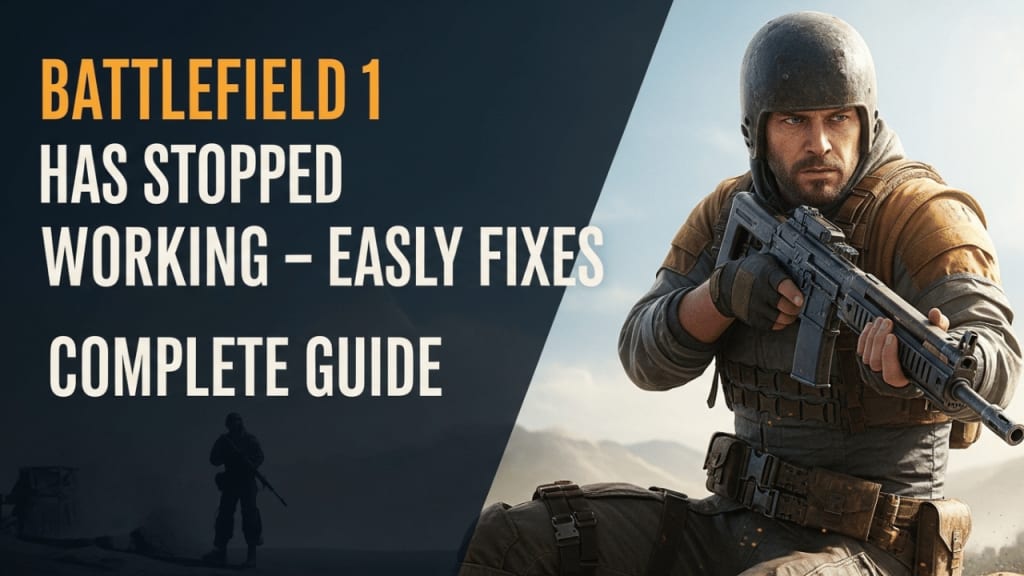
Battlefield 1 Has Stopped Working how to fix? If you are facing this frustrating error, you are not alone. Many players around the world have reported that Battlefield 1 suddenly crashes, freezes, or refuses to launch. This guide will explain why the problem happens and how you can solve it step by step.
Battlefield 1, developed by DICE and published by Electronic Arts (EA), is one of the most popular first‑person shooter games set during World War I. However, despite its success, players often encounter technical issues. These problems can be caused by outdated drivers, corrupted game files, or conflicts with Windows updates. Fortunately, several proven solutions can help you get back into the game quickly.
Battlefield 1 Has Stopped Working – Quick Fixes
Before diving into advanced solutions, try these quick steps:
- Restart your computer.
- Close unnecessary background apps.
- Run Battlefield 1 as Administrator.
- Disable antivirus temporarily.
Update Graphics Drivers to Fix Battlefield 1 Has Stopped Working
One of the most common causes of crashes is outdated drivers.
- Go to the official NVIDIA or AMD website.
- Download the latest driver for your graphics card.
- Install it and restart your PC.
With updated drivers, Battlefield 1 usually runs smoothly.
Battlefield 1 Has Stopped Working – Advanced Fixes
If the quick fixes do not work, try these advanced solutions:
1. Reinstall Battlefield 1
Uninstall the game completely and reinstall it from Origin or Steam. This removes corrupted files and ensures a fresh installation.
2. Adjust Graphics Settings
Lowering graphics settings can reduce crashes. Set the resolution to native, disable DirectX 12, and lower texture quality.
3. Check Hardware Requirements
Battlefield 1 requires at least:
- OS: Windows 7/8/10 (64‑bit)
- CPU: Intel Core i5 6600K or AMD FX‑6350
- RAM: 8 GB
- GPU: NVIDIA GTX 660 or AMD Radeon HD 7850
If your system does not meet these requirements, crashes are expected.
4. Clean Boot Windows
Perform a clean boot to disable unnecessary startup programs. This helps identify conflicts.
Why Battlefield 1 Has Stopped Working
Understanding the reasons behind the error is important because it helps you apply the right fix.
- Outdated Graphics Drivers – NVIDIA and AMD release updates regularly. Without them, games may crash.
- Corrupted Game Files – Missing or damaged files in Origin or Steam can stop the game from running.
- Windows Update Conflicts – Sometimes, new updates interfere with older games.
- Background Programs – Antivirus or other apps may block Battlefield 1.
- Hardware Limitations – Low RAM or a weak GPU can cause performance issues.
These simple actions often solve the problem without complex changes.
Verify Game Files in Origin or Steam
If Battlefield 1 Has Stopped Working, corrupted files may be the reason.
- Open Origin or Steam.
- Go to your game library.
- Right‑click Battlefield 1 and select Repair or Verify Integrity of Game Files.
- Wait until the process finishes.
This method replaces missing files and fixes many errors.
Disable Overlays to Fix Battlefield 1 Has Stopped Working
Game overlays from Discord, Origin, or Steam can cause crashes.
- Open the overlay app settings.
- Turn off in‑game overlay features.
- Restart Battlefield 1.
After disabling overlays, many players report fewer crashes.
Battlefield 1 Has Stopped Working After Windows Update
Sometimes, Battlefield 1 stops working after a new Windows update.
- Check for optional updates in Windows Settings.
- Roll back to a previous version if the issue started recently.
- Install all pending updates to ensure compatibility.
Battlefield 1 Has Stopped Working – Tips for Smooth Gameplay
- Keep your drivers updated.
- Regularly clear the cache and temporary files.
- Avoid running heavy apps while gaming.
- Use a cooling pad or proper ventilation to prevent overheating.
Common Error Messages When Battlefield 1 Has Stopped Working
Players often see:
- “Battlefield 1 Has Stopped Working.”
- “Battlefield 1.exe has crashed.”
- “DirectX function error”
- “Origin error code 9:0”
Each of these can be fixed using the methods above.
Battlefield 1 Has Stopped Working – EA Support
If none of the fixes work, contact EA Support. They provide official troubleshooting steps and may suggest patches.
Conclusion
Battlefield 1 Has Stopped Working is a common error, but it can be fixed with simple steps. Updating drivers, verifying game files, disabling overlays, and adjusting settings usually solve the issue.
If problems continue, reinstalling the game or contacting EA Support is the best option. With these solutions, you can enjoy Battlefield 1 without interruptions.
FAQ – Battlefield 1 Has Stopped Working
Q1: Why does Battlefield 1 keep crashing on startup? It usually happens due to outdated drivers or corrupted game files.
Q2: Can an antivirus cause Battlefield 1 Has Stopped Working? Yes, some antivirus programs block game files. Disable them temporarily to test.
Q3: Does Battlefield 1 work on Windows 11? Yes, but you may need updates and compatibility settings.
Q4: How do I fix DirectX errors in Battlefield 1? Update your DirectX version and graphics drivers.
Q5: Should I reinstall Battlefield 1 if nothing works? Yes, reinstalling often solves persistent issues.
About the Creator
Perfect Tech Views
Welcome to Perfect Tech Views—your go-to source for clear, unbiased, and insightful tech knowledge. Whether you're a pro, a beginner, or just exploring gadgets, we've got you covered with expert guidance!
Keep reading
More stories from Perfect Tech Views and writers in Gamers and other communities.
Samsung ViewFinity S80D IPS Monitor Review
Samsung ViewFinity S80D IPS Monitor Review – that’s the focus of this article, and I’m excited to share my complete experience with it. When I first set up this monitor on my desk, I knew I was in for something special. As someone who spends hours working on content creation, graphic design, and tech reviews, I need a monitor that delivers sharp visuals, accurate colors, and reliable performance.
By Perfect Tech Views5 months ago in Gamers
U4gm Riding the Chaos: Experiencing Hurricane Mode in ARC Raiders
When ARC Raiders dropped the Shrouded Sky update, I was ready for new enemies, a few map tweaks, and maybe some flashy visuals. What I wasn’t ready for was nature itself fighting back. Hurricane Mode isn’t just another weather effect—it’s a mechanic that completely transforms the way you approach every mission, every fight, and every PvP encounter.
By Dangyc Dinga day ago in Gamers



Comments