
6 Strategies to Maximize Visual Clarity on Any Gaming Monitor
Discover 6 strategies to maximize visual clarity on any gaming monitor, helping you achieve sharper details, smoother motion, and a better overall gaming experience.

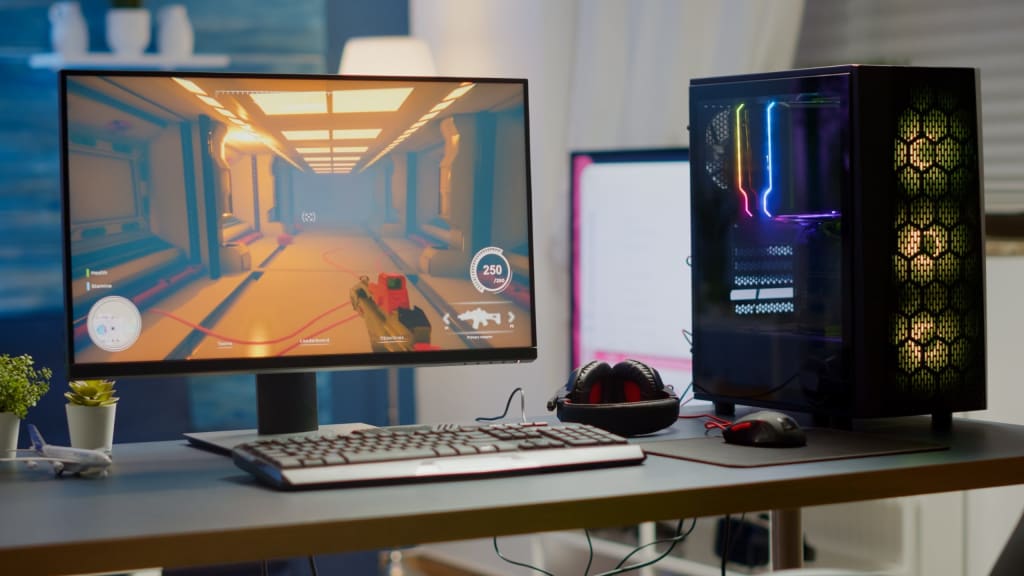
Your gaming monitor can show much clearer pictures than you see right now. Most players never unlock the full power of their screens. They miss tiny details that could help them win more games. Your enemies appear blurry when they should look sharp. Colors look dull. The good thing is that you can correct all these issues today. This does not require costly equipment or special tools.
These solutions will change the appearance of games on your monitor. Your gaming experience will improve right away. Better visual clarity means you spot enemies faster and react quicker.
Let's discover how to make every pixel count.
1. Improve Visuals With Quick Brightness Tweaks
Contrast and brightness adjust the display of dark and light areas on your screen. Most monitors come with factory settings that look too bright or too dim. However, the best PC monitors for gaming come with flexible controls that let you fine-tune the picture easily. Start by opening a dark game scene.
- Look at the shadows and black areas carefully.
- You should see details in the dark spots without straining your eyes.
- Turn down brightness if the blacks look gray.
- Increase it if you can't see anything in the shadows.
The Perfect Balance Point
Finding the sweet spot takes practice but pays off big time. Your room lighting affects how you should set these controls. Bright rooms need higher brightness levels. Dark rooms work better with lower settings.
Test your settings in different games. Racing games need different adjustments than horror games. Each genre shows colors and shadows in unique ways. Make small changes until everything looks natural and clear.
2. Refresh Rate Settings That Actually Matter
The refresh rate is a key specification that reveals how many times your screen gets refreshed in a second. If the value is high, the movement will be very smooth and the action scenes will be very sharp. A lot of gamers keep this setting at 60Hz even though their monitor can support much higher rates.
- Check your monitor specifications first.
- Find the maximum refresh rate it supports.
- Your computer must push enough frames to match these speeds.
Go into your display settings right now. Select the highest refresh rate available. Moving objects look sharper and easier to track. Your aim improves because targets don't blur as much.
Matching Frames to Refresh Rates
Your graphics card needs to keep up with your monitor. Enable VSync or use adaptive sync technology. These features prevent screen tearing and stuttering. Games feel more responsive when everything syncs up properly.
Monitor the frame rates in your games. Many titles show this information in the corner. Your goal is to match or exceed your refresh rate. Drop graphics settings if needed to maintain smooth performance.
You may not be aware, but the number of PC gamers all over the world has exceeded 1.86 billion, and the only thing they are asking for is better refresh rates in their monitors in order to enhance their gaming experience.
3. Color Calibration for Utmost Visual Clarity
Colors straight from the factory rarely look accurate. Oversaturated reds make blood effects distracting. Weak blues hide important sky details. Proper color calibration fixes these issues fast.
Most monitors include preset modes for different uses. Try the sRGB mode first for accurate colors. Game mode often boosts certain colors too much. Standard mode usually provides the best starting point.
- Fine-tune individual color channels next.
- Reduce red if warm tones overwhelm the screen.
- Add blue if cool tones look yellowish. Trust your eyes more than any guide.
- Each monitor behaves differently, even within the same model.
4. Sharpness Adjustments Without the Ugly Halos
Sharpness seems like it should always stay at maximum. This thinking actually ruins image quality. Too much sharpness creates white halos around objects. These halos make everything look fake and processed.
- Set sharpness between 50-70% on most monitors.
- This range enhances edges without overdoing the effect.
- Text becomes easier to read. Character models gain definition without looking cartoonish.
Test sharpness by looking at straight lines and text. Perfect sharpness shows crisp edges with no glowing borders. Back off the setting if you see any artificial enhancement. Natural clarity beats forced sharpness every time.
5. Response Time Optimization for Blur-Free Gaming
Response time determines how fast pixels change colors. Slow response creates motion blur and ghosting. A fast response keeps moving objects sharp and defined.
Enable overdrive or response time control in your monitor menu. Most gaming displays offer multiple overdrive levels. Start with the middle setting. Watch for inverse ghosting, which creates trailing shadows behind objects.
- Normal mode works for casual gaming.
- Fast mode suits competitive shooters.
- The fastest mode may introduce artifacts.
The right response time setting eliminates blur without side effects. Test in fast-paced games where motion matters most. Racing games and shooters reveal response time problems instantly.
6. Input Lag Reduction for Instant Feedback
Input lag contributes to the delay in communication between your actions and the screen. A higher input lag causes the games to be perceived as slow and dull. Hence, cutting down the delay amplifies your competitive edge considerably.
Enable game mode on your monitor immediately. This setting bypasses image processing that adds delay. Picture quality might decrease slightly, but responsiveness jumps up dramatically.
Turn off any extra features you don't need:
- Motion smoothing.
- Dynamic contrast.
- Noise reduction.
- Edge enhancement.
Conclusion: Level Up Your Visual Game Today
Clear visuals separate good players from great ones. The best PC monitors for gaming come with settings that make it easy to fine-tune each detail. Therefore, make some adjustments, even if it is about tiny details; every slight modification would ultimately bring you the necessary image and much more fun time to engage in the game.
Every detail matters in competitive gaming. The more responsive and sharp the display, the more you win. The final gaming environment is that which keeps up with you. Never forget to test and adjust the settings for the various games you are playing. Visual clarity will provide you with the necessary advantage to rule every game.
About the Creator
Olivia Barn
I’m Olivia Barn, a content writer specializing in tech, and news. I aim to break down complex topics, crafting them into clear, engaging, and SEO-optimized content.
Keep reading
More stories from Olivia Barn and writers in Gamers and other communities.
Code Violet Review: A Dino Crisis Dream or a Prehistoric Misfire?
Let’s get something straight right from the top—you’re not here for sugar-coating. Code Violet is not a good game. If you saw a few stylish (and sometimes not-so-tasteful) screenshots of its stunning brunette protagonist tangling with dinosaurs and thought, “Hmm, maybe I’ll pick this up just to admire the view,”—hey, no judgment… well, maybe a little.
By Info Post Gate7 days ago in Gamers
30k Tressure Hunt Forza Horizon 5
Forza Horizon 5 has become one of the most popular open-world racing games in the world, not only for its stunning visuals and realistic driving mechanics but also for its engaging side content, like Treasure Hunts. One of the most talked-about challenges in the game is the “30K Is The Game” Treasure Hunt, which rewards players with Forzathon Points and progression toward seasonal rewards.
By Games Mode Onabout 23 hours ago in Gamers
Ludacris and Nelly draw backlash over bookings at MAGA-coded music festival
Ludacris and Nelly headlining a mostly right-wing event is good for them. It’s also great for the genre of hip hop. The two rap veterans have showcased their talents on other stages. Why can’t they perform for mostly MAGA folks and grab that bag?
By Skyler Saunders4 days ago in Beat




Comments
There are no comments for this story
Be the first to respond and start the conversation.