
How to Automate Boring Tasks with Python
Simple Scripts That Actually Save You Time

Look, I’m going to be honest with you. I used to spend entire afternoons renaming files. Hundreds of them. One by one. Click, type, enter. Click, type, enter. My back hurt, my eyes were tired, and I felt like I was slowly losing my mind.
Then someone showed me Python, and everything changed.
I know what you’re thinking — “I’m not a programmer” or “coding sounds complicated.” I thought the same thing. But here’s the truth: you don’t need to become a software engineer to make your computer do the boring stuff for you. You just need to learn a few simple tricks.
Why This Actually Matters
We all have those tasks. You know the ones — the mind-numbing, repetitive stuff that makes you question your life choices. Maybe it’s organizing your download folder that’s become a digital junkyard. Or sending the same email to different people every week. Or trying to extract text from a bunch of PDFs because copy-paste decided to have a breakdown.
Python can handle all of this. And I’m not talking about some magical, complicated setup. I’m talking about simple scripts that you can write in 10 minutes and use forever.
Getting Your Computer Ready
Alright, let’s get Python running on your machine. Don’t worry — this is the hardest part, and it’s still pretty easy.
First, go to python.org and download Python. When you install it on Windows, there’s a little checkbox that says “Add Python to PATH” — check that box. Trust me on this one.
Next, you’ll want a place to write code. You can use whatever comes with Python, but I’d recommend downloading VS Code. It’s free, it’s friendly, and it won’t make you feel like you’re defusing a bomb every time you write a line of code.
That’s it. Seriously. You’re ready to start automating your life.
The Scripts That Changed My Life
Making File Names Actually Make Sense
Remember those hundreds of files I mentioned? Here’s how I fixed that nightmare:
import os
folder = "C:/Users/YourName/Desktop/photos"
for count, filename in enumerate(os.listdir(folder)):
new_name = f"photo_{count+1}.jpg"
src = os.path.join(folder, filename)
dst = os.path.join(folder, new_name)
os.rename(src, dst)
print("All files renamed successfully!")
This little script goes through every file in a folder and gives them sensible names like photo_1, photo_2, photo_3. No more IMG_20231015_094832_HDR nonsense.
I ran this on a folder with 300 vacation photos. It took about 2 seconds. I nearly cried with relief.
Your Downloads Folder Doesn’t Have to Be Chaos
My Downloads folder used to look like a tornado hit a file cabinet. Now Python keeps it organized automatically:
import os
import shutil
folder = "C:/Users/YourName/Downloads"
for file in os.listdir(folder):
if file.endswith(".pdf"):
shutil.move(os.path.join(folder, file), os.path.join(folder, "PDFs"))
elif file.endswith(".jpg") or file.endswith(".png"):
shutil.move(os.path.join(folder, file), os.path.join(folder, "Images"))
elif file.endswith(".docx"):
shutil.move(os.path.join(folder, file), os.path.join(folder, "Documents"))
Every PDF goes to a PDFs folder, every image goes to Images, documents go to Documents. It’s like having a really efficient assistant who never gets tired or asks for a raise.
Stop Writing the Same Email Over and Over
I used to send weekly status updates to my team. Same format, different data, every single week. Now Python does it:
import smtplib
from email.mime.text import MIMEText
sender = "[email protected]"
receiver = "[email protected]"
password = "yourpassword"
message = MIMEText("Hey team, here's this week's automated update!")
message["Subject"] = "Weekly Update - Sent by Robot Me"
message["From"] = sender
message["To"] = receiver
server = smtplib.SMTP("smtp.gmail.com", 587)
server.starttls()
server.login(sender, password)
server.sendmail(sender, receiver, message.as_string())
server.quit()
print("Email sent successfully!")
Pro tip: If you use Gmail, you’ll need an “app password” instead of your regular password. Google will walk you through it.
Getting Text Out of PDFs Without Wanting to Scream
PDFs are the worst when you need to copy text out of them. Formatting goes crazy, line breaks appear randomly, and you end up with a mess. Python handles this gracefully:
import PyPDF2
with open("document.pdf", "rb") as file:
reader = PyPDF2.PdfReader(file)
for page in reader.pages:
print(page.extract_text())
I used this to extract information from dozens of invoices. What would have taken hours of copy-pasting took about 30 seconds.
Grabbing Information from Websites
Sometimes you need to check the same website regularly for updates. Maybe it’s news headlines, maybe it’s checking if something’s back in stock. Python can do the checking for you:
import requests
from bs4 import BeautifulSoup
url = "https://news.ycombinator.com/"
response = requests.get(url)
soup = BeautifulSoup(response.text, "html.parser")
for title in soup.find_all("a", class_="storylink"):
print(title.text)
This grabs all the headlines from Hacker News. You could modify it to check any website and alert you when something changes.
The Real Impact
Here’s what happened after I started automating these tasks: I got my evenings back. I stopped dreading certain parts of my job. I felt like I was finally using technology instead of being used by it.
The time savings add up fast. That file renaming script saves me about an hour every month. The email automation saves me 20 minutes a week. Over a year, that’s days of my life back.
But the real benefit isn’t just time — it’s mental energy. When you know you don’t have to do the boring stuff manually, you can focus on the work that actually matters. The creative stuff. The problem-solving stuff. The human stuff.
What’s Next?
Once you get comfortable with these basics, there’s so much more you can do. You can automate web browsing with Selenium — imagine logging into websites, filling out forms, downloading files, all while you’re asleep. You can analyze spreadsheets with Pandas — cleaning up messy data in seconds instead of hours.
You can even schedule your scripts to run automatically. Set them up once, and they’ll work for you every day at 2 AM while you’re dreaming about not having to do boring tasks.
Just Start Somewhere
Look, I’m not saying you need to automate everything tomorrow. Start small. Pick one annoying task you do regularly and see if Python can handle it. Even if it only saves you 10 minutes a week, that’s 8 hours a year. That’s a full workday you get back.
The beautiful thing about automation is that once you set it up, it works forever. That script I wrote two years ago to organize my downloads? Still running. Still saving me time every single day.
So next time you find yourself doing something repetitive and mind-numbing, stop for a second and ask: “Could I teach my computer to do this instead?”
Most of the time, the answer is yes. And your future self will thank you for it.
Ready to reclaim your time? Start with one small script and watch how quickly it becomes indispensable. Your computer is just sitting there anyway — might as well put it to work.
About the Creator
Keep reading
More stories from noor ul amin and writers in Futurism and other communities.
Why Python Is the Friendliest Language for New Programmers
I remember when I first decided to learn programming. The sheer number of languages out there was overwhelming — C++, Java, JavaScript, Ruby, Go — where do you even start? After talking to a few developer friends and doing some research, I kept hearing the same advice: “Start with Python.”
By noor ul amin6 months ago in Futurism
Polybutadiene Rubber Market Trends: Green Tires, Low Rolling Resistance & Industry Outlook to 2034
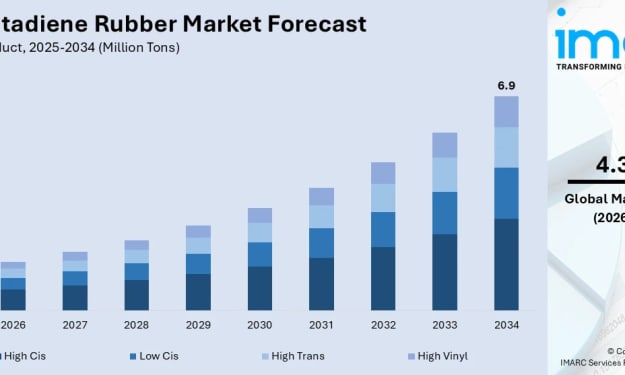
Rising demand from the automotive sector, particularly for high-performance tires, and the increasing use of synthetic rubber in industrial goods are propelling the polybutadiene rubber market. Supported by advancements in polymerization technology and a shift toward sustainable, low-rolling-resistance materials, the industry continues to expand across key manufacturing hubs. According to IMARC Group’s latest data, the global polybutadiene rubber market size reached 4.7 Million Tons in 2025. Looking forward, IMARC Group estimates the market to reach 6.9 Million Tons by 2034, exhibiting a CAGR of 4.31% during 2026-2034.
By Andrew Sullivan4 days ago in Futurism
Australia Energy Storage Market: Renewable Integration, Grid Resilience & Technology Advancements
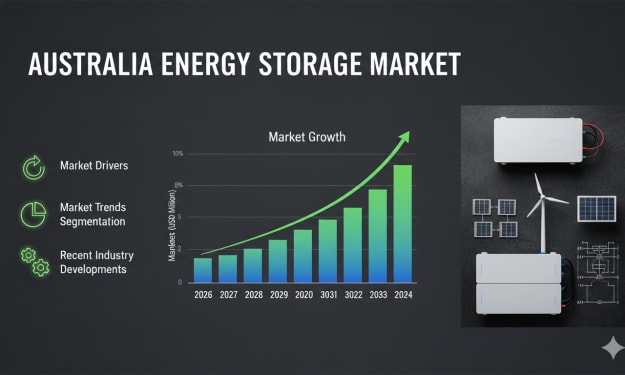
According to IMARC Group, the Australia energy storage market reached 4.72 GW in 2025 and is projected to expand significantly to 19.81 GW by 2034, exhibiting a robust compound annual growth rate (CAGR) of 17.28% during 2026–2034. This rapid expansion highlights the critical role energy storage plays in transforming the electricity ecosystem across Australia. As renewable energy capacity accelerates and coal-fired plants retire, storage systems are becoming essential for maintaining grid stability, ensuring reliability and supporting long-term decarbonization goals. From large-scale battery installations to residential storage units, energy storage is emerging as a cornerstone of Australia’s clean energy transition.
By Shrestha Roy5 days ago in Futurism
Review of 'Man on the Run'
My wife and I saw Man on the Run, a nearly 2-hour documentary on Amazon Prime, about Wings, Paul McCartney's group that flew around the world from shortly after The Beatles broke up in early 1970 to shortly after John Lennon was murdered at the end of 1980, making a Beatles reunion forever impossible.
By Paul Levinsonabout 24 hours ago in Beat


Comments
There are no comments for this story
Be the first to respond and start the conversation.