
Avoid Data Loss: How to Ensure Your Microsoft 365 Backup is Reliable
Ensure data safety with a reliable Microsoft 365 backup. Prevent loss with ease.

Losing significant Microsoft 365 emails, documents, or contacts can be challenging. Recovering deleted data might prove difficult without a suitable backup. Many believe Microsoft backs everything automatically. The built-in tools might not be sufficient, nevertheless, for total protection.
A consistent backup guarantees you never lose access to vital information. Strong backup plans protect your data whether it's unintentional deletion, hacks, or software problems. This post will teach you a simple manual approach as well as another tool to backup Microsoft 365 data.
Why You Should Backup Microsoft 365
Though Microsoft 365 keeps data in the cloud, this does not guarantee it is impervious to loss. You require a backup for the following reasons:
Accidental Deletion: You or a teammate could unintentionally erase emails or files. You might only find it once the default retention time is out.
Cyber threats: Ransomware and hacking attempts can either corrupt or wipe data. Recovering without a backup is challenging.
Software problems: Syncing or updating mistakes could cause data loss. A backup lets the impacted files come back.
Retention Policies: Microsoft sets rather low data retention times. Should a file be removed and surpass this period, it could be lost permanently.
Regulatory Compliance: Certain businesses need long-term data storage for legal or audit purposes.
Manual Approach for Microsoft 365 Backup
Manually store your Microsoft 365 emails, contacts, and calendar data if you want to use outside solutions. Use these procedures:
Step 01: Export emails with Outlook.
Open Outlook on your computer.
Click File > Open & Export > Import or Export.
Click Next once Export to a file has been selected.
Click Next then select Outlook Data File (.pst).
Choose the folder or email address you wish to backup.
Click Browse to choose a file place to save.
Click Finish; set a password if necessary.
Your emails are stored in a.pst file by this approach, which you can recover subsequently as needed.
Step 02: Save OneDrive Documents
View OneDrive online with a web browser.
Choose the folders or files you wish to backup.
Click Download to save these to an external device or your computer.
Continually follow this procedure to maintain a current backup.
Step 03: Export Calendar and Contacts.
Open Outlook, then click File > Open & Export > Import/Export.
Export to a file, then pick Comma Separated Values (.csv).
Choose contacts or calendar, then click Next.
Click Finish then decide where to save the file.
Though it takes time and effort, the hand approach proves successful. You have to keep in mind consistent data backing-up. Use a professional tool to help you streamline the procedure.
A Smarter Alternative to Microsoft 365 Backup
The GainTools Office 365 Backup Tool automates the process, making it easier and more reliable. A simple and quick email, contact, calendar, and attachment security is offered by the Office 365 Backup Tool.
Multiple formats, including PST, EML, MBOX, and MSG. This application guarantees versatility in data storage. Users can choose selected backup choices to store just the necessary data or set automatic backups. It also provides safe encryption meant to guard private data from illegal access.
The program's simple interface lets one quickly backup and easily restore as needed. A must-have for Microsoft 365 users, the Office 365 Backup Tool guarantees total data safety, whether for individuals or companies. It gives 24*7 technical assistance. It provides a free demo version.
Key Characteristics
- Download emails from Gmail onto a local machine and related files.
- Simple PST, MSG, MBOX, EML, EMLX, HTML, etc., file saving for Gmail.
- Save Gmail backup files where specified by the user.
- Get the emails you need fast.
- One does not need MS Outlook to backup Gmail to PST.
- Maintaining the PST file hierarchy following the download will help.
- Emails backup from individual Gmail accounts.
- Its user-friendly UI to produce a basic Gmail backup
- Support any variant of Windows OS.
- 24/7 tech support.
- A free trial version.
Procedure to Follow
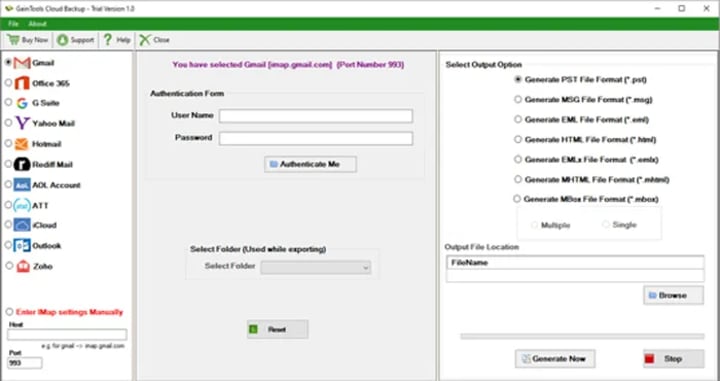
- Download the GainTools Office 365 Backup Tool.
- Enter the Login details.
- Select the file or folder you wish to backup.
- Choose the output type, like PST, EML, MSG ,MBOX, etc.
- Decide the desired location where you will save it.
- Press the Generate Now tab.
Last Words
Preventing data loss calls for backing up Microsoft 365 data. Though it takes time and effort, the hand approach works. Faster and more dependable options abound with the GainTool Office 365 Backup Tool. Creating a backup today will help you guard your files, contacts, and emails from unplanned loss.
Verify that your personal or company data stays safe. Select a backup strategy suitable for your requirements to protect your valuable data.
Knowing now why a backup is required, let's look at how to make one.
About the Creator
Alexis Matthew
Hi am content writer
Keep reading
More stories from Alexis Matthew and writers in Futurism and other communities.
Recover PST Password: Unlock & Remove Outlook File Access
In the event that you are unable to access your calendars, contacts, or emails, you require a speedy method to regain access. It is a relief to know that the password can be recovered or removed by employing either manual procedures or a professional tool. This guide will walk you through both strategies in a straightforward manner. It is an unpleasant experience to be unable to access an Outlook PST file because you have forgotten the password.
By Alexis Matthew11 months ago in Futurism
About Binding Prometheus
I want to start actively advocating on behalf of my own work, and the most valuable part of my canon is, without a doubt, Binding Prometheus, the play I have been working on since 2019 and only finished in 2023 as part of my MA. The play itself is an amalgamation of a million different inspirations. On one end, it evokes the Ancient Greek myth-play, deriving its own title from the earliest extant work of Western drama we have, Aeschylus’s Prometheus Bound. On the other end, it borrows significantly from the sci-fi bulwarks from over the years, namely Mary Shelley’s Frankenstein and Karel Capek’s Rossum’s Universal Robots. The play could be an episode of Black Mirror, I fear. I don’t know. I’ve only ever seen one episode of Black Mirror.
By Steven Christopher McKnight19 days ago in Futurism
Top 10 Fintech Software Development Companies in USA 2026
In today’s rapidly evolving digital finance landscape, fintech companies and traditional financial institutions alike are investing heavily in advanced software solutions that enable secure transactions, seamless customer experiences, and robust compliance with regulatory standards. As we enter 2026, the demand for specialized fintech software development services continues to grow, driven by technologies such as blockchain, artificial intelligence (AI), machine learning (ML), and cloud-native architectures. Choosing the right development partner can make or break a fintech project, whether it’s launching a next-generation digital wallet, a mobile banking platform, a payment processing system, or a comprehensive financial analytics suite. This article profiles the top 10 fintech software development companies that stand out in the United States market for their innovation, technical expertise, industry experience, and ability to deliver scalable, secure solutions that meet the unique needs of finance organizations.
By Steve Waugh5 days ago in Futurism
Wild Card Weekend Recap: What Happens Now?
I think I figured out why I love Wild Card Weekend so much. It's because it's the first playoff anything of the calendar year. The NFL season starts in the fall, and once upon a time, the champion was crowned either on or slightly before New Year's. The evolution of the NFL schedule has resulted in the playoffs starting just into the New Year, and currently, the final week of the season falls on the first weekend of the New Year, with Wild Card Weekend coming a week after that. So yes, chronologically, the NFL's Wild Card Weekend serves as the first playoff anything of the calendar year.
By Clyde E. Dawkins7 days ago in Unbalanced



Comments
There are no comments for this story
Be the first to respond and start the conversation.