
How to Increase Dedicated Video RAM (VRAM) in Windows 10 and 11
Increasing Dedicated Video RAM (VRAM) in Windows 10 and 11: A Step-by-Step Guide
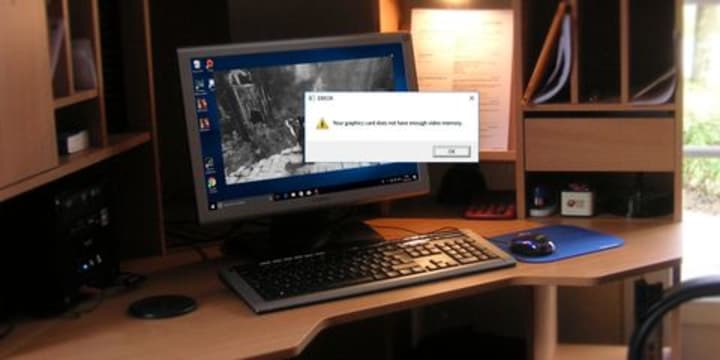
What is dedicated video RAM? How much VRAM do you have? How do you increase VRAM? Here's everything you need to know. errors related to dedicated video RAM on your Windows PC? Struggling to run graphic-intensive programs like video editors and new video games? You may need more video RAM (VRAM).
But what even is this, and how can you increase VRAM? Read on for everything you need to know about video RAM in Windows 10 and 11.
What Is Dedicated Video RAM (VRAM)?
Video RAM (or VRAM, pronounced "VEE-ram") is a special type of RAM that works with your computer's graphics processing unit, or GPU.
The GPU is a chip on your computer's graphics card (also called the video card) that's responsible for displaying images on your screen. Though technically incorrect, the terms GPU and graphics card are often used interchangeably.
Your video RAM holds information that the GPU needs, including game textures and lighting effects. This allows the GPU to quickly access the info and output video to your monitor.
Using video RAM for this task is much faster than using your system RAM because video RAM is right next to the GPU in the graphics card. VRAM is built for this high-intensity purpose and it's thus "dedicated."
How to Check Your VRAM in Windows 10 and Windows 11
You can easily view the amount of video RAM you have in Windows 10 by following these steps:
Open the Settings menu by pressing Win + I.
Select the System entry, then click Display on the left sidebar.
Scroll down and click the Advanced display settings text at the bottom.
On the resulting menu, select the monitor you'd like to view settings for (if necessary). Then click the Display adapter properties text at the bottom.
In a new window, you'll see your current video RAM listed next to Dedicated Video Memory.
To reach this menu on Windows 11, go to Settings > System > Display > Advanced display. Then choose a display and click Display adapter properties.
Under Adapter Type, you'll see the name of your Nvidia or AMD graphics card, depending on what device you have. If you see AMD Accelerated Processing Unit or Intel HD Graphics (more likely), you're using integrated graphics. We cover more on this below.
How to Increase VRAM in Windows
The best way to increase your video RAM is to purchase a new or better graphics card. If you're using integrated graphics and suffer from poor performance, upgrading to a dedicated card (even one of the best budget graphics cards) will do wonders for your video output.
However, if this isn't an option for you (like on laptops), you may be able to increase your dedicated VRAM in two ways.
How to Increase VRAM in the BIOS
The first method is adjusting the VRAM allocation in your computer's UEFI or BIOS. Enter your BIOS and look for an option in the menu named Advanced Features, Advanced Chipset Features, or similar. Inside that, look for a secondary category called something like Graphics Settings, Video Settings, or VGA Share Memory Size.
These should contain an option to adjust how much memory you allocate to the GPU. The default is usually 128MB; try upping this to 256MB or 512MB if you have enough to spare.
Not every CPU or BIOS has this option, though. If you can't change it, there's a workaround that might help you.
Faking a VRAM Increase in Windows
Because most integrated graphics solutions automatically adjust to use the amount of system RAM they need, the details reported in the Adapter Properties window don't really matter. In fact, for integrated graphics, the Dedicated Video Memory value is completely fictitious. The system reports that dummy value simply so games see something when they check how much VRAM you have.
Thus, you can modify a Registry value to change the amount VRAM your system reports to games. This doesn't actually increase your VRAM; it just modifies that dummy value. If a game refuses to start because you "don't have enough VRAM," upping this value might fix that.
Open a Registry Editor window by typing regedit into the Start Menu. Remember that you can mess up your system if you modify the wrong values, so take care while editing the registry.
Head to the following location:
HKEY_LOCAL_MACHINE\Software\Intel
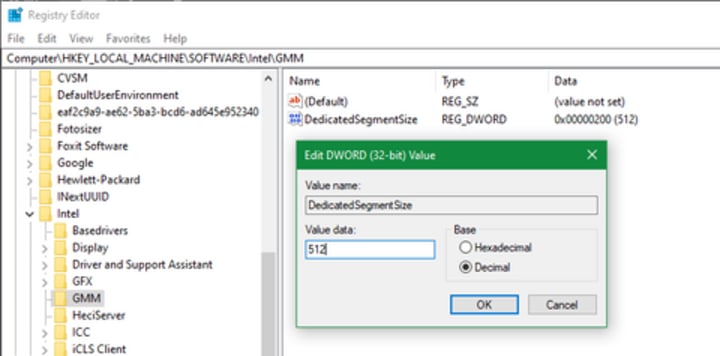
Right-click the Intel folder in the left panel and choose New > Key. Name this key GMM. Once you've made it, select the new GMM folder on the left and right-click inside the right side.
Select New > DWORD (32-bit) Value. Name this DedicatedSegmentSize and give it a value, making sure to select the Decimal option. In megabytes, the minimum value is 0 (disabling the entry) and the maximum is 512. Set this value, restart your computer, and see if it helps a game run better. If not, try a higher value and repeat.
Like with most hardware tasks, upgrading your RAM or video card is often difficult on a laptop but simple to do on a desktop.
What Kinds of Tasks Need Video RAM?
Before we talk about specific values for video memory, we should mention what aspects of games and other graphics-intensive apps use the most VRAM.
A big factor in VRAM consumption is your monitor's resolution (more specifically, the resolution you're running a game at). Video RAM stores the frame buffer, which holds an image before and during the time that your GPU displays it on the screen. Higher-quality displays (such as a 4K HDR monitor) use more VRAM because higher-resolution images take more pixels to display.
Aside from your monitor's display, textures in a game can drastically affect how much VRAM you need. Most modern PC games let you fine-tune graphical settings for performance or visual quality.
You may be able to play a game from several years ago at Low or Medium settings with a cheaper card (or even integrated graphics). But High or Ultra quality, or custom mods that make in-game textures look even better than they normally do, will need lots of video RAM.
Beautification features like anti-aliasing (the smoothing of jagged edges) also use more VRAM due to the extra pixels required. If you play on two monitors at once, that's even more intensive.
Specific games can also require different amounts of VRAM depending on their graphical fidelity. An older cartoony game like Team Fortress 2 isn't too graphically demanding, but a title with lots of advanced lighting effects and detailed textures, like Cyberpunk 2077, needs more resources.
Conversely, a cheap card with just 2GB of VRAM (or even integrated graphics with 8GB+ of system RAM) is sufficient for playing PC titles from 20-plus years ago. Games back then had nowhere near modern amounts of RAM at their disposal.
Even if you're not interested in gaming, some popular software requires a fair amount of VRAM too. 3D design software like AutoCAD, particularly intense edits in Photoshop, and editing high-quality video will all suffer if you don't have enough video RAM.
How Much VRAM Do I Need?
It's clear that there's no perfect amount of VRAM for everyone. However, we can provide some basic guidelines about how much VRAM you should aim for in a graphics card.1-2GB of VRAM: These cards are usually under $100. They offer better performance than integrated graphics, but can't handle most modern games at above-average settings. Only purchase a card with this amount of VRAM if you want to play older games that won't work with integrated graphics. Not recommended for video editing or 3D work.
3-6GB of VRAM: These mid-range cards are good for moderate gaming or somewhat intensive video editing. You won't be able to use ultra-insane texture packs, but you can expect to play modern games at 1080p with few issues. 6GB is a more future-proof option than something like 4GB.
8GB-12GB of VRAM and above: High-end video cards with this much RAM are for serious gamers. If you want to play the latest games at 4K resolution, you need a card with plenty of VRAM.However, you should take the above generalizations with a grain of salt. Graphics card manufacturers add the appropriate amount of VRAM to a card depending on how powerful the GPU is.Thus, a cheap $75 graphics card will have a small amount of VRAM, while a $500 graphics card will pack a lot more. If a weak GPU isn't powerful enough to render video that takes 8GB of VRAM to store, it's a waste to have that much VRAM in the card.
Extremes aren't the concern with VRAM. You don't need an $800, top-of-the-line card with 12GB of VRAM to play 2D indie platformers. Really, you only need to worry about how much VRAM to get when a card you want to buy is available in multiple VRAM configurations. VRAM isn't the only factor that should go into your GPU decision.Common Video RAM Concerns
Remember that just like normal RAM, more VRAM doesn't always mean better performance. If your card has 4GB of VRAM and you're playing a game that only uses 2GB, upgrading to an 8GB card isn't going to do anything noticeable.
Conversely, not having enough VRAM is a huge problem. If VRAM fills up, the system has to rely on standard RAM and performance will take a huge hit. You'll suffer from a lower frame rate, texture pop-ins, and other adverse effects. In extreme cases, the game could slow to a crawl and become unplayable (anything under 30FPS).Now You Understand Video RAM
Now you know what video RAM is, how much you need, and how to increase it. In the end, though, remember that video RAM is a small aspect of your computer's overall performance. A weak GPU wouldn't perform well even with a lot of VRAM.
So if you're looking to increase gaming and graphical performance, you'll likely need to upgrade your graphics card, processor, and/or RAM first—the VRAM should sort itself out when you do all this.
About the Creator
Keep reading
More stories from Dilip kumar padi and writers in Fiction and other communities.
About time
I'm going to explain a comedy, drama and fantasy falca lled About Time. Spoilers Ahead. Watch out and take care. The Lake family resides in harmony at their house by the sea. There's the ever busy mother Mary, the always active father James, the charming yet absentminded Uncle Desmond, the awkward son Tim, and the free spirited daughter Catherine or Kit Kat. Every year, they host a New Year's Eve party with family and friends. At this year's party, Tim navigates through the crowd, feeling awkward and dragged around by his friend Jay. During the countdown to the new Year, a girl he's been dancing with, Polly leans for a kiss, but he shakes her hand instead, leaving her disappointed. The following day, Tim wakes up overwhelmed with embarrassment and a terrible hangover. He's called into his father's study, James, His father. Then tells Tim that he's about to share with him a secret that he's never told anyone before. According to James, the men born into their family, including Tim, and travel back in time, but it's limited to their own lifetime. They cannot go to a past they didn't experience or a place they've never been to. To do this, they must go to a dark place like a large cupboard and think of the place and time where they want to be, and they'll find themselves there. Unsurprisingly, Tim thinks this is a joke. He shakes his head at his father, thinking that he's pulling his leg. To prove that it isn't true, Tim goes inside the closet and thinks of the New Year's Eve party last night. After a few seconds, he comes out of the closet and is surprised to see himself dressed in his clothes from yesterday, music and conversations that go from downstairs. He heads down and is immediately pulled by Jay, evading a table that he previously knocked over. At the countdown, he kisses Polly, who reacts giddily. Afterward, Tim goes back into the closet and travels to the present, realizing that the time travel is real. He listens to his father's experience about the ability, discovering that it's how James seemingly had a lot of time for them. James advises Tim not to use the ability for money or power, so Tim decides that he'll use it to find love. That summer, Kit Kat invites her boyfriend's cousin Charlotte to stay at the beach house for two months. As the family sunbathes with their guest one afternoon, Tim hopes to get on Charlotte's good side. Seeing an opportunity, Tim agrees to put sunscreen on Charlotte's back, but ends up spilling the bottle on her. Feeling humiliated, he travels back in time and acts more casually and carefully about it throughout the summer. Tim attempts to impress Charlotte, but fails each time until it is too late, and then finally it's Charlotte's last day in the house. On the evening before she leaves, Tim hopes to confess his feelings for her, but is instantly shot down before he could, Discovering that Kit Kat already warned Charlotte that he might do this, Charlotte wonders if things would have turned out differently if he talked to her before her last night at their home. The thought gives him an idea. Tim travels back in time to confess to Charlotte in the middle of summer, but this time Charlotte tells him to ask her again on her last night at their home. This confirms that he never had a chance with Charlotte no matter what. Tim finally gives up on pursuing her. The day after Charlotte left, Tim leaves their home and moves to London where he stays with James friend Harry. Tim is excited for the new chapter of his life ahead, but is disappointed to learn that Harry is a short fused playwright. In the first six months, Tim hasn't had any luck in romance, finding that his career as a lawyer acquaints him mostly with other men. His luck turns when one night Jay takes him to Don's Lenoir, the restaurant where the guests dine in total darkness. Here they are, seated next to a woman named Mary and her friend Joanna. In the darkness, Tim and Mary get to know each other and have a great time. After dinner, Tim and Jay finally meet the girls face to face. Tim is stunned upon seeing Mary. And it's pretty evident that sparks have flown. As the couple lay eyes on each other. She gives him her phone number before parting ways. Tim walks back home with a skip in his step, only to be welcomed by Harry's angered growl. The opening of his play was ruined by the lead actor for getting his lines. Wanting to make things better, Tim goes back in time and joins Harry in the theater. Just before opening night, he approaches the lead actor, Tom, and convinces him to practice his lines. This works, but then another actor forgets his lines instead. Tim goes back in time again and helps him out. The play turns out to be a success, however, when Tim checks his phone, he realizes that Mary's number is no longer there. His travels in time had erased his lovely evening with Mary. Feeling distraught, Tim joins an ecstatic Harry for breakfast. The next day, Harry shares the newspaper where Tim finds an ad for a Kate Moss exhibition in the city. Remembering that Mary is a fan of Kate Moss, he spends the week at the exhibit hoping to run into her. After a whole week, Mary finally walks in and Tim nervously approaches her. However, their interaction doesn't go smoothly and he learns that Mary now has a boyfriend named Rupert. Tim learns that Mary met Rupert at Joanna's party. He learns the details of the party and goes back in time to stop it from happening. Tim arrives at Joanna's apartment and convinces Mary to leave the party with him before Rupert arrives. Mary is a little hesitant, but she feels a magnetic force pulling her towards him as they leave. They brush past Rupert, who unknowingly walked past his supposed future girlfriend. Meanwhile, the two have a lovely dinner where they get to know each other even more. Tim ends up walking Mary home, and she invites him up to her apartment. The atmosphere turns hot and they take the date to the bedroom. But after awkwardly tripping over Mary's shoes and having difficulty on clipping her bra, Tim experiences an awkward first sexual encounter with Mary. He decides to go back in time, and this time? He skips over Mary's shoes and quickly undresses her. This time everything goes well, but Tim knows he can do better. After Tim's multiple attempts, the couple spends the perfect first night of passion. Over the following months, their relationship continues to bloom and the couple eventually moves in together. While at the theater with a coworker named Rory, Tim encounters Charlotte, but the conversation quickly turns awkward. He tries a second time, but it doesn't go well again for the third attempt. He decides not to approach her, and instead Charlotte spots him and initiates the conversation. Charlotte invites him to dinner, where she mentions her regrets about turning him down in the past. Charlotte asks him to walk her to her apartment and tempts him to go inside with her, but Tim refuses. Being able to turn down his first love helps Tim realize how deeply he loved Mary. He runs back home and wakes her up to propose to her. It ends up not as romantic as he expected, so he does it again. The second time, she says yes. That summer, Tim takes Mary home to meet his parents. Mary and her mother get along, and Tim spends quality time with his father. To his surprise, Kit Kat is also home after having a horrible time in London. The Lake family bursts in joy upon the announcement.
By Dilip kumar padi3 years ago in Fiction



Comments
There are no comments for this story
Be the first to respond and start the conversation.