
How to Secure Your Wi-Fi Network after Installation
Practical Security Tips for a Safer, Faster, and Private Connection

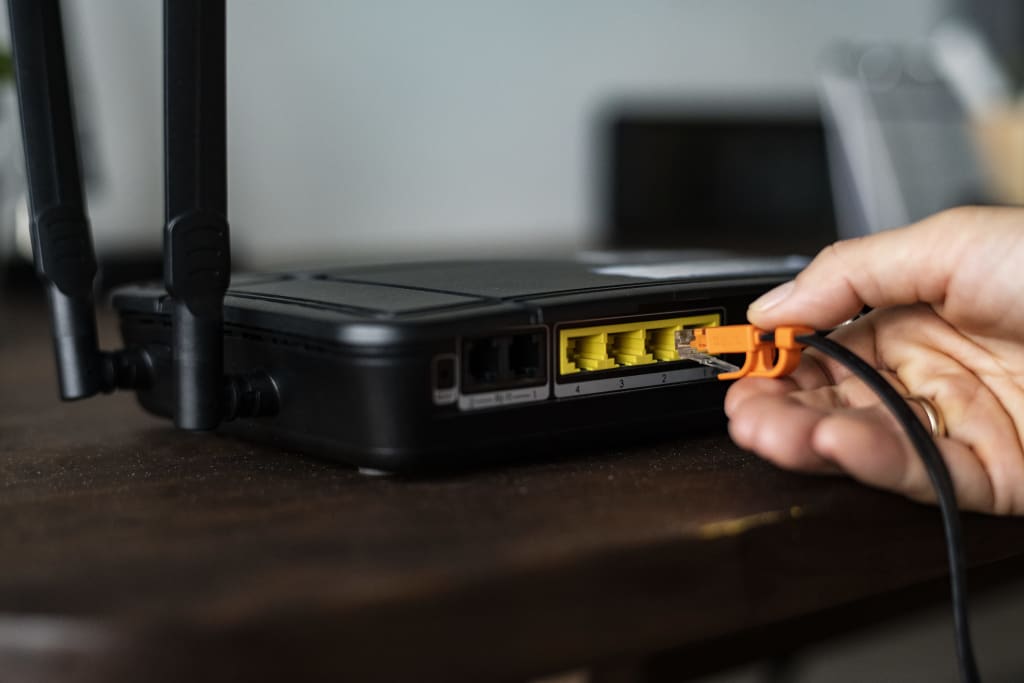
In today’s digital age, a reliable Wi-Fi connection has become essential for work, learning, and entertainment. But performance is only half the story, security is just as critical. After a Wi-Fi installation, especially in connected cities like Dubai, leaving your network unsecured can expose sensitive information, allow unauthorized users to connect, and even slow down performance.
That’s why working with Sefa, a trusted Wi-Fi installation company in Dubai is important. Their approach emphasizes not just proper setup but also long-term protection for your network. Below are nine practical steps you can take right now to safeguard your Wi-Fi.
1. Set a Strong Password and Secure Router Access
Your Wi-Fi password and router login credentials are the keys to your entire network. Unfortunately, many users stick with weak defaults, which makes hacking as easy as guessing “admin123.” To prevent unauthorized access, you need to start with strong, unique credentials.
• Create a strong Wi-Fi password: Use 12–15 characters with a mix of letters, numbers, and symbols.
• Change default router credentials: Replace “admin/admin” with a unique username and password.
• Rename your Wi-Fi (SSID): Choose something unrelated to your router brand.
Why it matters: Strong credentials block hackers from hijacking your network.
2. Use the Strongest Encryption
Even with a strong password, data traveling across your Wi-Fi can still be intercepted without proper encryption. Encryption scrambles your information so outsiders can’t read it, ensuring privacy for everything from streaming to online banking.
• Choose WPA3 (preferred) or WPA2 if WPA3 isn’t available.
• Avoid outdated WEP encryption.
• Confirm or update settings in your router’s “Wireless Security” menu.
Why it matters: Strong encryption keeps your traffic private and secure.
3. Disable Risky Features
Modern routers often come with convenience features like WPS and Remote Management. While handy, they create unnecessary vulnerabilities that hackers frequently exploit. It’s best to disable them unless absolutely necessary.
• Turn off WPS (PIN-based access is easily hacked).
• Disable Remote Management unless you need it.
• Double-check your settings to confirm they’re off.
Why it matters: Closing these backdoors strengthens your first line of defense.
4. Hide Your Network
By default, your Wi-Fi broadcasts its name (SSID) to anyone nearby. While this makes connecting easier, it also attracts freeloaders and potential attackers. Hiding your network makes it invisible to casual users.
• Disable SSID broadcasting in your router’s settings.
• Manually add the SSID and password on trusted devices.
• Test to ensure your network doesn’t appear in others’ Wi-Fi lists.
Why it matters: A hidden network reduces the chances of unwanted attention.
5. Create a Guest Network
Letting visitors use your main Wi-Fi can be risky because their devices may carry malware. A guest network provides separate access for them without compromising your primary devices.
• Enable a guest network in router settings.
• Set a unique, strong password for guests.
• Restrict access to your devices and consider limiting bandwidth.
Why it matters: Guests stay connected while your private devices remain protected.
6. Keep Your Router and Devices Updated
Hackers often exploit old firmware and outdated smart devices. Manufacturers release updates to fix these vulnerabilities, but many people ignore them. Keeping everything updated is like regularly changing the locks on your doors.
• Enable automatic router updates if available.
• Manually check firmware versions if needed.
• Update smart devices and replace default passwords.
• Use the guest network for IoT devices when possible.
Why it matters: Updates patch weaknesses before attackers can exploit them.
7. Enable Your Router’s Firewall
A firewall monitors incoming and outgoing traffic, blocking anything suspicious. Many routers have this feature built-in, but it may not be turned on by default.
• Enable the firewall in router settings.
• Check the “Connected Devices” list regularly.
• Block or remove unfamiliar devices immediately.
Why it matters: A firewall filters threats before they reach your devices.
8. Use MAC Address Filtering
Every device has a unique identifier called a MAC address. By enabling MAC filtering, you create a whitelist of approved devices, adding an extra layer of security.
• Enable MAC filtering in your router’s “Access Control” settings.
• Add only your trusted devices to the list.
• Update the list as you add or remove devices.
Why it matters: It restricts access to only devices you approve.
9. Position Your Router Strategically
Where you place your router affects both coverage and exposure. A router near windows may send strong signals outside, giving strangers the chance to connect. Strategic placement improves performance indoors while reducing outside risks.
• Place the router centrally in your home.
• Avoid placing it near windows or external doors.
• Keep it elevated and secure.
Why it matters: Better coverage inside, weaker signals outside, and improved security overall.
Conclusion
In 2025, Wi-Fi security is no longer optional — it’s essential. From strong passwords to firewalls, these nine steps take less than an hour but protect your digital life for years.
If you’re setting up a smart home or running a business in Dubai, partnering with Sefa’s professional Wi-Fi setup and security services ensures not only proper installation but also robust protection from the very beginning. Don’t wait until a hacker takes advantage — secure your network today.
About the Creator
Silvia James
Silvia James was born in Denver, Colorado, and works as a contract author. She graduated from the College of Colorado, Denver with a bachelor's degree in English. Writing is her best form of networking and expressing herself.
Keep reading
More stories from Silvia James and writers in Families and other communities.
Printer Rental vs. Purchase: A Guide for Businesses in Dubai
Thinking about getting a new printer for your business in Dubai? It’s a big decision. You have two main choices: you can either buy it outright, or you can rent it. Both options have good points and not-so-good points, and the right choice for you really depends on what your company needs. This guide is here to help you figure it all out. We'll look at the costs, the benefits, and the things you need to think about to make the best choice for your business's future.
By Silvia James4 months ago in Journal
Wise~Guys
— Look Behind what's in Front of You ~ Make Good Choices — Hey, So how you Doin'..! Made~Men — Mobster Movies romanticise a distinctive, elegant appearance, impeccable attire style, along with the 'Families' expressive lingo. Making their 'Bones' gave them Panache — with vintage fedoras, tailored pin-striped suits, mirror-polished wing-tip shoes adorned with tassels; with their 'Gun Moll' gorgeous dates on their arms.
By Jay Kantor18 days ago in Families
We Agreed to Wait a Year Before Divorcing
I was sat in my car outside Tesco, engine off, shopping list forgotten, when it properly hit me: I had no idea where I'd be living in six months. Rachel and I had decided to separate three weeks earlier, but beyond "we'll sort it out amicably," we'd done precisely nothing. The girls were in the middle of their A-levels, we were both exhausted from years of low-level bickering about money, and now I was having a minor panic attack in a car park because I couldn't answer basic questions about my own life.
By Jess Knauf6 days ago in Families
Wild Card Weekend Recap: What Happens Now?
I think I figured out why I love Wild Card Weekend so much. It's because it's the first playoff anything of the calendar year. The NFL season starts in the fall, and once upon a time, the champion was crowned either on or slightly before New Year's. The evolution of the NFL schedule has resulted in the playoffs starting just into the New Year, and currently, the final week of the season falls on the first weekend of the New Year, with Wild Card Weekend coming a week after that. So yes, chronologically, the NFL's Wild Card Weekend serves as the first playoff anything of the calendar year.
By Clyde E. Dawkins6 days ago in Unbalanced




Comments
There are no comments for this story
Be the first to respond and start the conversation.