
Understanding Facebook’s Technical Settings: A Detailed Guide
Facebook settings

Facebook is a popular social media platform with billions of users worldwide. It’s a vital tool for individuals and businesses alike, especially when considering how versatile its settings can be. This guide covers essential technical settings that help users maximize their experience and security.
Account Setup and Security
The foundation of your Facebook presence starts with setting up your account. It’s essential to use secure practices from the beginning.
Creating a Strong Password
One of the first steps is choosing a strong password. A good password includes a mix of letters, numbers, and special characters. Avoid common words or easily guessable combinations like “12345” or “password.”
Example: Instead of “JohnDoe123,” consider something like “J0hnD0e!23.”
Enabling Two-Factor Authentication (2FA)
Two-factor authentication adds an extra layer of security. When 2FA is enabled, you’ll need to confirm your identity through a second method, like a text message or authentication app.
Steps to Enable 2FA:
Go to Settings & Privacy.
Select Security and Login.
Click on Two-Factor Authentication and follow the prompts.
This ensures that even if someone obtains your password, they won’t be able to access your account without the second verification step.
Privacy Settings for Personal Accounts
Facebook offers a range of privacy options to control who sees your content and how much of your profile is public.
Managing Profile Visibility
You can decide who sees your personal information, such as your phone number, email address, and birthday. This can be adjusted in the Privacy section of the settings.
Limiting Post Audience
When sharing posts, you can control who sees them by selecting the audience. Options include Public, Friends, Friends Except, or specific people.
Example: If you only want close friends to see a vacation post, you can create a custom list and select that as the audience.
Advanced Privacy Settings for Businesses
Businesses, especially those working with a Facebook marketing agency, need advanced privacy settings to protect sensitive data and maintain brand integrity.
Page Roles and Permissions
For businesses, assigning roles to team members is crucial. Facebook allows different levels of access based on roles such as Admin, Editor, or Analyst.
Steps to Assign Roles:
Go to your Page Settings.
Select Page Roles.
Enter the person’s email or Facebook username, choose their role, and click Add.
Managing Activity Log
The Activity Log is a tool that lets you review and manage all your interactions on Facebook. For businesses, this helps track engagements and monitor posts.
Optimizing Notifications
Notifications can be overwhelming if not properly managed. Facebook allows users to customize notification settings based on their preferences.
Customizing Notification Preferences
You can choose which notifications you receive and how. Options include push notifications, email alerts, or SMS.
Steps to Customize Notifications:
Go to Settings & Privacy.
Select Notifications.
Adjust preferences for different activities, such as comments, tags, and birthdays.
Quiet Mode
Quiet Mode is useful for those who want to limit distractions. It temporarily mutes notifications, helping you focus on other tasks.
Technical Settings for Advertisers
Advertisers using Facebook’s platform have access to various settings that enhance their campaigns.
Business Manager
Facebook’s Business Manager is a central hub for managing multiple Pages and ad accounts. It’s an essential tool for businesses and agencies.
Example: A social media management agency can use Business Manager to handle multiple clients’ accounts in one place.
Ad Preferences
Ad preferences allow advertisers to target specific audiences based on demographics, interests, and behaviors. This ensures ads reach the right people, improving campaign effectiveness.
Managing Data and Privacy for Advertisers
Understanding how data is used is critical for advertisers. Facebook provides transparency and control through various tools.
Off-Facebook Activity
This feature shows data Facebook receives from other apps and websites you interact with. You can manage or clear this data to maintain privacy.
Steps to View Off-Facebook Activity:
Go to Settings & Privacy.
Select Your Facebook Information.
Click Off-Facebook Activity.
Downloading Your Data
Facebook allows users to download a copy of their data, including posts, photos, and messages. This is useful for record-keeping or switching platforms.
Handling Troubleshooting and Support
Even with the best practices, technical issues can arise. Facebook offers various support options to resolve problems.
Reporting Problems
If you encounter a bug or technical issue, you can report it directly through the platform.
Steps to Report a Problem:
Go to Help & Support.
Select Report a Problem.
Provide a detailed description and submit it.
Accessing Help Center
Facebook’s Help Center is a comprehensive resource for troubleshooting common issues. It includes articles, guides, and FAQs.
Case Study: Improving Security for a Small Business
A small retail business faced issues with unauthorized access to their Facebook Page. After working with a Facebook marketing agency, they implemented stronger security measures, including 2FA and regular role reviews. This significantly reduced security breaches and improved their overall management efficiency.
Conclusion
Facebook’s technical settings offer a wide range of options for personal and business users. By utilizing these features, you can improve security, manage privacy, and optimize your experience on the platform. Whether you’re an individual user or a business working with a social media management agency, understanding these settings is key to maximizing your use of Facebook.
About the Creator
Zohair
Zohair is a Marketing Manager. He enjoys sharing insights on custom development, branding, animations, and more.
CREATING MONSTERS...
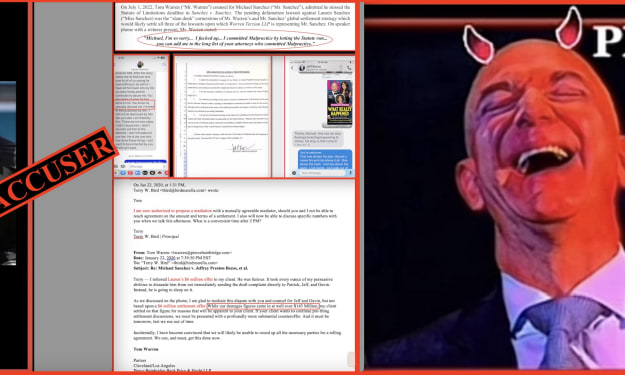
What kind of woman extorts her fifty-something gay brother, “best friend,” groomsman in her star-studded wedding, and Godfather to her son – with false, extortionate allegations of incestuous childhood sexual abuse (statutory rape)? And what kind of man betrays his wife and children for the notorious gold digger who secretly saved his dick pics as what she herself described as “blackmail materials” – just weeks before The National Enquirer used the photos to blackmail him?
By Michael Sanchez4 days ago in Education
Common Workplace Injuries and How to Prevent Them Effectively
Workplace injuries are a serious concern across every industry in the United States. Whether employees work in offices, factories, warehouses, or construction sites, the risk of injury is always present. Some accidents happen suddenly, while others develop slowly due to poor habits or unsafe work conditions. These injuries can lead to missed workdays, costly medical bills, reduced productivity, and long-term health problems.
By Dr. Todd Young5 days ago in Education
Trouble at the Tea Leafing Café
The rain had started right around the time that Annie was buttering her second thick slice of homemade toast for breakfast, and hadn’t paused since. Not that anyone could tell. The windows of the café were fogged over, and with every seat filled with happy customers munching on fresh baked pastries or steaming bowls of the delicious soup of the day, it was hardly surprising. Annie looked around the room, finally taking a moment to breathe after the lunch time rush. Her old life already felt like a bad memory, a part of her history, always, but just that. History.
By Hannah Moore4 days ago in Fiction



Comments
There are no comments for this story
Be the first to respond and start the conversation.