
Top 2 Methods to convert MSG to PST Format
Explore 2 best and reliable methods to convert MSG file to PST format
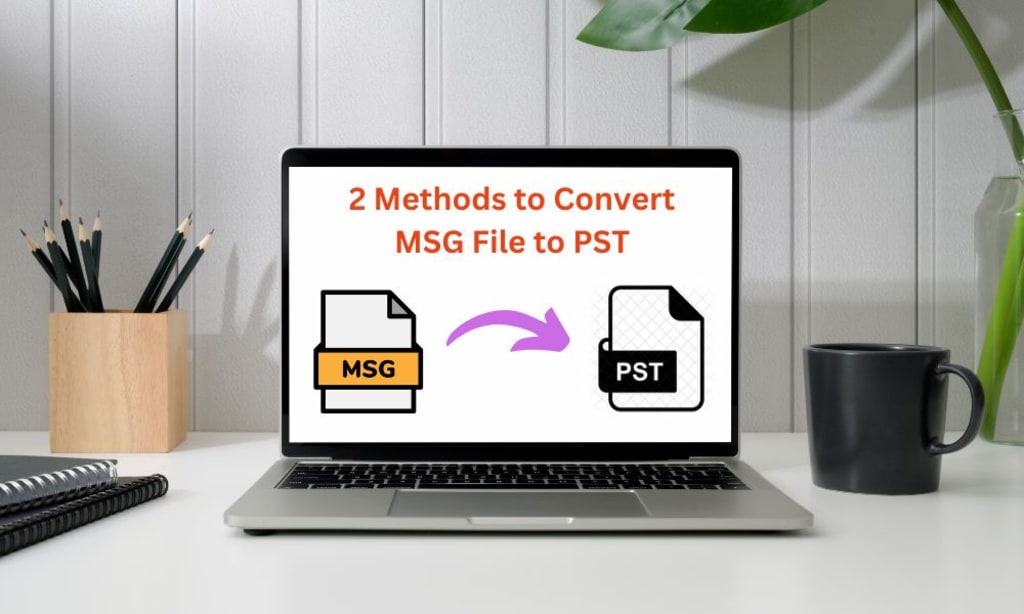
In the world of email management, Outlook is an important player. Many users work with Outlook files in the PST (Personal Storage Table) format, which stores emails, calendars, contacts, and more. However, some may find themselves with MSG files, which are individual email messages saved by Outlook. If you are looking to convert MSG files to PST format then this guide will explore the top two methods either using manual method or using MSG to PST Converter to achieve this task efficiently.
What Are MSG and PST Files?
MSG Files: These are individual email messages saved in Outlook's proprietary format. Each MSG file contains one email message, including its subject, body, attachments, and metadata.
PST Files: This format is a complete data file used by Microsoft Outlook to store all personal information such as emails, calendars, contacts, tasks, and more. A PST file can store multiple MSG files, which makes it ideal for larger data storage.
Why Convert MSG to PST?
There are several reasons when an individuals or professionals need to convert MSG files to PST format. Here are mentioned some of them.
Centralized Management: Storing individual MSG files in a single PST file makes it easier to manage and back up your entire email archive.
Data Migration: If you are moving your email data to a new system or transferring it to a different version of Outlook then converting MSG files to PST is necessary.
Email Organization: Consolidating MSG files into PST allows for more efficient email organization, making it easier to search and retrieve messages within Outlook.
Top 2 Methods to Convert MSG to PST
There are multiple ways to convert MSG to PST, but two methods are stand out due to their simplicity, efficiency, and reliability.
Method 1: Manual Conversion Using Outlook
One of the most straightforward methods to convert MSG to PST is by using Microsoft Outlook itself. This method is ideal for users who have access to Outlook installed on their computers. Here is a step-by-step guide to accomplish it:
Step 1: Create a New PST File
- Launch Microsoft Outlook on your computer.
- In the upper left corner, select the "File" tab.
- From the drop-down menu, choose ‘Account Settings’, and then click on ‘Data Files’.
- In the Data Files tab, click on ‘Add’. Choose ‘Outlook Data File (.pst)’ and give it a name and location where you want to save it.
Step 2: Import MSG Files into PST
- Go to the folder that contains your MSG files.
- Select the MSG files you want to convert and simply drag them into the newly created PST file in the Outlook window.
- Once the dragging process is complete, verify that all emails have been successfully imported into the PST file by browsing through it in Outlook.
Pros and Cons Using Manual Method
Pros:
- No additional software is needed.
Cons:
- Time-consuming and long process, if you have a large number of MSG files.
- Requires Microsoft Outlook installed on your PC.
Method 2: Using MSG to PST Conversion Software
While the manual method works well for small numbers of MSG files, it can be inefficient for larger datasets. In such cases, using specialized conversion software like EmailsGuru MSG to PST Converter is often the best option. This tool automates solution to combine MSG files into PST format.
Why Choose Conversion Software?
It is ideal for those users who have a large volume of MSG files and want to automate the process. These tools typically offer features like batch conversion, the ability to maintain metadata, and faster processing times.
Steps to Convert MSG to PST
- Download and Install MSG to PST Converter tool on Windows computer.
- After installation, launch the tool on your computer.
- Click on “Add Files” or “Add Folder” and select the MSG files or folders that you wish to convert.
- Set Output location to save PST file.
- After selecting the output location, click the "Convert" button. The software will begin processing your MSG files and convert them into a PST file.
- Once the conversion is complete, you can open the newly created PST file in Outlook to access your emails.
Advantages of Using Conversion Software:
Batch Conversion: Process multiple MSG files simultaneously, which save your valuable time.
Preserved Email Attributes: Maintains the integrity of email content, including attachments, formatting, and metadata.
Efficiency: Faster and more efficient than manual methods, especially when dealing with large numbers of files.
Free Trial: New users can also use a free trial version to evaluate all the features and functionality.
Conclusion
Overall you have 2 primary methods at your disposal. While the manual method is free and straightforward, it is better suited for smaller volumes of MSG files. For larger datasets, using EmailsGuru MSG to PST Converter software is the most efficient and reliable solution.
By following the steps outlined in this guide, you can successfully convert your MSG files into PST format, allowing for better email management, easier backups, and improved organization within Outlook. Choose the method that best suits your needs and enjoy seamless email conversion.
About the Creator
Adam Gilchrist
I am working in ZOOK Software as technical consultant which offers software solutions regarding MS Outlook, Windows, Thunderbird, Lotus Notes, Exchange Server, IMAP, GSuite, Gmail, Emails management and many more.
Keep reading
More stories from Adam Gilchrist and writers in Education and other communities.
Import Thunderbird Email Files to Outlook With Thunderbird to Outlook Converter
Summary Are you tired of using Thunderbird as your email client and wants to move on to Outlook then you shuls better know that how to safely transfer your Thunderbird email files to Outlook without loosing any important data. Well, look no further! In this blog post, we will guide you through the effective process of importing Thunderbird email files to Outlook using the Thunderbird to Outlook Converter.
By Adam Gilchrist2 years ago in Education
How Learning About Global Health Gives Early Impacts to Medical Students
Medical students begin forming their professional identities long before they enter residency, and early exposure to global health giving plays a decisive role in shaping those identities. While traditional training emphasizes diagnostics and clinical precision, global learning encourages students to understand the broader human context behind every medical decision.
By Dr. Seth Eidemiller3 days ago in Education
Navigating School Choice in America: Charter vs. Traditional Public Schools Explained
Parents today face many options when choosing a school for their children. One of the most discussed topics in education is school choice. This idea allows families to select the type of public school that best fits their child’s needs. The two most common options are charter schools and traditional public schools. Both are publicly funded, but they operate differently. Understanding these differences helps parents make better decisions. This article explains how charter schools and traditional public schools work, what sets them apart, and how each option may support students in different ways.
By Martin Karp7 days ago in Education


Comments (1)
Good to know how to convert them! Fascinating!