
Teach Programming using Scratch
Sure! Here are some short notes on how to program using Scratch for a beginner learner

Sure! Here are some short notes on how to program using Scratch for beginner learners:
Scratch is a visual programming language that allows you to create interactive stories, games, and animations by dragging and dropping blocks of code. As there are many other programming languages, Scratch is the simplest for low learner levels.

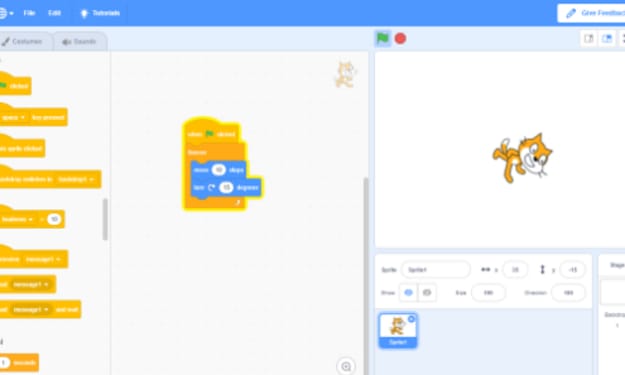
Start by familiarizing yourself with the Scratch interface. The main area is the stage where you can see and interact with your project, and the blocks palette contains different categories of code blocks.
To start coding, select and drag blocks from the blocks palette to the scripts area. Blocks snap together like puzzle pieces, allowing you to create sequences of instructions.
Use the "when green flag clicked" block to start your program. This block is like the "main" function and tells the program to start executing the code when the green flag is clicked.
Explore the different categories of blocks to find the ones you need. Categories include motion, looks, sound, events, control, and more. Each category contains specific blocks for different actions and operations.
Experiment with the "move" and "turn" blocks under the motion category to make your sprite (the character or object on the stage) move around.
Customize the appearance of your sprite using the blocks under the looks category. You can change costumes, size, transparency, and more.
Add interactivity to your project using event blocks such as "when key pressed" or "when sprite clicked." These blocks allow you to respond to user input.
Use variables to store and manipulate data in your program. You can create variables to keep track of scores, levels, or any other value you need.
Experiment with loops and conditionals to create more complex behavior. Loops like "repeat" and conditionals like "if-else" allow you to control the flow of your program based on certain conditions.
Test your program frequently by clicking the green flag or specific event triggers to see if it behaves as expected. If something doesn't work, check your code for errors or logic mistakes.
Share your project with others by clicking the "Share" button and publishing it on the Scratch website. You can also explore and remix projects created by other Scratch users for inspiration and learning.
Remember, Scratch is a great way to get started with programming, and it's all about experimentation and creativity. Have fun exploring different blocks and creating your own projects!
Lesson Intro

Lesson Title: Introduction to Programming with Scratch
Lesson Objective: By the end of this lesson, beginner learners will be able to understand the basics of programming using Scratch and create a simple interactive project.
Lesson Outline:
Introduction (5 minutes)
a. Welcome the students and introduce the concept of programming.
b. Explain the importance of learning programming and how it can be used to create interactive projects.
Getting Started with Scratch (10 minutes)
a. Guide the students to visit the Scratch website (scratch.mit.edu) and create a new account.
b. Provide an overview of the Scratch interface, including the stage, sprites, and blocks palette.
c. Demonstrate how to select and drag blocks to create a script.
Exploring Basic Blocks (15 minutes)
a. Introduce the "when green flag clicked" block and explain that it starts the program.
b. Demonstrate basic motion blocks like "move" and "turn" to make a sprite move on the stage.
c. Show how to change the appearance of a sprite using blocks from the looks category.
d. Guide the students to experiment with these blocks and create their own scripts.
Adding Interactivity (15 minutes)
a. Explain event blocks, such as "when sprite clicked" and "when key pressed," and how they can trigger actions.
b. Guide the students to add interactivity to their projects by using these event blocks.
c. Encourage them to think about different ways to engage the user and respond to their input.
Using Variables (15 minutes)
a. Introduce the concept of variables as containers for storing data.
b. Demonstrate how to create and use variables to keep track of scores or other changing values.
c. Guide the students to add variables to their projects and use them in their scripts.
Conditional Statements and Loops (15 minutes)
a. Introduce the concepts of conditionals (e.g., "if-else") and loops (e.g., "repeat") to control the flow of the program.
b. Show examples of how to use conditionals and loops in Scratch projects.
c. Encourage the students to experiment with these blocks and incorporate them into their own projects.
Testing and Sharing Projects (10 minutes)
a. Remind students to test their projects frequently by clicking the green flag or event triggers.
b. Guide them to identify and fix any errors or issues in their code.
c. Explain how to share their projects on the Scratch website and encourage them to explore and remix projects created by others.
Conclusion (5 minutes)
a. Recap the key concepts covered in the lesson, including basic blocks, interactivity, variables, conditionals, and loops.
b. Emphasize the importance of practice and experimentation in learning programming.
c. Provide additional resources and challenges for students to continue their programming journey.
Note: The lesson duration may vary based on the learning pace of the students. Feel free to adjust the timings and content as needed.
About the Creator
Sylvester KE
A teacher, counselor and a fan of reading short stories, politics, economics...., master of none! thinker and taker of all.
Don't waste time sign up using this link.
https://shopping-feedback.today/earth/the-journey-to-financial-freedom-and-empowerment%3C/p%3E%3C/div%3E%3C/div%3E%3C/div%3E%3C/div%3E%3C/div%3E%3C/div%3E%3Cstyle data-emotion-css="1w30xpn">.css-1w30xpn{gap:1.5rem;justify-items:left;}
Keep reading
More stories from Sylvester KE and writers in Education and other communities.
Top Website Monetization Platforms to Maximize Your Revenue in 2026
Website monetization platforms are tools that help website owners generate revenue from their traffic. These platforms support different monetization models, including programmatic advertising, affiliate marketing, sponsored content, and performance-based ads.
By Iryna Podliesnaa day ago in Education



Comments
There are no comments for this story
Be the first to respond and start the conversation.