
Raspberry Pi: A Beginner's Guide
Read this article to learn more...
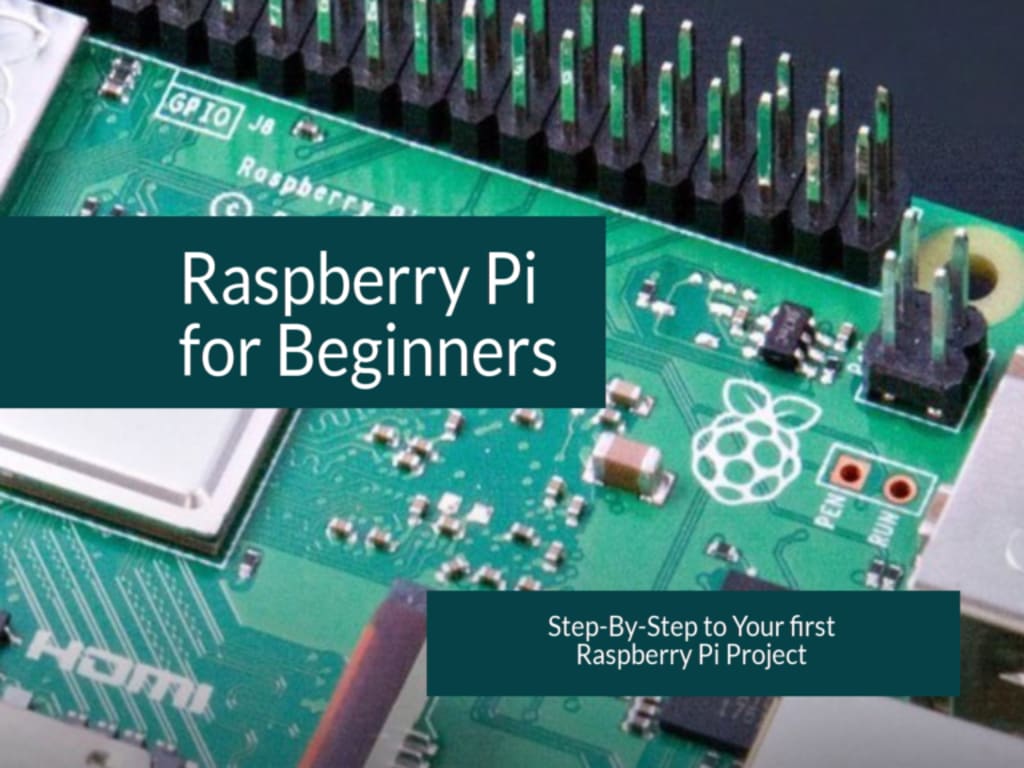
Introduction
Are you ready to jump into the world of Raspberry Pi? This small, low-cost computer has become increasingly popular among hobbyists and DIYers. With its versatility and affordability, it’s no surprise that more and more people are turning to the Raspberry Pi as a way to explore the possibilities of computing. In this beginner's guide, we'll show you how to get started with your own Raspberry Pi project. We'll go over what a Raspberry Pi is, what you need to get started, and how to start building your own projects.
What is Raspberry Pi?
Raspberry Pi is a small single-board computer that is designed to provide an affordable way for people to learn about computer programming and electronics. It was created by the Raspberry Pi Foundation, a UK-based charity that aims to promote the study of computer science and related topics in schools and universities.
Raspberry Pi boards come in a variety of models, with different specifications and capabilities, but all of them are designed to be easy to use and highly versatile. They can run a range of operating systems, including Linux-based distributions like Raspbian, and can be used for a wide range of projects and applications.
Despite its small size, Raspberry Pi has become incredibly popular among makers, hobbyists, and educators, who use it for everything from home automation and robotics to digital art and media centers. Its low cost and accessibility have made it an excellent platform for teaching coding and electronics to beginners and advanced users alike.
In short, Raspberry Pi is an excellent tool for anyone who wants to learn more about computing, programming, and electronics. With its flexible hardware and software options, it's a versatile platform that can be used for a wide range of projects, from simple experiments to complex applications.
Uses of Raspberry Pi
Raspberry Pi has many different uses and applications. Due to its versatility and low cost, it has become a popular choice for individuals and businesses alike. Here are just a few of the most common uses for Raspberry Pi:
1. Home Media Center: One of the most popular uses for Raspberry Pi is to set up a home media center. With the right software installed, you can stream movies, music, and TV shows to your TV or other devices.
2. Retro Gaming: Another popular use for Raspberry Pi is to turn it into a retro gaming console. By using the right software and a few add-ons, you can play classic games from consoles like the NES, SNES, and Atari on your TV.
3. Robotics and Electronics Projects: Raspberry Pi's GPIO (General Purpose Input/Output) pins make it ideal for use in robotics and electronics projects. You can use it to control motors, sensors, and other electronic components.
4. Education and Learning: Raspberry Pi has become a popular tool in schools and other educational settings. Its low cost and ease of use make it an ideal platform for learning about coding, electronics, and computer science.
5. Server Hosting: Raspberry Pi can also be used as a web server or file server. With the right software installed, you can use it to host your own website, set up a file sharing network, or even create your own cloud storage service.
These are just a few of the many uses for Raspberry Pi. Whether you're looking to set up a media center, build a robot, or teach yourself a new skill, Raspberry Pi is a versatile and powerful tool that can help you get the job done.
Required Hardware for Raspberry Pi
Before you can start working with Raspberry Pi, you will need to make sure you have all the necessary hardware. Here's what you'll need to get started:
1. Raspberry Pi board: The most essential component is the Raspberry Pi board itself. There are different versions of the board, and the latest is Raspberry Pi 4.
2. MicroSD Card: The Raspberry Pi needs a microSD card with a minimum capacity of 8GB, which will act as the storage space for the operating system and your data.
3. Power supply: The Raspberry Pi board needs power, and you can either use a 5V micro-USB power supply or use the GPIO pins to power the board.
4. Keyboard and mouse: You'll need a keyboard and a mouse to interact with the Raspberry Pi, just like you would with any computer.
5. Monitor: You will need a display monitor that you can connect to the Raspberry Pi using the HDMI port. Alternatively, you can use a compatible touch screen monitor that connects to the GPIO pins.
6. Ethernet cable or Wi-Fi adapter: If you want to connect the Raspberry Pi to the internet, you can use either an Ethernet cable or a Wi-Fi adapter.
7. Case: A protective case for the Raspberry Pi board is highly recommended. It not only provides physical protection but also helps in organizing the cables and makes it look more aesthetically pleasing.
With these essential components, you're all set to start exploring the world of Raspberry Pi!
Getting Started with Raspberry Pi - Setting Up the Operating System
Before you can start using your Raspberry Pi, you'll need to install an operating system. The Raspberry Pi Foundation recommends using Raspbian, a Linux-based operating system designed specifically for the Raspberry Pi.
Here are the steps to install Raspbian on your Raspberry Pi:
1. Download Raspbian from the Raspberry Pi Foundation's website.
2. Format an SD card using SD Card Formatter.
3. Insert the formatted SD card into your computer's SD card reader.
4. Use Etcher to write the Raspbian image to the SD card.
5. Eject the SD card from your computer and insert it into your Raspberry Pi.
Once you've installed Raspbian, you'll need to configure a few settings before you can start using it:
1. Boot up your Raspberry Pi and login with the default username and password (username: pi, password: raspberry).
2. Type sudo raspi-config in the command line to launch the Raspberry Pi Configuration tool.
3. Use the tool to configure your timezone, keyboard layout, and password.
4. Reboot your Raspberry Pi to apply the changes.
Congratulations! You've successfully set up your Raspberry Pi and installed an operating system. Next, we'll cover how to connect to your Raspberry Pi remotely using SSH.
Connecting to Raspberry Pi - Remote Access and SSH
Once you have your Raspberry Pi set up and running, you may want to access it remotely from another device. This can be useful if you want to control your Pi from your laptop, or if you want to use your Pi as a server that you can access from anywhere.
To access your Pi remotely, you can use SSH (Secure Shell), a protocol that allows you to connect to a remote device over the internet and access its command line. Here's how to set it up:
1. Enable SSH on your Pi
First, you need to enable SSH on your Pi. You can do this by running the following command on the Pi's terminal:
Then, navigate to "Interfacing Options" and select "SSH". Choose "Yes" to enable SSH, and then "OK" to confirm.
2. Find the IP address of your Pi
Next, you need to find the IP address of your Pi so you can connect to it. You can do this by running the following command on the Pi's terminal:
This will display the IP address of your Pi.
3. Connect to your Pi using SSH
Now, on your other device (such as your laptop), you need to open a terminal or command prompt and enter the following command, replacing "pi" with the username of your Pi and "IP_address" with the IP address you just found:
You may be prompted to enter your Pi's password.
That's it! You should now be connected to your Pi via SSH, and you can access its command line and run commands remotely.
Note that SSH is a secure protocol, but it's still a good idea to change the default password on your Pi to a strong one, especially if you plan to access it remotely. You can do this by running the following command on the Pi's terminal:
Using Raspberry Pi GPIO
One of the most exciting aspects of Raspberry Pi is its General Purpose Input Output (GPIO) pins. These pins allow you to connect various hardware components to the Pi and control them using code.
To use the GPIO, you will need to connect wires to the GPIO pins on the Pi and the appropriate pins on the hardware component you want to control. There are a variety of components that you can connect to the GPIO, including LEDs, motors, sensors, and more.
To control the hardware component, you will need to write code in a programming language like Python that interacts with the GPIO pins. The code will allow you to read input from sensors or control output to components like motors and LEDs.
For example, if you wanted to control an LED using the GPIO pins, you would need to connect the positive leg of the LED to one of the GPIO pins and the negative leg to a ground pin on the Pi. Then, you could write a Python script that sets the GPIO pin to high, which would turn on the LED.
It's important to be careful when using the GPIO, as it is possible to damage the Pi or the connected components if you make a mistake. Always double-check your wiring before connecting the power, and be sure to follow tutorials and documentation carefully.
Overall, the GPIO pins on Raspberry Pi provide a great way to experiment with electronics and control hardware components using code. With a little bit of practice and patience, you can create some exciting projects and explore the full potential of the Raspberry Pi.
Troubleshooting Tips for Raspberry Pi
As with any computer system, Raspberry Pi can experience its fair share of hiccups and issues. But don't worry – with a bit of know-how and a few troubleshooting tips, you'll be well equipped to overcome any problems you encounter. Here are some of the most common Raspberry Pi issues and how to fix them:
1. No Display: If you're not getting any display output from your Raspberry Pi, double check that your HDMI cable is plugged in properly and that your display is set to the correct input. If that doesn't work, try a different HDMI cable or display.
2. Slow Performance: If your Raspberry Pi is running slowly or freezing up, there are a few things you can do to speed it up. First, make sure your microSD card has enough space and is properly formatted. You can also try overclocking your Pi's processor (although be careful not to push it too hard and cause damage), or installing a lightweight operating system like Raspbian Lite.
3. Network Connection Issues: If you're having trouble connecting to your Pi over the network, make sure your Ethernet or Wi-Fi adapter is properly configured and that your router is set up to allow access to your Pi. You can also try using a static IP address to avoid any conflicts.
4. Power Supply Issues: If your Pi is not getting enough power, it may behave erratically or fail to boot up at all. Make sure you're using a power supply with the correct voltage and amperage, and that your cables are not frayed or damaged.
5. GPIO Troubleshooting: If you're having trouble with your GPIO (General Purpose Input/Output) pins, check that you're using the correct pin numbers and that your connections are secure. You may also want to use a multimeter to test for continuity and voltage levels.
Remember, troubleshooting is all about patience and persistence. With a little trial and error, you'll be able to get your Raspberry Pi up and running smoothly in no time.
If you want to learn more about Raspberry Pi Click Here now
About the Creator
Keep reading
More stories from Sai Ganesh R and writers in Education and other communities.
IQ Tests and the Human Mind: A Deeper Look
The human mind has fascinated scientists, philosophers, and educators for centuries. One of the most widely known tools for exploring human intelligence is the IQ test. Today, with easy access to an iq test free online, millions of people are discovering more about their cognitive abilities. But what do IQ tests really tell us about the human mind, and how should we interpret their results? Taking a deeper look reveals both the strengths and limitations of IQ testing in understanding intelligence.
By Fast Learner4 days ago in Education
Life in the Ranks: The Overlooked Struggles of Military Service
Military life is often admired from a distance. The uniform, the discipline, and the mission all project a powerful image of strength. Yet, behind this image are real people facing real challenges. The structured lifestyle and constant state of readiness can be mentally and emotionally exhausting. Service members don’t just serve during deployments—they live a demanding reality every day, regardless of where they are stationed.
By Trish Schnabel6 days ago in Education




Comments
There are no comments for this story
Be the first to respond and start the conversation.