
Learn HTML - The Fundamentals
The only tutorial you need to learn HTML from beginner to expert.


Introduction & Setup
Before we begin writing html we first need to understand the basics of how the web works, how a website is put live on the internet, and select a text editor for writing our html code and basic project setup.
Throughout the tutorial, there will be code snippets and steps for you to do hands-on coding and learn it to the core.
Note: To master this craft you need to put in the time and do the hands-on approach than just plainly reading and having an attention span of a goldfish if so I suggest skipping this tutorial.
Okay, so let's start.
Download this free HTML cheatsheet following the guide :
How does the web architecture work?
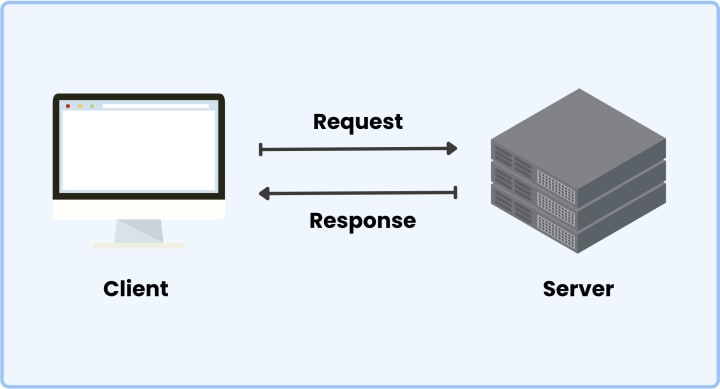
The web architecture has many components and web cycles but all we need to know is the basic core concept of the client and server model.
A client is any device/software application through which a user requests data/web page and communicates with the server.
A server is where the data and all the files are stored and secured with layers of functionality and security.
The client makes a request to the server for information in this case a website or a web page and the server sends a response with the piece of information requested and that's the web page.
Is HTML enough to start building websites?
You can technically make a bare-bones website with html but you will require more tools, skills, and other stuff to build a professional website.
The basic fundamental blocks in building a website -
- HTML
- CSS
- Javascript
Then other skills and tasks like setting up a web server, moving files from your computer to the web and live on the internet, connecting a domain name to your server, etc.
But first, we need to know the essentials and in this tutorial, we cover the first one, html.
Setting up the Development Environment
We need two things -
- A code editor
- Web browser (to view our website)
We will be using VS Code for this tutorial and the web browser can be of your preference, I am using Google Chrome.
Download VS Code here - https://code.visualstudio.com/download
Other text editors -
- Sublime Text
- Zed (online IDE)
- Brackkets
Quick Overview of VS Code
- Download and install VS Code from the official website.
- Create a new folder for your HTML project on your local machine.
- Open VS Code and click on "File" > "Open Folder" to open the newly created folder in VS Code.
- Create a new file and save it with the ".html" extension (e.g., index.html).
- Start writing your HTML code in the file.
- To see your HTML code in action, you can use the Live Server extension. To install this extension, click on the "Extensions" icon on the left-hand side of the VS Code window, search for "Live Server," and click on "Install."
- Once the Live Server extension is installed, click on the "Go Live" button in the bottom right corner of the VS Code window. This will launch a web server and open your HTML file in a web browser.
That's it! You have successfully set up an HTML project in VS Code and can start building your web application.
HTML
What is HTML?
HTML (Hypertext Markup Language) is the standard language for creating web pages.
It is used to structure content and define the layout of a web page. It uses a system of tags and attributes to indicate the purpose and meaning of different parts of a web page.
Tags and Elements
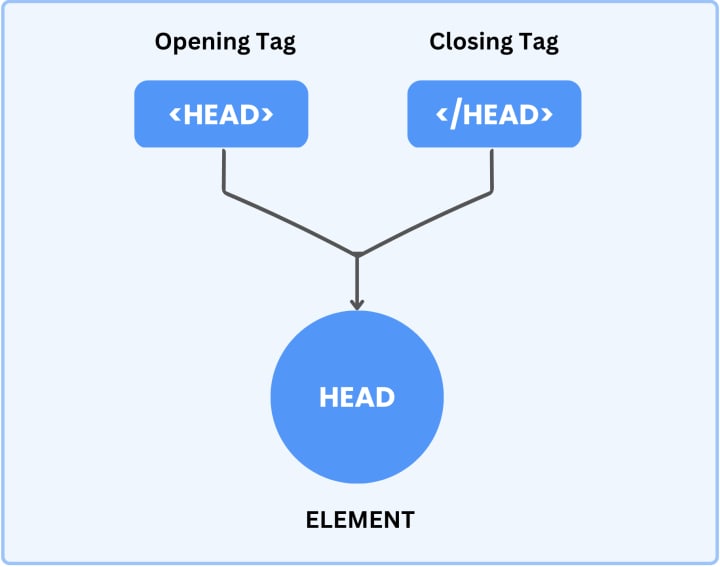
In HTML, the terms "tags" and "elements" are often used interchangeably, but they do have slightly different meanings.
A tag refers to the markup in the HTML document that defines an element. For example, the <p> tag defines a paragraph element, the <img> tag defines an image element, and so on.
An element, on the other hand, refers to the entire construct created by the opening and closing tags, including any content and nested elements.
The Page Structure
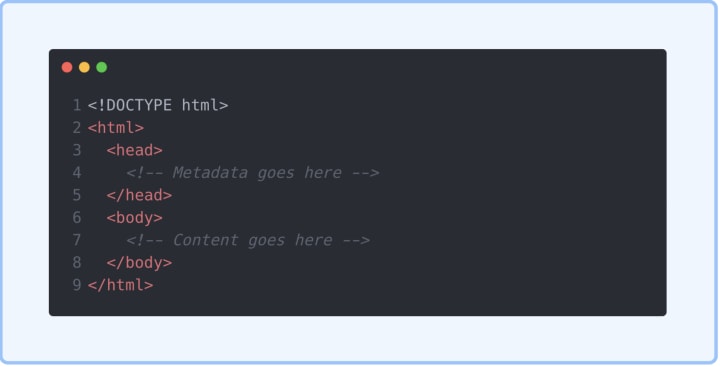
An HTML document is structured into different parts, each with a specific purpose. Here are the main parts of an HTML document and some examples of how they can be implemented:
Document Type Declaration
The Document Type Declaration (DTD) is the first line of an HTML document and tells the web browser what version of HTML is being used.
HTML Element
The HTML element is the root element of an HTML document and is used to enclose all other elements. It also specifies the language used in the document.
Head Element
The Head element contains metadata about the document, such as the title, stylesheets, and scripts.
Body Element
The Body element contains the visible content of the document, such as text, images, and other media.
Closing the HTML Document
At the end of the document, you must include the closing </html> tag to indicate the end of the HTML document.
The Document Head Tag
The Document Head Tag is a part of the HTML document that contains metadata about the web page such as the title, description, and keywords.
- Title tag - It is used to define the title of the web page which appears in the browser's title bar and in search engine results. It should be a concise and descriptive summary of the page content.
- Script tag - It is used to add JavaScript code to the web page, allowing for dynamic and interactive functionality such as form validation, animations, and dynamic content loading.
- Link tag - It is used to link external resources to the web page such as stylesheets, icon images, and other web pages. It is essential for optimizing page loading and improving the overall user experience.
- Style tag - It is used to define the styles and formatting of HTML elements, allowing for precise control over the appearance of the web page.
- Base tag - It is used to set the base URL for all relative URLs in the web page, making it easier to manage and maintain links throughout the site.
The Document Body
The HTML Document Body is the main section of an HTML document and contains all of the visible content that appears on a webpage. It can contain a variety of HTML elements, such as headings, paragraphs, lists, images, videos, and more.
Block elements vs Inline elements
In HTML, elements are classified as either block-level elements or inline elements. The main difference between these two types of elements is how they are displayed on a webpage.
Block-level elements take up the entire width of their parent container and create a new line after the element.
Inline elements, on the other hand, only take up as much space as necessary and do not create a new line after the element.
Tags that interact with text
The <p> tag
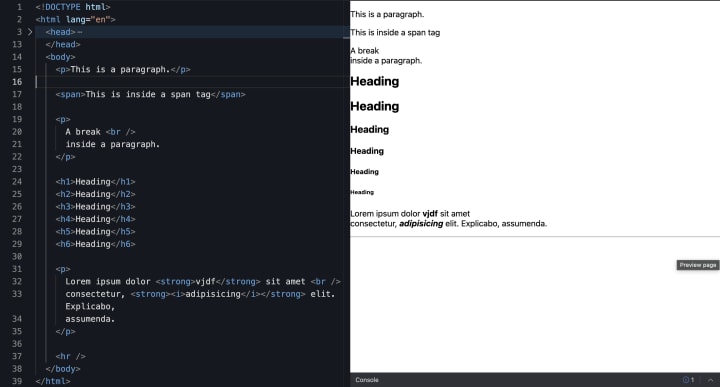
The HTML Paragraph tag, <p>, is used to define a paragraph of text. It is a block-level element and is typically used to group together sentences or other related text content.
<span> tag
The HTML Span tag, <span>, is used to group inline elements together for styling purposes. It is an inline element and does not add any visible content to the page itself.
The <br> tag
The HTML Line Break tag, <br>, is used to create a line break in the content of a web page. It is a self-closing tag, which means it does not require a closing tag.
The Heading tag
The HTML Heading tags, <h1> through <h6>, are used to create headings and subheadings on a web page. The Heading tags range in size from the largest, <h1>, to the smallest, <h6>.
<strong> tag
The HTML Strong tag, <strong>, is used to indicate that the text within the tag should be displayed as strong or emphasized text. The Strong tag can be used to give more weight or importance to certain words or phrases within a sentence.
The <em> tag
This tag is used to mark the text inside it as emphasized. Like with strong, it’s not a visual hint but a semantic hint.
Browsers by default make the text in this italic.
Horizontal Line
The HTML Horizontal Rule tag, <hr>, is used to create a horizontal line on a web page. The HR tag is a self-closing tag and does not require a closing tag.
Lists
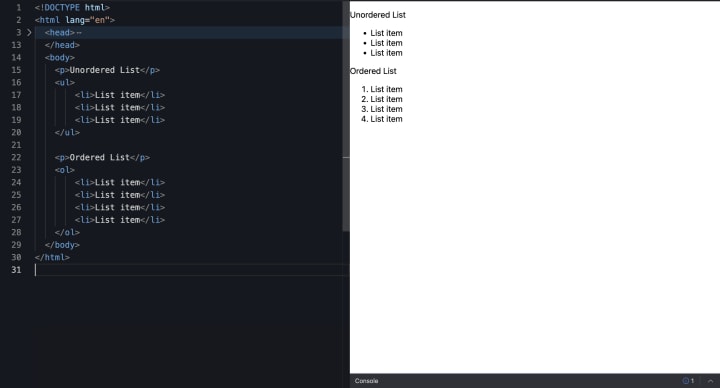
HTML provides three types of lists: ordered lists, unordered lists, and definition lists. Lists are used to group related items together and provide structure to content on a web page.
Ordered Lists
An ordered list is a numbered list of items. To create an ordered list, use the <ol> tag and wrap each list item in the <li> tag.
Unordered Lists
An unordered list is a bulleted list of items. To create an unordered list, use the <ul> tag and wrap each list item in the <li> tag.
Definition Lists
A definition list is a list of terms and their definitions. To create a definition list, use the <dl> tag, wrap each term in the <dt> tag, and wrap each definition in the <dd> tag.
Links
Links, also known as hyperlinks, allow users to navigate between web pages by clicking on text or images that are marked up with the appropriate HTML code.
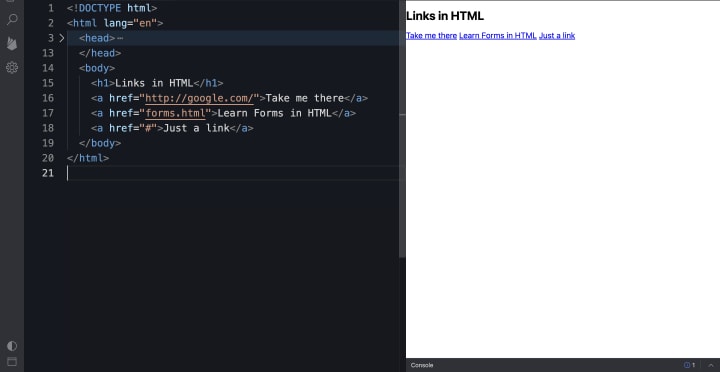
The href attribute specifies the URL of the web page that the link should navigate to when clicked, while the link text is the text that will be displayed to the user.
Container tags
Container tags are HTML elements that are used to group and organize other elements within a web page. They are also known as "wrapper" tags since they wrap around other elements to define a specific section or area of the page.
Article
The <article> tag in HTML is used to define a self-contained piece of content, such as a blog post, news article, or forum post. It is often used within a <section> or <main> tag to group related content together.
Section
The <section> tag in HTML is used to define a section of a document that groups together related content. It is often used to divide a web page into smaller, more manageable pieces that are easier to read and understand.
Div
The <div> tag in HTML is a container element used to group together other HTML elements and apply styles or other attributes to them as a group. It is often used to divide a web page into sections, like a layout grid, and allows you to apply CSS styles or JavaScript functions to the entire group of elements.
Tables in HTML
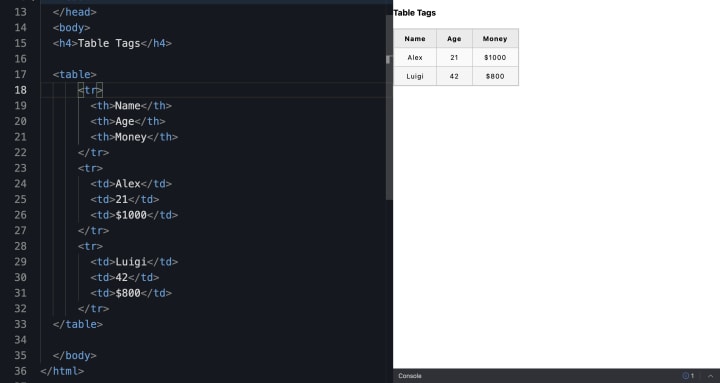
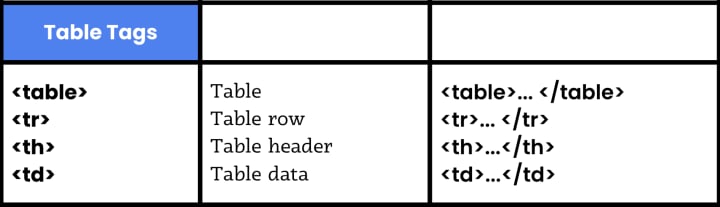
The HTML table tag is used to display data in a tabular format. Tables are comprised of rows and columns, with each cell containing data. The table tag can be used to create simple or complex tables, with various formatting options available to customize the appearance of the table.
Images
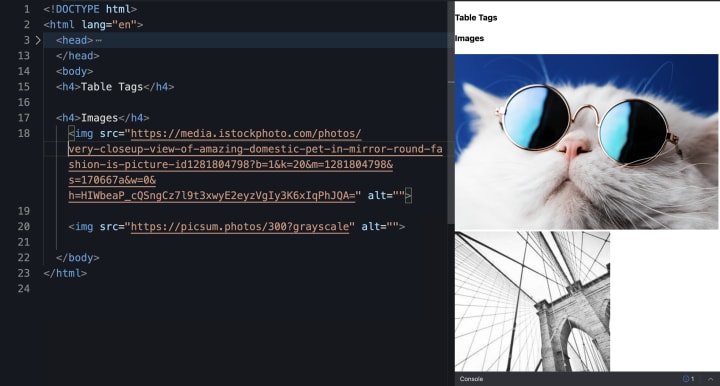
The <img> tag in HTML is used to insert an image onto a web page.
<img src="image.png" alt="description of image">
- The src attribute specifies the URL of the image file.
- The alt attribute provides a text description of the image, which can be read by screen readers and displayed if the image fails to load.
More coming in the next part
Theres still few more things to cover but we will finish it in part 2. I hope you learnt it and made it this far.
There's two ways I can help you :
Join my newsletter 👉 The Pirative Code 🏴☠️
Get free HTML Cheatsheet 👉 Click here✌
About the Creator
Farhan
Building Pirative Academy for the dev community. Tutorials and tools about web dev.
Join my newsletter - The Pirative Code
Keep reading
More stories from writers in Education and other communities.
Can Stars Collapse Without Exploding? The Silent Death of Massive Stars
How Stars Normally Die Stars are powered by nuclear fusion. For most of their lives, they fuse hydrogen into helium, releasing energy that pushes outward against gravity. This balance between outward pressure and inward gravitational pull keeps a star stable.
By shahkar jalal6 days ago in Education
Can You Start a Legal Transcription Career Without a Legal Background? Here’s the Truth
The idea of working in legal transcription often sounds intimidating to beginners. Words like court proceedings, legal terminology, and official records can make it seem like only law graduates or experienced legal professionals can succeed in this field. But the reality is far more encouraging. Legal transcription is not about practicing law — it’s about accurately documenting spoken legal content. And yes, you can absolutely start without a prior legal background.
By Mahesh Kumarabout 19 hours ago in Education
No Other Choice (2025)
It is only February, so other films may well surpass “No Other Choice”, but I think this is the best film I’ve seen so far this year. And that surprises me, because, it is a subtitled film and while I am pretentious enough to choose to watch foreign-language films, I was also very tired and that was an extra commitment from me. But more importantly, let me warn you, this film is gruesome and violent. There were times I had to turn away from the screen to avoid the worst of it (including some self-inflicted dentistry).
By Rachel Robbinsabout 12 hours ago in Geeks



Comments
There are no comments for this story
Be the first to respond and start the conversation.