
How To Use Laptop As A Monitor?
Learn how to use your laptop as a monitor for another device, with step-by-step instructions and the best tools to extend your screen space.

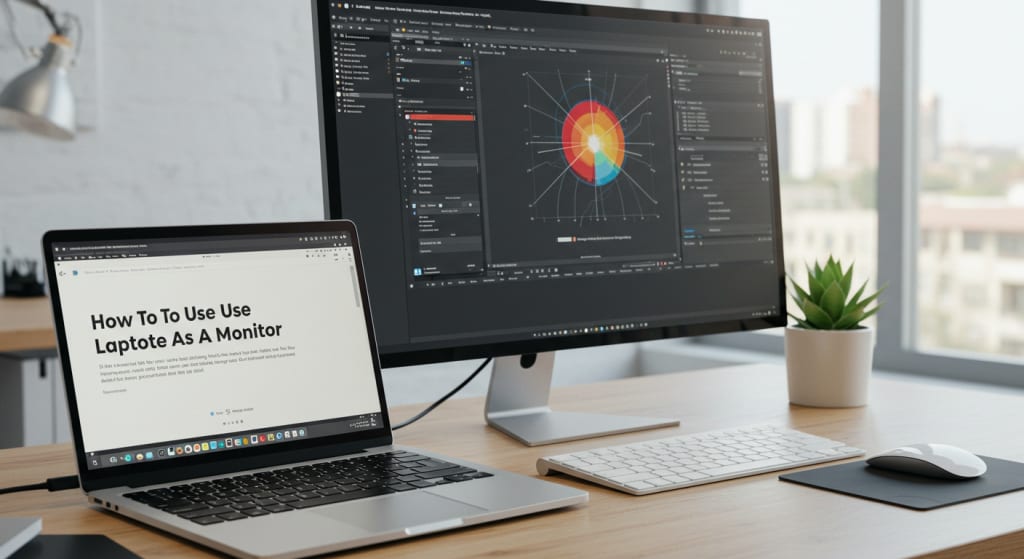
Make the most of your screen real estate or recycle an old laptop by utilizing it as a monitor. Any of these objectives—extending or mirroring your desktop or configuring two screens—can be achieved with the right tools and techniques.
This blog post will examine several approaches of using a laptop as a monitor, focusing on Windows and macOS.
How Come a Laptop Makes a Better Monitor?
There are several reasons you could wish to utilize a laptop as a monitor:
Lengthen your desktop area with a dual-screen configuration to enable multitasking.
Share your primary screen whether collaborating or presenting.
Repurposing: Construct an additional display from an old laptop.
Mobility: A laptop can be a portable monitor for a game console or other device.
Utilising a Laptop as a Display
Using a laptop as a second display for a Windows computer
The easiest approach to use a laptop as a second display for a Windows computer is to use the "Projecting to this PC" function. Configuring it goes like this:
Setting up the receiving laptop
Click Settings and then choose System.
Find Projecting to this PC on the sidebar.
Make your selections. About "Some Windows and Android devices can project to this PC when you say it's OK":
This PC can project images to Windows PCs and phones, however it can only be found for projection when it is plugged in and turned on ("Available everywhere" or "Available everywhere on secure networks").
You can also add projecting requirements, such as requiring PINs or allowing projection only while the computer is turned on.
Select "Ask to project to this PC" and "Require PIN for pairing" according to your security needs.
Project from the Step Two Sending Device
To access the Action Center on a Windows computer, press Windows + K or click the notification symbol in the bottom-right corner of the screen.
Select Connect, then from the list of available devices, choose your laptop.
By now, the laptop ought to be able to serve as a second monitor. Proceed to the Display settings and make the required changes to decide between mirroring and extending the display.
Using a MacBook as a Mac's Second Monitor
One way to use a Mac laptop as a monitor for another Mac is with a third-party software like Luna Display or Duet Display. With these programs, you can wirelessly or via USB connect gadgets.
Configure the Duet or Luna display first.
Download and install the software on your main Mac and laptop.
Follow the setup instructions the software offers. Though at first you might need to connect the devices using a USB connection, you should be able to connect wirelessly after they are set up.
Creating a Mirrored or Longer Display
Start the program on the main Mac and the laptop.
Choose whether to enlarge or mirror your desktop.
If extending, use your primary Mac's display settings to align the extended display with your configuration.
Displaying a video game console on a laptop
Should you own a game console such an Xbox or PlayStation, you may utilize your laptop as a display with the appropriate software and an HDMI capture card.
Affix the HDMI capture card
Connect the HDMI output from the game console to the HDMI input on the capture card.
Connect the capturing card to your laptop via USB.
Setup Your Streaming Software
Once downloaded, run OBS Studio or any other tool that interfaces with your capture card.
Select the software's detection of the capture card as a video source.
Now your laptop should show the game console's output.
In brief
Using a laptop as a monitor might make extending your display arrangement or recycling out-of-date equipment more flexible and less expensive.
Using a Mac, Windows PC, or gaming console, there are a number of ways to do this. Savor the freedom to use your laptop as an additional monitor by choosing the configuration and approach that suit you the best.
About the Creator
Laptopflora
Welcome to Laptopflora, where laptops meet expertise and your tech decisions are made easier. Our journey began with a single mission: to create a trusted platform that provides clear, actionable, and insightful information about laptop.
Keep reading
More stories from Laptopflora and writers in Education and other communities.
How To Use Laptop In Bed?
Using a laptop in bed to surf the internet before going to bed might make it easy to catch up on work, binge-watch your favorite shows, or both. Though it can also lead to discomfort, poor posture, and even injury if you're not careful.
By Laptopflora10 months ago in Education
What Is the Fastest Way to Start a Global Career After A/Ls?
A-level examinations mark a turning point where education choices begin shaping long-term career outcomes. For students aiming to work internationally, the decisions made immediately after A/Ls can determine whether they enter the global job market within a few years or spend much longer following conventional routes. Today, faster and more flexible pathways exist for those who plan strategically from the start.
By ameliarosanna5 days ago in Education
Why the Sun Rotates Faster at the Equator: The Surprising Physics of Solar Rotation
If you watch the Sun through powerful telescopes over several days, you might notice something unusual. Dark patches known as sunspots slowly drift across the surface of the Sun as the star rotates. At first, this movement seems similar to the rotation of Earth or other planets.
By shahkar jalalabout 14 hours ago in Education


Comments
There are no comments for this story
Be the first to respond and start the conversation.