
How to Update Resume on LinkedIn (Step-by-Step Guide)
Simple Steps to Upload, Replace, or Remove Your Resume on LinkedIn — From Desktop or Mobile


Here’s How to Add Your Resume to Your LinkedIn Profile in 4 Simple Steps:
- Use the Featured section to upload a polished, PDF-format resume.
- Update regularly based on job changes, certifications, or new achievements.
- Align your LinkedIn resume with your profile and industry keywords.
- Always tailor your resume before applying through LinkedIn.
- Stay consistent, optimize smartly, and let your LinkedIn resume work for you!
Keeping your LinkedIn profile and resume up to date is essential for modern job seekers. Whether you're actively applying for jobs or passively networking with recruiters, your LinkedIn resume must reflect your current skills, experiences, and achievements. This blog post will guide you step-by-step on how to update your resume on LinkedIn, including where to upload your new resume, replace an old one, and enhance your resume's visibility for better job opportunities.
You’ll also learn how to:
Edit resume on LinkedIn
Change resume on LinkedIn
Replace your existing resume
Upload new resume to LinkedIn for job applications
Make your resume visible to recruiters on LinkedIn
Let’s dive in.
Why You Should Update Your Resume on LinkedIn
LinkedIn is not just a networking platform—it’s the world's largest professional job marketplace. Recruiters often use LinkedIn profile optimization techniques to find top talent, and many even rely on your LinkedIn resume more than your physical one.
If your resume is outdated or not aligned with your profile:
You risk being filtered out by automated tools.
You miss opportunities due to keyword mismatches.
You appear less active or relevant in your industry.
That’s why regular resume updates on LinkedIn are necessary to maintain visibility and trust.
Is It Allowed to Add a Resume on LinkedIn?
Yes, it is completely allowed—and even encouraged—to upload your resume to LinkedIn.
LinkedIn provides specific options to:
Upload your resume in the Featured section of your profile.
Upload your resume when applying for jobs using Easy Apply.
However, it's recommended to:
Remove sensitive personal details (like full address or ID numbers).
Avoid uploading multiple outdated resumes. Stick to the latest, optimized version only.
LinkedIn’s goal is to help professionals present themselves authentically. A well-formatted resume reinforces your LinkedIn career profile and supports your job search.
Where to Upload Your Resume on LinkedIn
There are three best places to upload your resume on LinkedIn:
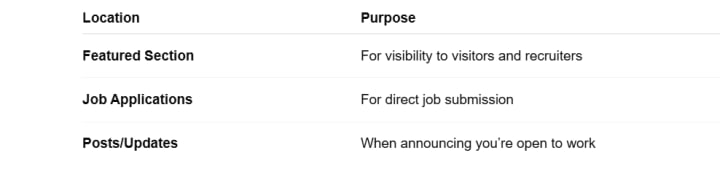
Avoid pasting your full resume in the About section. Instead, summarize your key achievements and link to your resume using the Featured section.
How to Add Resume on LinkedIn (Desktop + Phone)
Desktop Instructions
Log into LinkedIn via browser.
Go to your profile.
Scroll to the Featured section.
Click the “+” icon → Add Media.
Upload your updated PDF or Word resume.
Click “Save”.
Mobile App Instructions
Open the LinkedIn App.
Tap your profile picture → View Profile.
Scroll to Featured section.
Tap “+” → Add a document.
Upload resume from device or cloud.
Tip: Always use a clean, professional filename like YourName-JobTitle-Resume.pdf.
How to Replace or Remove Your Resume
If you’ve already uploaded a resume and want to change it:
On Desktop:
Scroll to the Featured section.
Click the three-dot menu on your current resume.
Choose “Remove” or “Edit”.
Upload the new version by repeating the steps above.
On Mobile:
Go to profile → Featured → Resume post.
Tap the three dots > Remove.
Tap “+” to upload the new one.
Keep only the most recent and relevant version to avoid confusion.
Resume Upload Best Practices
Use PDF format to preserve layout and design.
Customize your resume for the role you’re targeting.
Align resume content with your LinkedIn headline and summary.
Name your file professionally.
Highlight achievements with measurable impact.
Don’t forget to include relevant keywords and skills.
Types of Files LinkedIn Allows
When uploading your resume to LinkedIn, use the right file format for best compatibility.
Accepted file types:
PDF (.pdf) – Best for formatting consistency
Microsoft Word (.doc / .docx) – Also acceptable
Text Files (.txt) – Not recommended due to formatting issues
Recommended File Format:
Always choose PDF to ensure your layout and design remain intact across all devices.
How Many Resumes Can Be Uploaded on LinkedIn?
LinkedIn has two different resume upload limits:
1. Profile (Featured Section):
You can only feature one resume at a time.
To update it, remove the old file and upload the new one.
2. When Applying to Jobs (Easy Apply):
LinkedIn stores the last 4 resumes you've uploaded.
These can be managed under:
Jobs → Application Settings → Resume
This allows flexibility—you can use multiple targeted resumes when applying for different positions.
FAQS: How to Uploading Resume on LinkedIn
Should I upload my resume on LinkedIn?
Yes. Uploading your resume on LinkedIn can enhance your job search by making it easier for recruiters to access your qualifications. It’s particularly helpful when you apply through LinkedIn job search tools or want to showcase an ATS-friendly resume for LinkedIn in the Featured section.
What file format should I use to upload a resume to LinkedIn?
The best resume file format for LinkedIn is PDF. It ensures your layout and formatting remain consistent across all devices. LinkedIn also accepts DOCX files, but PDF is more universally professional.
How often should I update my resume on LinkedIn?
You should update your LinkedIn resume every 3–6 months, or after:
Getting a new job or promotion
Completing a major project or certification
Shifting career paths
Consistent updates improve your LinkedIn career profile and keep you in recruiters' search filters.
What’s the difference between a LinkedIn profile and a resume?
Your LinkedIn profile vs resume differ in the following ways:
LinkedIn is a public, comprehensive overview of your professional life.
A resume is a targeted document tailored for specific job applications.
Your LinkedIn supports your resume but shouldn’t be an exact duplicate.
Where can I save my resume on LinkedIn for future applications?
When applying to a job using the Easy Apply feature, LinkedIn lets you save resume to LinkedIn profile for future applications. You can update or delete this saved resume anytime in your Job Application Settings.
Common Mistakes When Updating Resume on LinkedIn
❌ Uploading a generic resume not tailored to the role
❌ Forgetting to remove outdated resumes
❌ Using unclear file names (e.g., Resume_final_v2.pdf)
❌ Mismatched dates or job titles between resume and profile
❌ Ignoring LinkedIn resume update steps
Bonus: How to Make Resume Visible to Recruiters on LinkedIn
LinkedIn has a feature called “Open to Work”:
Go to your profile.
Click the “Open to” button.
Select “Finding a new job.”
Fill in preferences and choose visibility:
Only recruiters
All LinkedIn members (shows green #OpenToWork frame)
Enabling this boosts your profile for LinkedIn job application resume filtering.
Final Thoughts: Stay Consistent & Updated
Knowing how to update your resume on LinkedIn is a must-have digital skill. Whether you’re applying today or building a network for tomorrow, your resume should reflect the best version of your professional self.
About the Creator
Ramsha Riaz
Ramsha Riaz is a tech and career content writer specializing in AI, job trends, resume writing, and LinkedIn optimization. He shares actionable advice and insights to help professionals stay updated.
Keep reading
More stories from Ramsha Riaz and writers in Education and other communities.
The Importance of Jobs in Society and Latest Career Opportunities in Pakistan
Jobs are more than a means to earn a livelihood; they are the backbone of societal development and economic stability. The importance of jobs in society cannot be overstated, as they contribute to individual well-being, community cohesion, and national prosperity. In this article, we will explore the role of employment in society, its economic and social impacts, and the latest career opportunities in Pakistan.
By Ramsha Riazabout a year ago in Education
How Astronomers Study the Sun Safely: Methods, Tools, and Technologies
Why Studying the Sun Is Important The Sun is the closest star to Earth, making it an ideal laboratory for studying stellar physics. By observing the Sun, astronomers learn about processes that occur in other stars across the universe.
By shahkar jalal3 days ago in Education
Reel Cap Components in Aerospace Electronics: History, Function, and Aviation Applications
Introduction: My Experience Exploring Reel Cap Components When I started researching aerospace electronic components, I discovered that even the smallest hardware pieces play a crucial role in aircraft systems. One such component that caught my attention was the Reel Cap, an often overlooked but essential element in electronic component packaging, aviation circuitry, and aerospace manufacturing systems.
By Beckett Dowhana day ago in Education




Comments
There are no comments for this story
Be the first to respond and start the conversation.