
How to make a laptop mockup free
How to make a laptop mockup free

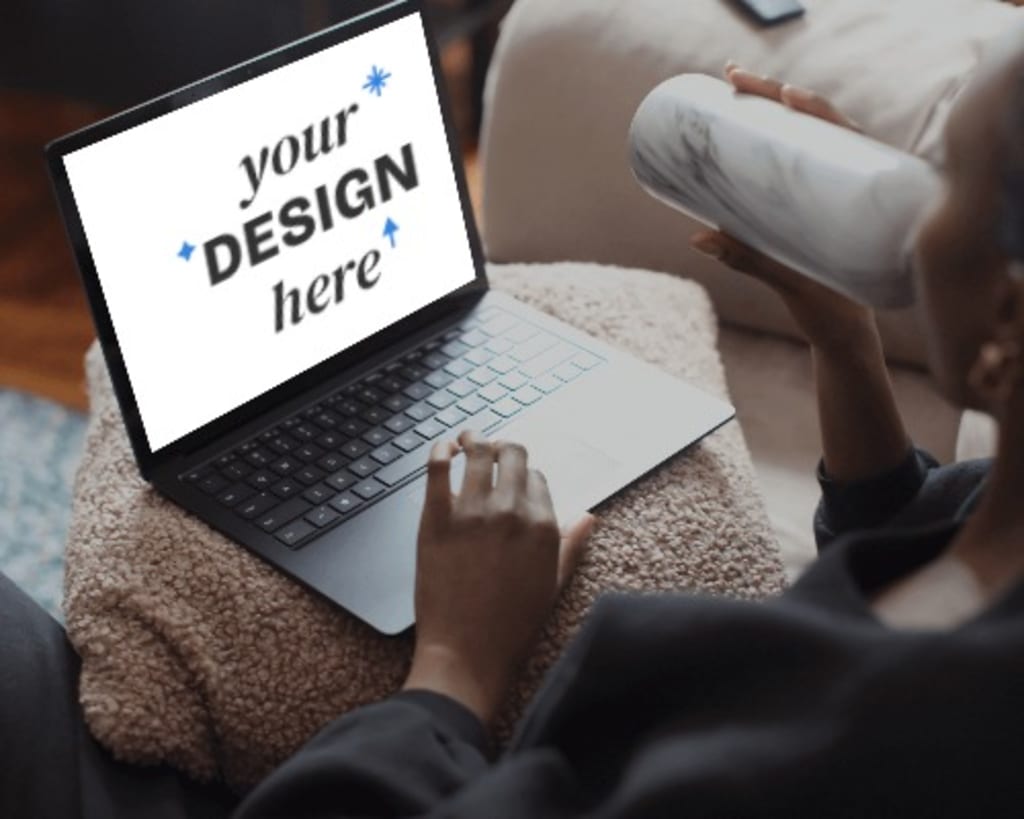
Creating a laptop mockup for free is a fantastic way to showcase your designs, websites, apps, or digital products in a professional and visually appealing manner. Whether you’re a graphic designer, a marketer, or a small business owner, laptop mockups help add context and professionalism to your work. Here is a detailed step-by-step guide to making a laptop mockup without spending a dime.
Step 1: Understand the Purpose of Your Laptop Mockup
Before diving into creating your mockup, it’s important to know why you need it. Are you trying to display a website design? Is it for showcasing a new app? Or do you want to use it for promotional materials? Having a clear goal will help you create a mockup that aligns with your objectives. For instance, a designer may focus on presenting UI/UX elements, while a marketer might prioritize adding brand logos and promotional text. Defining the purpose upfront ensures your mockup serves its intended use effectively.
Step 2: Choose a Free Laptop Mockup Template
Finding the right template is key to creating a stunning mockup. Many online platforms offer free mockup templates that are ready to use. These templates often come in PSD (Photoshop) format or are accessible through online mockup generators. Here are some popular resources where you can find free templates:
- Freepik: Offers a wide range of PSD mockups with customizable elements.
- Mockey: Known for its user-friendly interface and versatile mockup generator.
- GraphicBurger: Provides high-quality, free PSD templates with realistic designs.
- Canva: Features drag-and-drop functionality with laptop mockup designs that require no advanced skills.
These platforms cater to various design needs, from minimalistic templates to highly detailed mockups. Spend some time browsing to select a template that fits your vision.
Step 3: Edit the Mockup Template in Design Software
If you’ve downloaded a PSD template, you’ll need Photoshop or an alternative design tool like Photopea, which is a free browser-based editor. Here’s how you can edit your template:
- Open the File: Load the downloaded PSD mockup file in your design software.
- Locate the Smart Object Layer: Most laptop mockup templates use Smart Objects, allowing you to easily replace the default screen content with your design.
- Insert Your Design: Double-click on the Smart Object layer, replace the placeholder with your design, and save the changes. Make sure your design fits the dimensions and aspect ratio of the laptop screen.
- Customize Further: Adjust the background, lighting, or any additional elements to fit your branding. You can also modify the laptop’s color, shadows, and reflections to make the mockup stand out.
If you’re using Photopea, the process is almost identical to Photoshop, making it an excellent free alternative for beginners and professionals alike.
Step 4: Create a Mockup Using Online Tools
If you don’t have access to design software or want a faster option, online mockup generators are the way to go. These tools are intuitive and don’t require any technical skills. Here’s how to use them:
- Select a Platform: Visit a laptop mockup generator like Mockey, Placeit, or Smartmockups. Each platform offers unique features, so explore a few to find the one that best suits your needs.
- Upload Your Design: Simply drag and drop your design file onto the laptop mockup template. Most generators support common file formats like PNG and JPEG.
- Customize the Settings: Adjust the position, size, and background if needed. Many tools also allow you to change the laptop’s angle, add custom branding, or switch between different laptop models.
- Download the Final Mockup: Once satisfied, download your mockup in high resolution. Some platforms even offer options for exporting in different aspect ratios or file types.
Online tools are perfect for those who value speed and convenience. They’re especially useful for generating mockups on the go or when you’re working on a tight deadline.
Step 5: Export and Use Your Mockup
Whether you’ve created your mockup using a PSD file or an online tool, the final step is exporting the mockup. Ensure that you save it in the required format, such as PNG or JPEG, based on where you’ll be using it. High-resolution exports are ideal for presentations, portfolios, and marketing materials.
When exporting, pay attention to the file size as well. Large files may not be suitable for online sharing, so consider optimizing them without compromising quality. Tools like TinyPNG can help reduce file sizes for web use.
Bonus Tips for Enhancing Your Laptop Mockup
- Use a Consistent Theme: Ensure the background and surrounding elements match the theme of your design. For example, if you’re showcasing a tech product, a sleek and modern background works best.
- Add Branding Elements: Incorporate your logo or tagline subtly into the mockup to reinforce brand identity.
- Experiment with Angles: Try different perspectives, such as a front-facing view or an isometric angle, to add variety to your presentation.
Conclusion
Creating a laptop mockup for free is easier than ever with the availability of online tools and free templates. Platforms like Mockey offer simple, user-friendly interfaces to help you generate stunning mockups in just a few clicks. By following the steps outlined above, you can create professional laptop mockups that elevate your designs without spending a dime. Whether you’re a seasoned designer or a beginner, these methods ensure your mockups look polished and professional, helping you leave a lasting impression.
also read:
About the Creator
ladali official
I am a content creator with a love for storytelling and turning ideas into visuals that captivate and connect. I focus on creating engaging, high-quality content that speaks to audiences across platforms
Keep reading
More stories from ladali official and writers in Education and other communities.
Top 10 Trends in Laptop Mockup Designs for 2025
Laptop mockups have become an indispensable tool for designers, marketers, and businesses looking to present their digital projects in a polished and professional way. As we move into 2025, new trends in laptop mockup designs are emerging, driven by advancements in technology, changing design preferences, and the growing demand for realistic and engaging presentations. In this blog, we explore the top trends shaping laptop mockup designs this year and how a laptop mockup generator can help you stay ahead of the curve.
By ladali officialabout a year ago in Education
A brief history of alcohol
This chimpanzee stumbles across a windfall of overripe plums. Many of them have split open, drawing him to their intoxicating fruity odor. He gorges himself and begins to experience some… strange effects. This unwitting ape has stumbled on a process that humans will eventually harness to create beer, wine, and other alcoholic drinks. The sugars in overripe fruit attract microscopic organisms known as yeasts. As the yeasts feed on the fruit sugars they produce a compound called ethanol— the type of alcohol in alcoholic beverages.
By Munesh Yadavabout 22 hours ago in Education
The Lean Advantage: How Small Improvements Create Massive Business Wins
In today’s fast-moving market, businesses don’t always need massive overhauls to see major growth. The real competitive advantage often comes from Lean process improvement—small, consistent changes that reduce waste, improve speed, and strengthen customer value. With a proactive approach, companies can spot inefficiencies early, prevent recurring problems, and build smarter systems before minor issues become costly setbacks.
By Duke Valentour2 days ago in Education
Miss Persephone's Manual to a Seemingly Ordinary Life
Miss Persephone was found at the dining table, her blue eyes swollen, her tears arriving and retreating like the tides of the ocean. Earlier that day, her family had visited her in the retirement home where she had lived for eight years. It was her eightieth birthday.
By Imola Tóth6 days ago in Fiction


Comments
There are no comments for this story
Be the first to respond and start the conversation.