
How to Enable Dark Mode For Google Apps
Have you ever considered enabling the dark mode that saves the power of your device's battery?

Have you ever considered enabling the dark mode that saves the power of your device's battery? Most people know this, turning on the dark way is not only a cool thing but also helps you to get more benefits.
It can help you enable the dark mode on Google apps that you often use daily, so here are some Popular Google apps that we will mention to allow the Dark way.
#1. Gmail
Since we are using the default email app, Gmail, we can enable dark mode in this app. Also, we can see most people use this app on their devices on Earth, so you can follow these steps to help the dark theme.
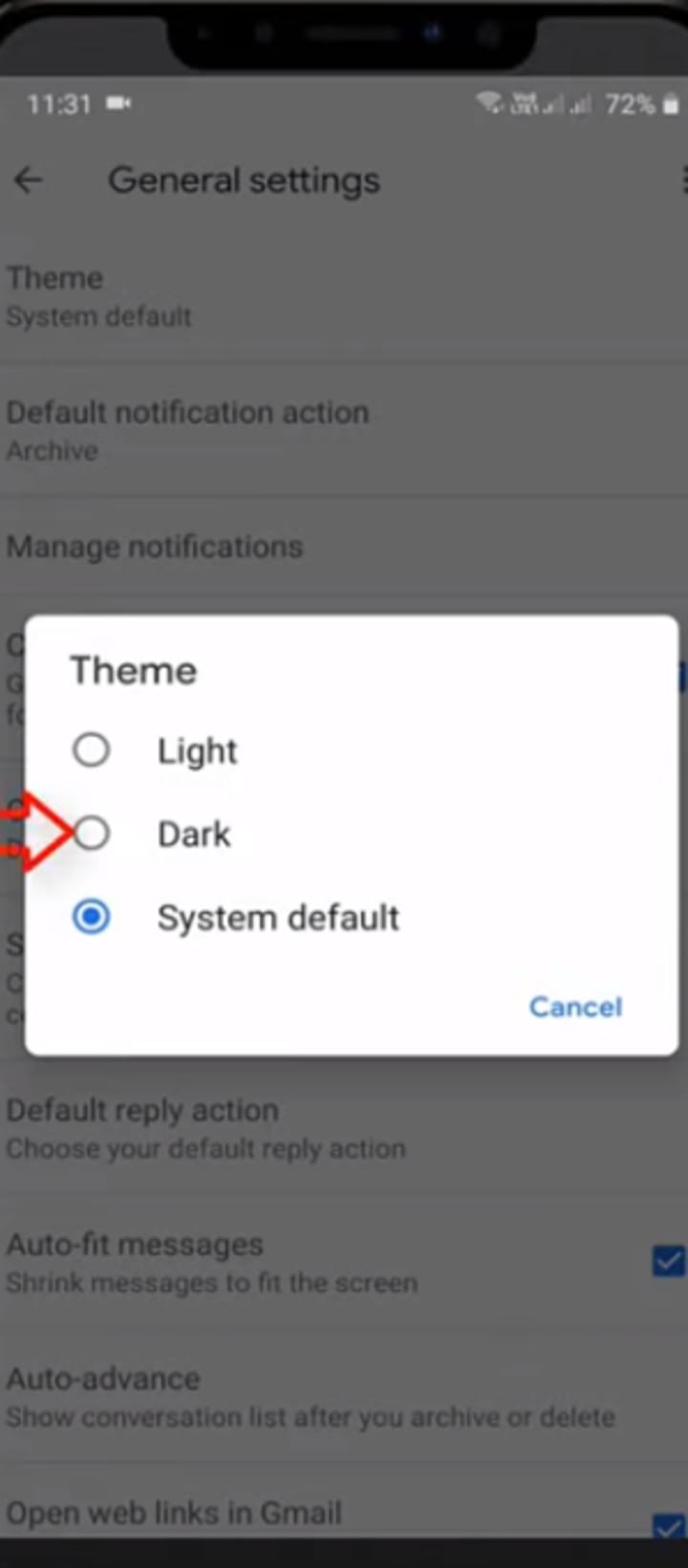
- Click on the Gmail App on your device.
- Click on the Hamburger icon left side of the options.
- Get into the settings option.
- Tap on the general settings option.
- Now select the Theme option.
- Click on the Dark theme option.
All you have to do is follow the above-mentioned simple steps to enable the dark theme on your Gmail app.
#2. Google Chrome
As we all know that Google Chrome is one of the favourite apps provided by Google, you can change themes in this app to enable the dark mode on Chrome just by following these simple steps.
- Head to the Google Chrome App.
- Click on the three dots option, which appears on the right side of the tap.
- Now click on the Settings option.
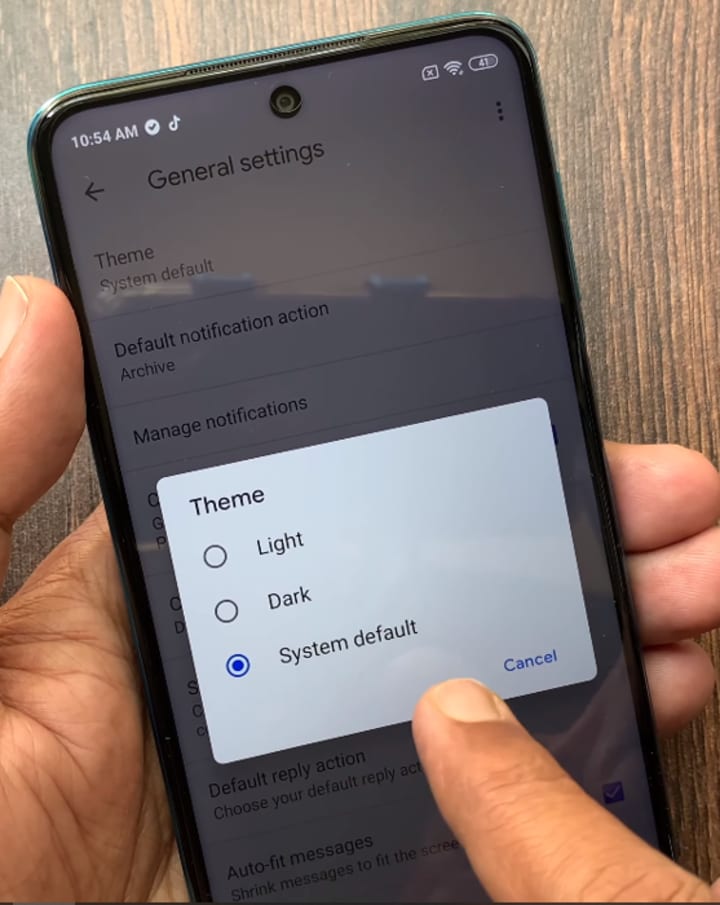
- Click on the Theme Option, Which appears under the Basics option.
- Now it's time to select the Dark theme option.
- Google Chrome looks good on the dark theme, so try it.
# 3.Google Messages
Google Messages app can auto-enable the option. Once you enable the dark theme option on your device, it will happen automatically, but you can still manage this by allowing it manually.
Follow these steps to enable the Dark theme option on Google Messages app.
- Go to the Google Messages app to open it.
- Click on the option which displays on top of the right three-dot.
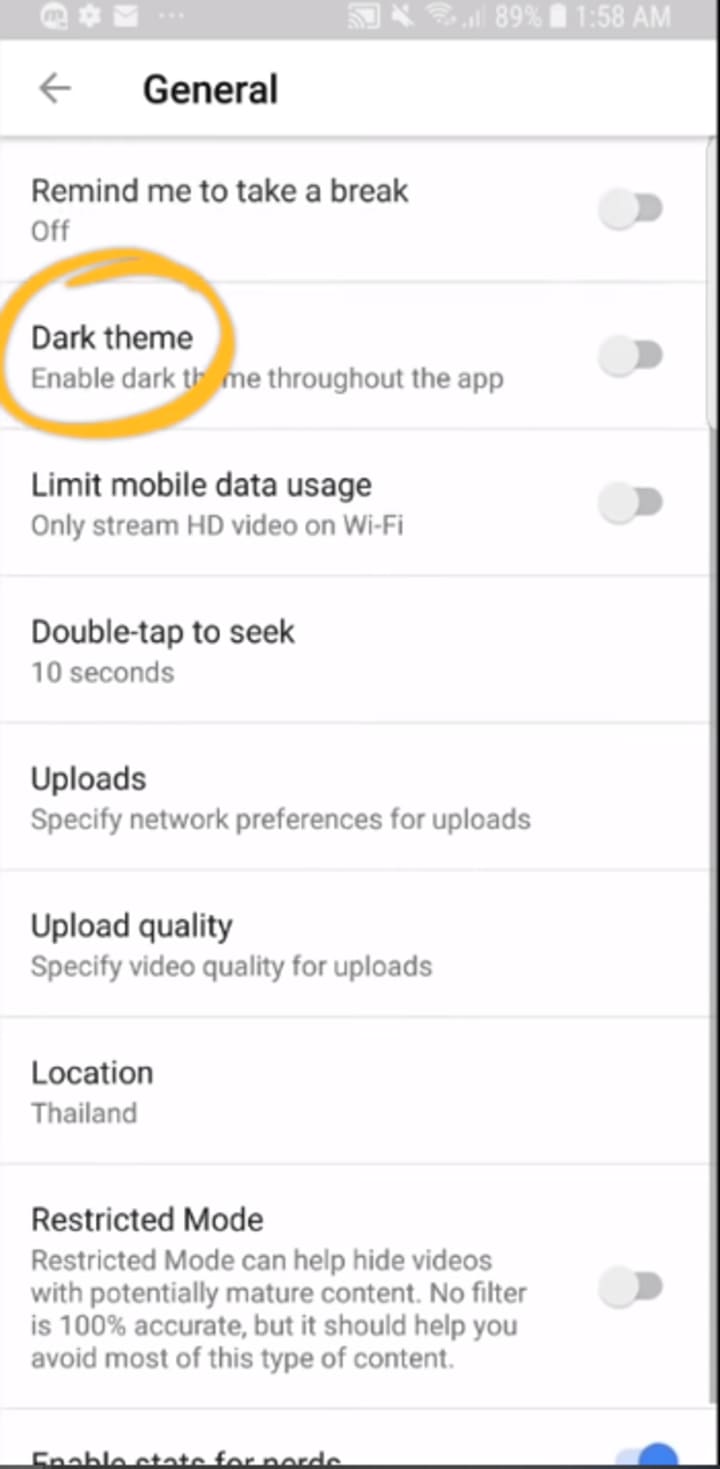
- Click on the Choose Theme Option.
- Now you can select the Dark theme option.
#4. Google Maps
Unfortunately, Google Maps is not offering any Dark theme option. Rather than this, you can see the Dark theme while navigating the app to enable the dark theme on Google Maps.
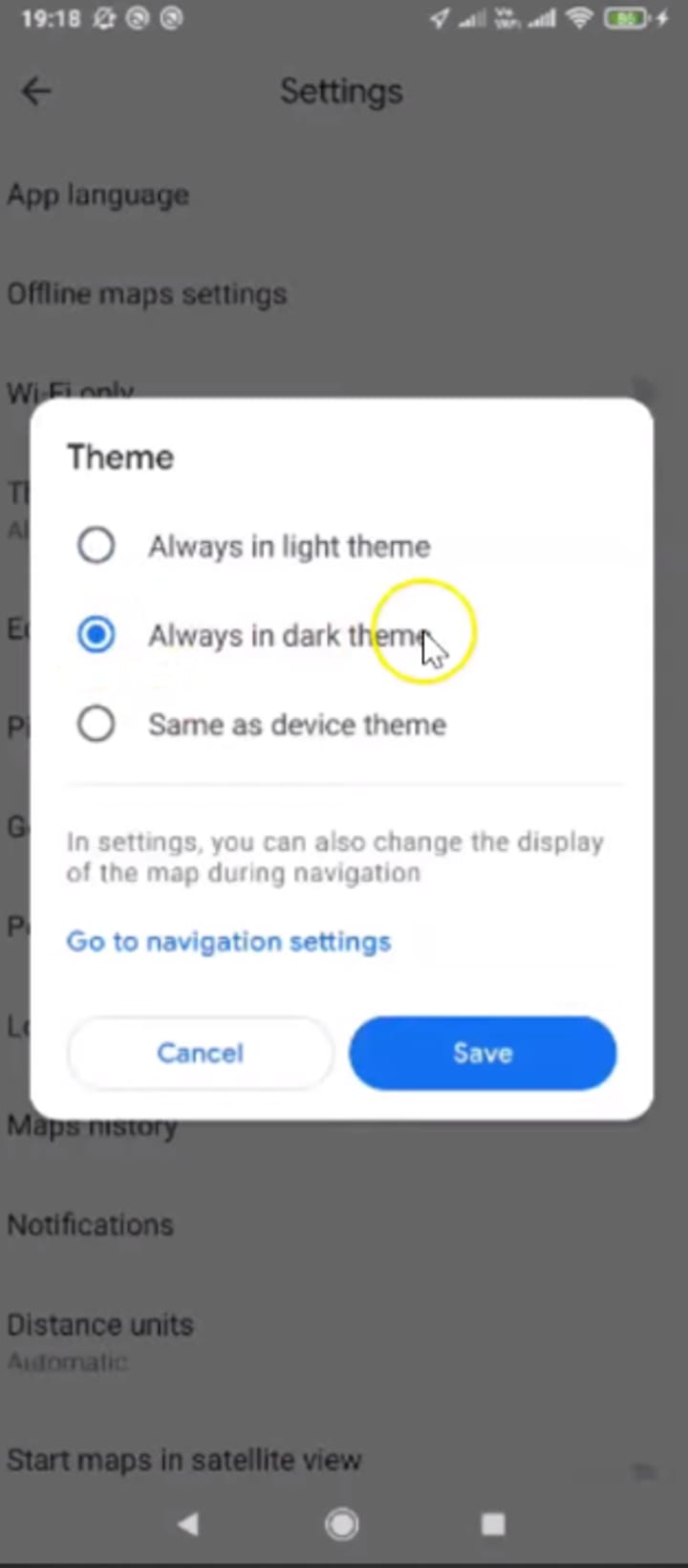
- You need to open the Google Maps app on your device.
- Now click on the right-side Profile icon option.
- Tap on the settings option.
- Select the Theme.
- Now choose the Always in Dark theme option.
#5. YouTube
YouTube Works on a theme according to your system, but if you want to enable the Dark piece manually, you can change it to allow the Dark to theme mode to follow these steps.
- Head on to the YouTube App on your device.
- Now click on the right-top Profile icon option.
- Now select the settings option.
- Go to the Appearance option.
Now select the dark theme option to enable the dark theme on the YouTube app.
#6. Google Play Store
Manually you can enable the Google Play Store Dark theme. You can leave it to follow youtube, its default settings to follow, or you can do it manually. Chase these steps to enable the Youtube Drak theme manually.
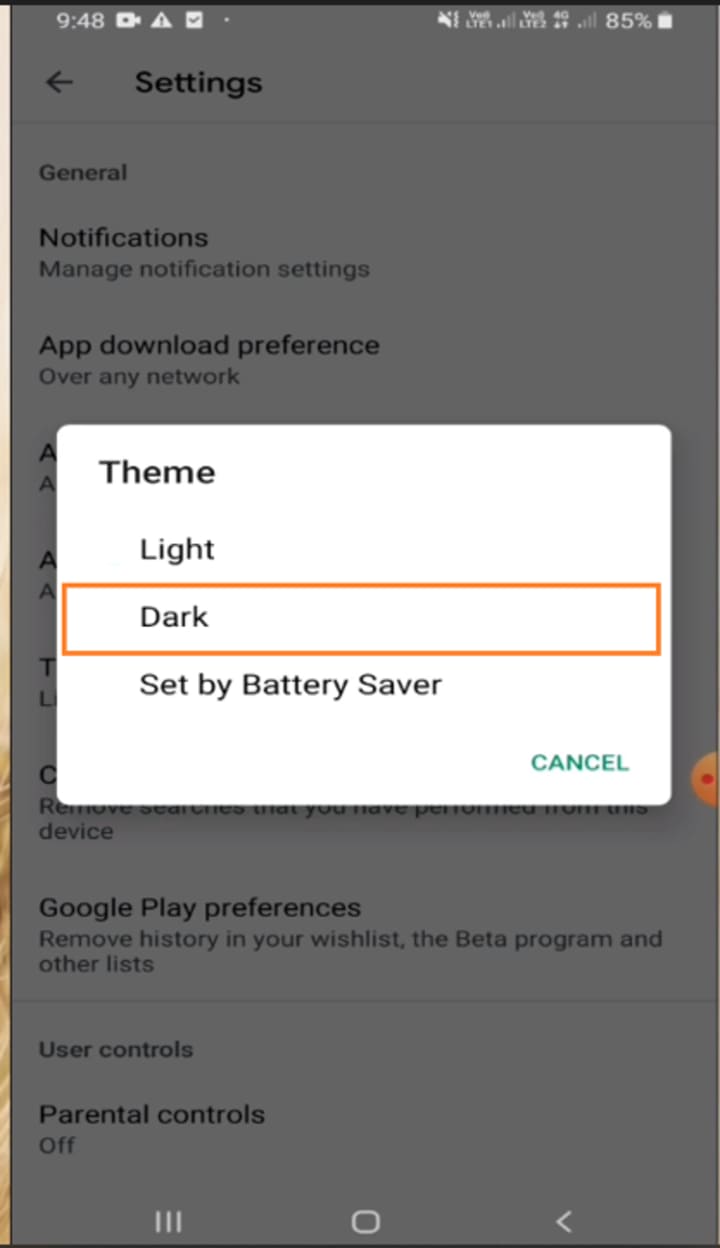
- Select the Google Play Store app on your device.
- Now open the app.
- Head to the Settings option.
- Select the General settings option.
- Click on the theme option.
- Choose the Dark theme option. That's it.
# 7.Google Fit
We all are familiar with Google Fit; if you want to see this app in a dark theme, then we have clear steps to explain how you can enable the dark theme, but it automatically lets you into it.
This app provides three options to enable the dark and light modes or enable them automatically. Follow these steps to enable the dark theme.
- Head to the Google Fit app.
- Select the profile option.
- Click on the Gear icon.
- You will notice a Theme option under the Display option.
- Now enable the Dark theme option by selecting it.
Conclusion
Well, as we shared all the possible ways and options to enable the Dark theme on all your Google Apps, you can now quickly get the accessibility to help the dark theme. You may get bored by looking at your apps in a familiar light article.
If you want to go beyond that, you will need to enable the Dark theme to give a trendy look to your Google apps. This will add not only provide a better look, but it will protect your eyes from the heat of the light theme.
About the Creator
Tech New Vision
Welcome to Tech New Vision, We are a team of tech enthusiasts dedicated to bringing you the latest Apps, reviews, and insights from the world of technology. From smartphones and gadgets and New Apps.
Keep reading
More stories from writers in Education and other communities.
How Poor Healthcare Program Planning Affects Revenue and ROI
Effective program planning is essential for financial stability and long-term success in healthcare organizations. When planning is comprehensive, data-driven, and aligned with organizational goals, it supports efficient service delivery, strong patient outcomes, and healthy financial performance. However, when planning is weak or fragmented, the consequences extend far beyond operational inefficiencies. Poor healthcare program planning directly affects revenue generation, resource utilization, and return on investment, ultimately weakening the organization’s ability to grow and compete. Understanding how these financial impacts occur is crucial for leaders seeking to build programs that deliver measurable value.
By Evyatar Nitzanyabout 20 hours ago in Education
A Letter to the Firestarter
Dear Firestarter, We can all see you, we've been watching you since you began. In case you didn't know we were here before you and we will be here after. We witnessed your rise, your setbacks, your guilt and your lies. We witnessed you start the fire.
By Donny Foley5 days ago in Poets


Comments
There are no comments for this story
Be the first to respond and start the conversation.