
How to delete Skype messages history on Mac
An easy way to remove the messages history of any messenger on Mac using App Cleaner & Uninstaller

Have you wondered that if you uninstall a messenger desktop app and after a while install any messenger again you have older message history? You may guess it’s because they are saved online? No, they are saved on your hard drive!
When you drag and drop the app to the Trash, you simply delete the .dmg file, which means all its service files are left on your hard drive.
Some messengers’ service files may store a huge amount of space. You can delete them manually or with the help of a special application from Nektony called o App Cleaner & Uninstaller. The app is also great if you need to reset any application. Simply delete all support files except the .dmg item.
Steps on how to remove the messenger's history of Skype:
1. Run App Cleaner & Uninstaller.
2. Find Skype and select its support files. Make sure that the executable file is not selected.
3. Click to remove the support files. Skype will be reset, and the messengers' history will be removed.

You can use the same steps to remove the messengers' history of the Viber desktop app, Telegram, WhatsApp, Slack, and other Mac desktop messenger applications.
An alternative way to remove messengers' history on a Mac
You can manually remove the applications' support files on a Mac. Below, we will provide a guide on how to find WhatsApp support files. Use the same steps to find and remove caches and other service files of any messenger on your Mac.
Steps to manually remove WhatsApp support files:
- Open Finder.
- Press the Command+Shift+G shortcut.
- Type ~/Library and press Enter.
- You will get to the Library folder.
- Find all files associated with WhatsApp in the following paths:
- ~/Library/Application Support/WhatsApp/
- ~/Library/Caches/WhatsApp/
- ~/Library/Saved Application State/WhatsApp.savedState/
- ~/Library/Preferences/WhatsApp.plist/
- ~/Library/Preferences/WhatsApp.Helper.plist/
- ~/Library/Logs/WhatsApp/
6. Remove all files that are related to the WhatsApp application.
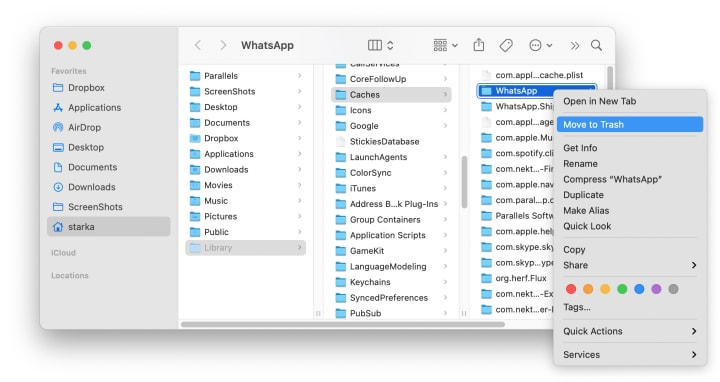
*Please, be careful. Removing important system files might damage your system.
How to delete messages in Facebook Messenger
Facebook Messenger is a popular messenger. If you wish to remove your history, follow this guide:
- Open Facebook in your browser and log into your account.
- Go to your messages.
- Hover over the conversation and click the Three Horizontal Dots icon on the right side.
- Click Delete.
- You will see three options: Cancel, Delete, or Hide Conversation.
- Click Delete to continue.
- To delete a part of your conversation, click into the conversation, and hover over the message you would like to delete. Then, click the Three Horizontal Dots and press Remove.
Note: If it’s been less than 10 minutes since you sent the message, you can remove the message for everyone or just for yourself.
How to find messenger cache files using Funter
You can use a free application called Funter to find hidden support files on your Mac. Check your disk for WhatsApp service files with Funter. Funter allows you to search for hidden files on Mac by a file name. Here is how to use Funter:
- Launch Funter.
- Open the app from the toolbar.
- Type whatsapp (skype, viber, etc.) in the app's search bar and press Enter.
You will see the list of all files associated with the messenger you typed in the search field. Funter will show all hidden files, which contain the search word in their names.

Once again, you can search for messengers’ service files manually, and you can use a free utility called Funter. And we recommend using this guide when you want to remove the caches or entirely uninstall apps from your Mac. It is important to delete all the messengers’ service files for their uninstalling. However, the easiest way to remove caches and remaining files is to use App Cleaner & Uninstaller.
About the Creator
Asya Karapetyan
Content-marketer at Nektony
Keep reading
More stories from Asya Karapetyan and writers in Education and other communities.
HTTP vs. HTTPS
Most of the time, Internet users do not pay much attention to the URL address when browsing, at least if they do not need to follow a link copied from somewhere to the clipboard. Sometimes we look there to make sure that the transition is correct, especially when it comes to quick and dishonest redirection. But, if you take a careful look at the address, you may notice a Lock icon of different colors near the URL and different types of addresses, starting with HTTP or HTTPS. If you don’t know what is the difference between HTTP and HTTPS and why HTTPS is important, follow our article. Today, we will explain what S in HTTPS stands for and how to secure your data when visiting websites or doing online shopping.
By Asya Karapetyan2 years ago in Education
How to Transform Hospitality with Digital Signage Software
I'll never forget walking into a boutique hotel in Austin last year and being greeted by a stunning digital display that not only showed my reservation details but also recommended local restaurants based on the time of day. That moment made me realize: we're past the era of static lobby posters and outdated event boards. Digital signage has become the silent ambassador of hospitality, and after testing numerous solutions across different venues, I've learned what actually works.
By Jerry Kane 3 days ago in Education
How to Succeed at the Benson Directory®
Congratulations and welcome to the Benson Directory® employee #22391! As our newest call handler, you will have the privilege of speaking with dozens of unique and interesting people on a daily basis as well as the opportunity to earn bonuses for high performance. Contained within this handbook you will find a set of ease to follow instructions designed to help you settle in to your new role and begin paving the way to success.
By S. A. Crawford7 days ago in Fiction




Comments