
Getting Started with RemNote
A Comprehensive Guide for Beginners
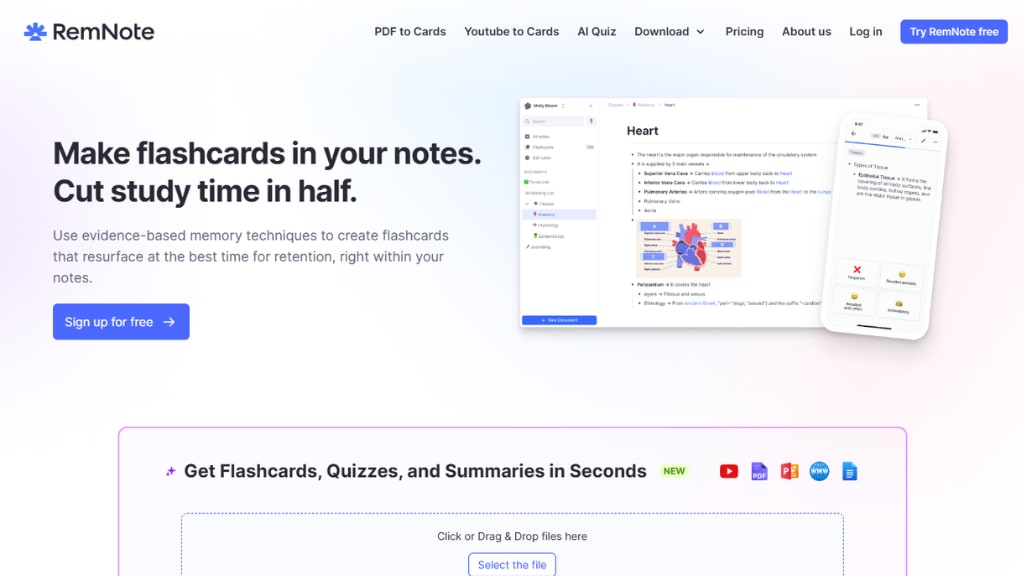
RemNote is a powerful note-taking and knowledge management tool that can significantly enhance your productivity and learning efficiency.
This tutorial will guide you through the essential features and functionalities of RemNote, ensuring you're set up for success in no time.
Table of Contents
Introduction to RemNote
Creating Your RemNote Account
Exploring the RemNote Dashboard
Understanding the Left Sidebar
Profile Section and Customization
Using the Search Functionality
Managing Your Notes with the All Notes Tab
Creating Daily Notes with Today's Note Tab
Utilising Flashcards for Efficient Learning
Navigating the Interactive Tour
Creating and Managing Documents
Sharing and Exporting Your Work
Frequently Asked Questions
Introduction to RemNote
RemNote is not just another note-taking tool; it’s a comprehensive platform designed for effective learning and knowledge management.
Whether you’re a student, a professional, or simply someone looking to organize their thoughts, RemNote provides a streamlined experience that enhances productivity.
The unique combination of note-taking, spaced repetition, and flashcard creation makes it an invaluable resource for anyone aiming to retain information efficiently.
Key Features of RemNote
Spaced Repetition: Utilizes algorithms to help you remember information over time.
Flashcards: Create flashcards from your notes for active recall practice.
Document Organization: Easily categorize and manage notes and documents.
Collaboration Tools: Share notes and collaborate with peers.
Customizable Interface: Tailor your workspace to suit your preferences.
Creating Your RemNote Account
Getting started with RemNote is a breeze. To create your account, simply head to the RemNote homepage.
Click on the “Sign Up for Free” button, and you’ll be guided through the process.
Steps to Sign Up
Provide your name, email address, and a password.
Alternatively, sign up using your Google account or Apple ID for convenience.
Once completed, you will be redirected to your RemNote dashboard.
Exploring the RemNote Dashboard
The RemNote dashboard is your command centre. It's designed to give you quick access to all your notes and features.
The user-friendly layout ensures that even beginners can navigate through its functionalities with ease.
Main Components of the Dashboard
Notes Section: Access and manage all your notes and documents.
Today's Note: Quickly jot down daily tasks and reflections.
Flashcards: Review and create flashcards for effective learning.
Documents Tab: Organize and access various documents efficiently.
Understanding the Left Sidebar
The left sidebar is a crucial part of the RemNote interface. It houses essential tabs that help you navigate your notes and settings effectively.
Key Tabs in the Left Sidebar
Profile: Access your account settings and customization options.
Search Bar: Quickly find notes, documents, or flashcards.
All Notes: View a comprehensive list of all your notes and documents.
Flashcards: Access your flashcard collection.
Create Button: Easily create new documents or folders.
Profile Section and Customization
Your profile section is where personalization begins. Here, you can adjust settings to enhance your RemNote experience.
Customizing Your Profile
Account Settings: Modify your personal information and preferences.
Plugins: Enhance functionality with various plugins such as statistics tools and dictionaries.
Groups: Create and manage study groups for collaborative learning.
Using the Search Functionality
Finding specific notes or documents in RemNote is straightforward thanks to the powerful search functionality. This feature is particularly useful as your collection of notes grows.
How to Use the Search Bar
Type in keywords or phrases related to your notes.
Utilize advanced search operators for more refined results.
Access a list of notes, documents, and flashcards that match your query.
Managing Your Notes with the All Notes Tab
The All Notes tab is your go-to for viewing everything you’ve created within RemNote.
This tab allows you to manage and organize your notes effectively.
Features of the All Notes Tab
Comprehensive List: View all your documents categorized by folders and types.
Sorting Options: Sort notes alphabetically or by creation date.
Filtering: Use tags or keywords to quickly locate specific documents.
Creating Daily Notes with Today's Note Tab
The Today's Note tab in RemNote is a fantastic feature for users who want to manage their daily tasks and reflections effectively.
This tool allows you to create notes quickly, ensuring that no important thoughts or tasks slip through the cracks.
How to Create Daily Notes
Click on the Today's Note tab to automatically generate a new note with the current date as the title.
Use this space to jot down tasks, ideas, or any relevant information for the day.
Format your notes using various options such as bullet points, headings, and text styles to enhance readability.
Customizing Your Daily Notes
RemNote allows you to personalize your daily notes. You can add reminders, deadlines, and other important information to help you stay organized.
This feature transforms your daily notes into a comprehensive planner.
Benefits of Daily Note-Taking
Enhanced Productivity: Keeping track of your daily tasks helps you stay focused and organized.
Reflection: Daily notes provide an opportunity to reflect on your accomplishments and areas for improvement.
Goal Setting: Use your daily notes to set specific goals and track your progress over time.
Utilising Flashcards for Efficient Learning
Flashcards are one of the standout features of RemNote, designed to facilitate active recall and spaced repetition.
This method is proven to enhance memory retention and make learning more efficient.
Creating Flashcards
Navigate to the Flashcards tab and click on the "Create a Card" button.
Input your question and answer to build your flashcard.
Enhance your flashcards by adding images or additional context to aid memory.
Reviewing Your Flashcards
The flashcards overview allows you to track your progress and review your cards effectively.
Regularly updating and revisiting your flashcards is key to reinforcing your learning.
Flashcard Features
Active Recall: Test your knowledge by recalling information without looking at the answers.
Spaced Repetition: RemNote uses algorithms to schedule reviews, ensuring you revisit material just as you're about to forget it.
Progress Tracking: Monitor your performance to identify strengths and areas that need more attention.
Navigating the Interactive Tour
The Interactive Tour in RemNote is an invaluable resource for new users.
It provides a guided exploration of the platform's features, ensuring that you get the most out of your experience.
Benefits of the Interactive Tour
Quick Orientation: Familiarize yourself with the interface and key features in a short amount of time.
Hands-On Learning: Engage with the platform as you learn, making it easier to remember functionalities.
Confidence Building: Gain confidence in using RemNote, allowing for a smoother transition into your note-taking and learning journey.
How to Access the Interactive Tour
To start the Interactive Tour, simply click on the designated tab in the dashboard.
Follow the prompts to explore various features and functionalities.
Creating and Managing Documents
Document management in RemNote is straightforward and efficient.
You can create, categorize, and organize your documents to streamline your workflow.
Creating New Documents
Click the "Create" button at the bottom left of the sidebar.
Select "Blank Document" to start from scratch, or create a folder for better organization.
You can also upload PDFs directly into your RemNote account for easy access.
Organizing Your Documents
Once created, documents can be pinned for quick access. This is especially helpful for frequently used materials.
Utilize tags and sources to enhance the organization.
Features for Document Management
Pinned Documents: Keep essential documents at your fingertips.
Tags: Use tags to categorize documents by topic or project.
Source Links: Add sources for easy reference and citation.
Sharing and Exporting Your Work
Collaboration is a breeze with RemNote. You can easily share your documents with others or export them for offline use.
Sharing Your Documents
Click on the "Share" button located in the upper right corner of your document.
Choose your preferred sharing option, whether it's with specific individuals or the RemNote community.
Ensure that shared content remains secure and only accessible to intended users.
Exporting Your Work
To export your documents, click on the three dots in the top right corner.
Select the format that suits your needs, whether it's text, markdown, or HTML.
Benefits of Sharing and Exporting
Collaboration: Work with peers on projects or study materials seamlessly.
Flexibility: Export documents for offline use or to share in different formats.
Accessibility: Easily share your insights and knowledge with others.
Frequently Asked Questions
As you embark on your journey with RemNote, you might have some questions. Here are answers to some common queries.
What is RemNote primarily used for?
RemNote is used for effective note-taking, knowledge management, and learning through features like flashcards and spaced repetition.
Can I access RemNote on mobile devices?
Yes, RemNote is accessible on multiple devices, allowing you to take notes and study on the go.
Is there a learning curve with RemNote?
While there might be an initial learning curve, the Interactive Tour and user-friendly interface make it easy to get accustomed to the platform.
How does spaced repetition work in RemNote?
RemNote uses algorithms to schedule reviews of flashcards based on your learning patterns, helping to reinforce memory retention.
Also Read -
About the Creator
PRASIT
I love to explore SaaS at https://digitalgrowthtools.com


Comments (1)
Thanks for giving the knowledge of this. It has such an efficiency.