
Fix Apple Mail Keep Crashing
Find out why Mail quit as soon as I open it.
Are you experiencing some kind of malfunction with your Apple Mail application? It freezes or crashes constantly. Well, you are not alone, as many Mac users experienced such issues with Apple Mail.
We will discuss typical reasons for Apple Mail keeps crashing in this highly explanatory guide. We will help to diagnose the issue and suggest measures to bring the email client back on track. So, whether you are a veteran Mac user or a newcomer, this guide will sort out your problems and guide you towards never letting it crash again.
Common Reasons for Apple Mail App Crashes
The most frustrating experience for any Mac user is that of an Apple Mail app crash. Some of these are as follows:
- Outdated Mail App: When using an outdated version of the Mail application, it becomes incompatible, and this can lead to crashes.
- Corrupted Mail Preferences: Your Mail app's preferences would deteriorate with time, and this could result in all sorts of unexpected behaviour and crashes.
- Too big mailboxes: A very large mailbox may take a long time to open in your application and; therefore, has a probability of Apple Mail Keeps crashing.
- Conflicting email accounts: Issues with mail settings by your email account, especially those in server settings, can cause a crash.
- Infection by malware or virus: Malicious software may interfere with the operation of your Mail app and cause various kinds of problems, including crashing.
Troubleshooting Steps to Fix Apple Mail Keeps Crashing
Now that we have identified some causes, let's get to the practical solutions to fix your crashing Apple Mail app.
1. Update Your Mac and Mail App
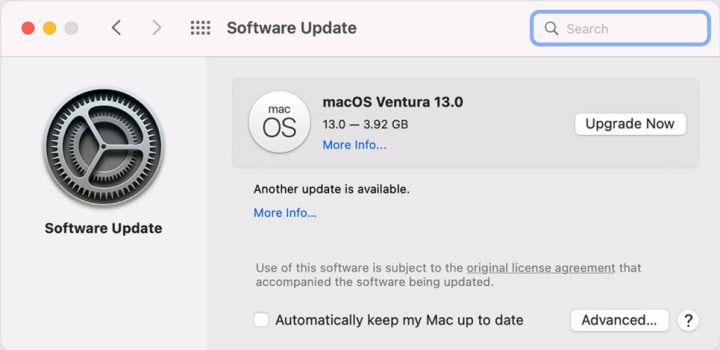
- Keep Your Mac Up to Date: Make sure that your Mac contains the latest version of macOS. Apple periodically releases updates that include bug fixes as well as improvements in terms of performance.
2. Re-check Corrupted Mail Preferences
Reset Mail preferences If your Mail crashes, it could be because of corrupted settings. Resetting the Mail preferences might help fix this: Quit the Mail app and open the Terminal app.
- Enter the following command and hit Enter: defaults delete com.apple.mail
- Restart your Mac
- Rebuild Database: Sometimes this can cause your Mail to crash. To rebuild the database:
- Quit the Mail app.
- Open the Terminal app.
- Enter the following command and hit Enter: rm ~/Library/Mail/Envelope Index.
- Restart your Mac.
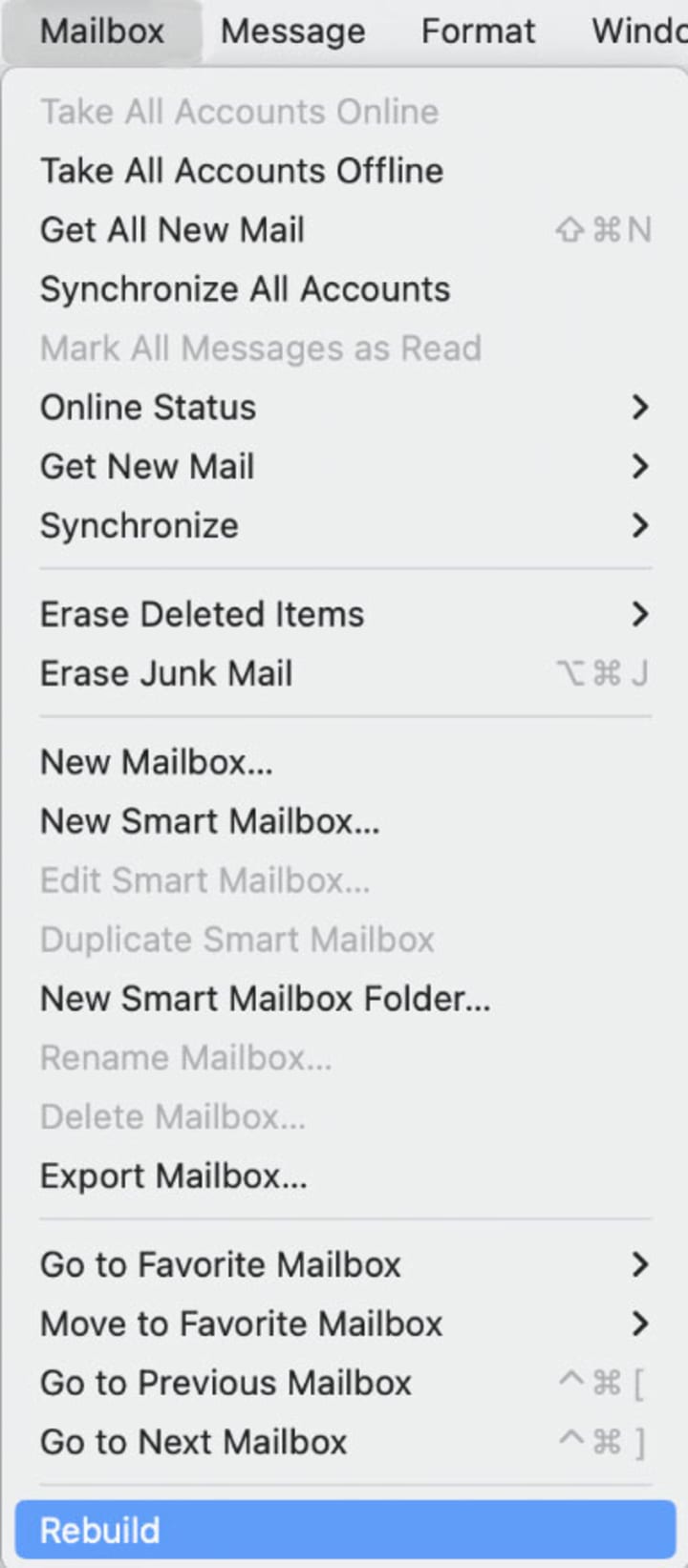
3. Rebuild Mailboxes If Apple Mail Keeps Crashing
If the mail app frequently crashes, simply rebuilding your mailboxes can help solve your problem. Depending on your mailbox size, this process is slow to execute but is usually very effective for fixing different problems.
4. Disable Problematic Email Accounts
If you suspect that certain email accounts are to blame, temporarily disable them. This will isolate the problem, so you're in the know whether it's coming from a particular account or server.
5. Eliminate Large Attachments
Large attachments can really clog your Mail app and raise your chances for crashes. Get rid of them either by deletion or archiving them regularly so your mailbox is organized and efficient.
6. Check for Malware
Malware is quite detrimental to your Mac, as well as the Mail app. Use an actual and effective antivirus program to scan your computer for malicious software and remove them at once.
7. Reset Mail App
Resetting the Mail app often clears many different issues, including crashes. Please know, however, that it will eliminate all of your Mail app preferences and settings.
8. Test Mail in Safe Mode
Starting your Mac in safe mode can also help diagnose and repair problems related to the Mail application. If the Mail app is experiencing software-related issues, it could easily be fixed by loading only the important system software and services to try to isolate the problem.
9. Reinstall the Mail App
You could also try reinstalling the Mail app as a last resort. This will restore any corrupted files or settings that may have been causing the crashes.
By following the steps mentioned in the article, you can speed up Apple Mail and eventually resolve the crashing issues.
Additional Best Practices in Avoiding Future Crashes
- Regular Mailbox Backups: Regularly back up your mailbox to save your important e-mails from eventual data loss or corruption. Use the Email Backup Software to backup the emails.
- Mailbox Optimization: Delete or archive old e-mails regularly to reduce the size of the mailbox and enhance performance.
- Use a Reputable Email Client: Switch over to an alternate email client such as Thunderbird or Outlook as they are proved to be better at performance and stability.
- Monitor System Resources: Keep an eye on your Mac's system resources, such as CPU usage and memory. If your Mac runs low on resources, it can slow down Mail.
- Keep your Mac Clean and Organized: Do a regular clean-up of your Mac by deleting unnecessary files and apps. A cluttered system slows down your Mac, among other performance problems.
- Latest macOS: Maintain your Mac updated to the latest macOS version, allowing you to have the latest security patches, bug fixes, and performance improvements.
Following these tips and troubleshooting steps can address Apple Mail crashes effectively, allowing you to work through a great emailing experience on your Mac.
Frequently Asked Questions (FAQ)
Q) Why does Mail on my Mac constantly crash?
A) Reasons why your Apple Mail crashes might include the following: you run older software versions, corrupted mail preferences, large oversized mailboxes, incompatible email accounts, and malware infection.
Q) How to fix a "Apple Mail Keeps Crashing"?
A) You can try updating your Mac and Mail app, resetting Mail preferences, rebuilding mailboxes, disabling problematic email accounts, removing large attachments, scanning for malware, resetting the Mail app, testing in safe mode, or reinstalling the Mail app.
Q) What is causing my slow and unresponsive Apple Mail?
A) The slow performance caused is due to big mailboxes, outdated software, lack of space on your system, or many background processes on your system.
Here are some ways to speed up your Apple Mail app: optimize your mailbox, cancel out unneedful plugins, close unused tabs, and upgrade your Mac's hardware when needed.
Q) Why won't my Apple Mail app sync?
A) There could be issues in the network, incorrect settings of the account or even server-side problems.
Q) How to repair it when my Apple Mail not syncing emails?
A) Check your internet connection, and your account setup settings, restart your Mac, and finally try to reset Mail.
Q) What causes Apple Mail not to send e-mails?
A) Sending mail failure is usually associated with such factors as invalid SMTP settings, problems with the network itself or server-side issues.
Q) How to fix it if my Apple Mail is not sending?
A) Confirm the SMTP settings. Check your network connection, restart your Mac, and finally use another email client to send an e-mail.
Q) Why won't my Apple Mail app get emails?
A) Issues that may cause Apple Mail not to receive emails include receiving wrong IMAP settings, network issues, and server-side errors.
Q) How can I prevent my Apple Mail app from not receiving emails?
A) Check for incorrect IMAP settings, and network connection, restart your Mac, and try checking for an email in a web browser.
Conclusion
Apply the following hints and troubleshooting techniques in order to solve Apple Mail keeps crashing or make application operation smooth. If still you experience issues in Apple Mail, do seek more recommendations from Apple Support or an expert IT professional. After all, an optimally maintained and configured Mail app will positively impact your productivity and usage in dealing with emails.
About the Creator
The Psychology of Conviction: How Successful People Execute Bold Ideas Fearlessly
Executing bold ideas requires more than just ambition and creativity; it demands a powerful mindset. Many people come up with great ideas, but only a few can confidently and consistently turn those ideas into reality. What separates those who execute fearlessly from those who hesitate or abandon their plans is a deep psychological understanding of conviction.
By Brian Ferdinand6 days ago in Education
Co-Parenting in the Digital Age
Co-Parenting in the Digital Age: Shared Circles, Alerts, and Neutral Tech Tools Modern co-parenting requires a modern toolkit. Beyond shared calendars, technology offers powerful ways to foster cooperation, ensure consistency, and prioritize your child's safety. The right digital approach can reduce conflict and create a more stable environment for everyone.
By Olivia Martinez5 days ago in Education
How to Succeed at the Benson Directory®
Congratulations and welcome to the Benson Directory® employee #22391! As our newest call handler, you will have the privilege of speaking with dozens of unique and interesting people on a daily basis as well as the opportunity to earn bonuses for high performance. Contained within this handbook you will find a set of ease to follow instructions designed to help you settle in to your new role and begin paving the way to success.
By S. A. Crawford3 days ago in Fiction



Comments