
Complete Guide to OneDrive Data Migration Between User Accounts
Planning to migrate OneDrive to another OneDrive with files, folders and permissions? Follow the article to explore a complete guide for OneDrive data migration.


Need to migrate OneDrive account of a user who has left the organization? Transferring files to another OneDrive to provide access to other users before deleting the account? Managing OneDrive migration is a task that needs proper planning, just like other components of Office 365. You need to take care of permissions, folder hierarchy, metadata, and even more to avoid cluttering of data post-migration. Even a minor mistake during the process can cost you critical business data lost forever.
If you are on the hunt to find the best and effective methods to migrate OneDrive to another OneDrive, this article is going to be your best guide. It explains effective strategies that will help you simplify the migration process. Let’s start and migrate!
Why migrate OneDrive to another OneDrive?
Some basic reasons behind the need to migrate files between OneDrive accounts are listed below:
- Current OneDrive account does not have sufficient storage.
- Consolidate or migrate OneDrive to a large OneDrive account.
- Secure data against cyber breaches by migrating to a new OneDrive.
- Migrate work-related files to another account to separate them from personal files.
- Save additional costs by discontinuing to pay for multiple paid OneDrive accounts.
Tips to know before OneDrive data migration
OneDrive data migration is often an exhausting task. Here are some important points that you must consider before migrating your OneDrive data:
- Determine the data that you need to migrate, delete, and the permissions required for migration.
- Plan how the content would be mapped between the source and destination accounts.
- Communicate with the shareholders, decision makers, and users.
- Set a realistic timeline for completing the migration process, along with the possible downtime.
- Take a backup of all the data before migrating to avoid losing significant data.
- Test a small set of data for migration before transferring the entire account.
- Monitor the way users are accessing the data and make improvements if needed.
How to perform OneDrive migration between user accounts?
Before you start with the migration, make sure you have a stable internet connection, and no user should be working on the accounts involved in the migration. To migrate OneDrive files with accuracy, follow the given stepwise process:
Method 1: Migrate files using simple download and upload feature
In this method, we will manually download and upload all the desired files from the source account to the destination:
Step 1: Open the source OneDrive account and select the files to migrate.
Step 2: Click the Download button to save all the files locally on your machine.
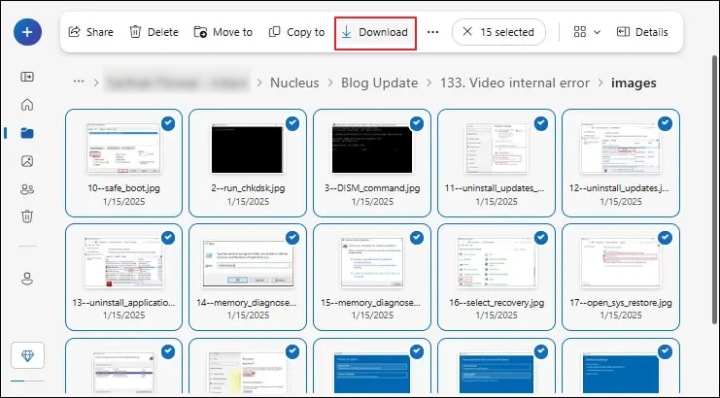
Step 3: Once downloaded, go to the location where these files are stored.
Step 4: Open the destination OneDrive account on your web browser.
Step 5: From the top left, click on the + icon and then Upload Files.

Step 6: Select all the downloaded files and tap Open to upload all the files.
The process is quite simple to perform and can be done in a few minutes, but the drawback of this method is that it is vulnerable to errors. There are also chances of data loss during the process. Furthermore, there is a limit on the download and upload of files on OneDrive. You can't upload/download a file more than 250GB in size.
Method 2: Drag and drop files between OneDrive accounts
This is the simplest method to migrate files between OneDrive accounts. In this method, you first open both OneDrive accounts in different browsers. Now, simply select the files from the source OneDrive, drag them, and drop them onto the destination account.
Repeat the procedure until you move all the files to migrate to another OneDrive. The process is helpful, but it is also a conventional method which has several shortcomings. There are chances of committing errors, making all the efforts go to waste.
Conclusion
With the simple methods available in this article, you can easily migrate if the number and size of the files are small. However, for large and bulk files and folders, these methods are not practical due to the potential risk of data loss. Use a professional OneDrive migration tool like Kernel OneDrive migration to avoid complications and ensure accuracy. The tool supports a 100% error-free process and securely migrates the entire or selected files between the accounts.
About the Creator
Xanthe Clay
Xanthe Clay is a highly skilled Technical Content Writer at Kernel Data Recovery, headquartered in New York, USA.
Keep reading
More stories from Xanthe Clay and writers in Education and other communities.
Avoid Compliance Risks During SharePoint Data Migrations
SharePoint stores crucial documents and files related to the business operations, which means you need to be extra cautious when handling this data. One wrong move and you might have to lose everything you’ve accumulated over the years. When performing SharePoint migration, you need to be mindful of adhering to the compliance and security policies set by the industry.
By Xanthe Clay4 days ago in 01
What It Really Takes to Get a Wikipedia Page Approved in 2026
These days, Wikipedia isn't like the one some folks recall. Back then, an okay article often made it through with just small tweaks. Now things feel tighter, more intense. Every day brings thousands of fresh entries. Most vanish fast, blocked before they stick around. Getting turned down used to be rare. Lately, that's just how it goes.
By Hillshire Media4 days ago in Education
Fly Fishing or Spinning: Choosing the Best Fishing Technique for Your Next Adventure
When planning a fishing trip, one of the first questions many anglers face is whether to use fly fishing or spinning. Both methods are effective, enjoyable, and widely used, but they offer very different experiences. The right choice can shape how successful and enjoyable your trip feels. Understanding how each technique works will help you pick the option that fits your goals, location, and comfort level.
By Jett Harris of Arkansas3 days ago in Education


Comments
There are no comments for this story
Be the first to respond and start the conversation.