
How to Connect Document Camera AVer F17 to Your Laptop : Guide by techfocuspro
Camera

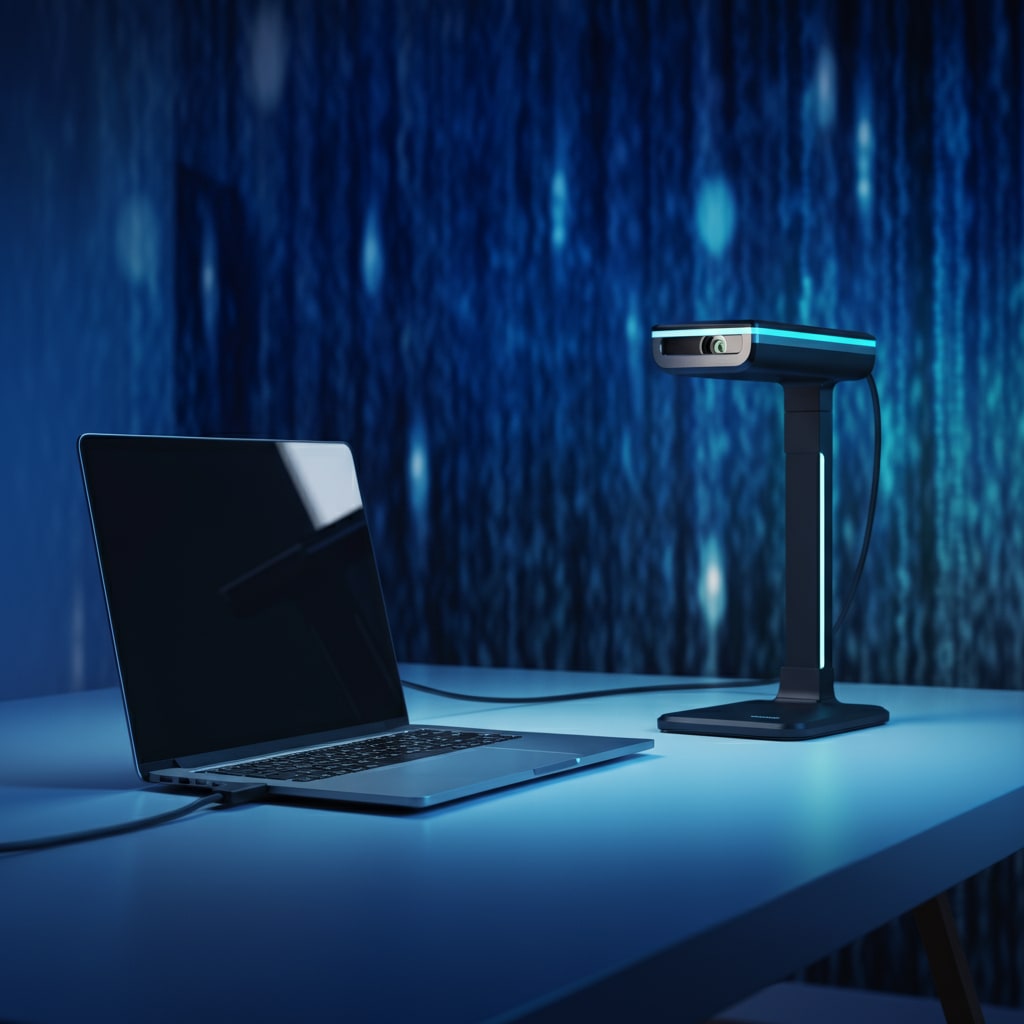
If you're looking to connect your AVer F17 document camera to a laptop but don’t know where to start, you’re in the right place! Whether you’re a gamer looking for an innovative way to enhance your streaming setup, a tech enthusiast experimenting with new gadgets, or a professional working on presentations, this guide will walk you through the steps to get your AVer F17 up and running.
By the end of this blog, you'll know exactly how to set up your AVer F17, troubleshoot connection issues, and even explore creative use cases for this device.
What Is the AVer F17 Document Camera?
The AVer F17 is a versatile document camera known for its excellent imaging quality and utility in various fields. You can use it to display documents, capture physical objects, or project live demonstrations with stunning clarity. With its easy-to-use design and robust compatibility, it’s perfect for presentations and even more specialized applications like streaming.
Whether you're showcasing game mechanics, creating tutorials, or delivering a lecture, the AVer F17 can elevate your content with ease.
Why Connect Your AVer F17 to a Laptop?
Connecting your document camera to a laptop opens up endless possibilities! Here’s why you might want to pair them:
Enhanced Flexibility: Utilize your laptop display as a monitor for live streaming or presentations.
Ease of Sharing: Share your screen during virtual meetings or classes using platforms like Zoom or Microsoft Teams.
Recording Capabilities: Easily record your demos or sessions for future use by pairing with recording software.
Customized Display: Use your laptop's tools for editing and enhancing captured images or videos in real-time.
Now, let's get into the setup process.
How to Connect the AVer F17 to Your Laptop
Step 1: Gather Your Equipment
To get started, make sure you have everything you need:
AVer F17 document camera
Laptop (Windows or macOS)
Power adapter for the AVer F17
A USB or HDMI cable (included with the AVer F17)
Optional: VGA cable if you’re using an older display method
Step 2: Connect the AVer F17 to Power
Before connecting to your laptop, plug in the power adapter and connect it to the AVer F17. Ensure that the document camera powers on by checking for any indicator lights on the device.
Step 3: Choose Your Connection Method
The AVer F17 supports multiple connection methods. Here are the two most common ways to connect it to your laptop:
Option 1: USB Connection
Locate the USB Port on your AVer F17. It’s typically labeled "USB."
Connect one end of the USB cable to the document camera and the other end to your laptop’s USB port.
Turn on the document camera.
Install the Necessary Software:
Download and install the latest A+ Suite software for the AVer F17 from the AVer official website. This software ensures compatibility and allows you to access advanced features.
Once installed, launch the software, and your laptop will recognize the AVer F17.
Option 2: HDMI Connection
If your laptop supports HDMI input, plug one end of the HDMI cable into the HDMI OUT port on the AVer F17.
Connect the other end to your laptop’s HDMI port.
Switch to the correct display source on your laptop using your display settings.
No additional software is required for an HDMI connection, but keep in mind that this method doesn’t allow advanced controls offered by the A+ Suite software.
Step 4: Configure Display Settings
After connecting, configure your laptop to ensure a seamless experience:
If you're using Windows, go to Display Settings and ensure the document camera is detected as an input source.
On a macOS device, check System Preferences > Displays for external device detection.
Adjust screen resolution if needed for optimal image quality.
Step 5: Test and Adjust
Open the A+ Suite software (for USB setup) or any video conferencing or streaming app (e.g., Zoom, OBS) to test the display. Verify that the live feed from the camera is visible. Adjust focus, zoom, or lighting using the physical controls on the AVer F17.
Also Explore: Why Every Fleet Owner Needs a Dash Cam?
Troubleshooting Common Issues
Sometimes things don’t go as planned. Here’s how to troubleshoot common problems with the AVer F17 laptop connection:
Issue 1: Laptop Doesn’t Recognize the Camera
Double-check the cable connections.
Ensure that both the laptop and the AVer F17 are powered on.
Update the device drivers on your laptop via the manufacturer’s website.
Issue 2: Poor Image Quality
Adjust the focus and zoom directly on the document camera.
Ensure adequate lighting for the objects you’re capturing.
Upgrade to higher-quality HDMI or USB cables, if necessary.
Issue 3: Software Compatibility Problems
Download the latest version of the A+ Suite software from AVer’s official website.
For macOS users, make sure the software is supported by your operating system version.
Creative Use Cases for the AVer F17
Now that you're connected, explore these unique ways to make the most of your AVer F17:
Streaming and Tutorials: Use the camera to capture objects in detail for game tutorials or tech reviews.
Presentations: Present documents or physical objects in meetings or classroom settings with professional quality.
Demo Displays: Showcase prototypes or 3D objects during virtual product presentations.
Final Thoughts on Connecting Your AVer F17
The AVer F17 document camera combined with your laptop can unlock exciting opportunities, whether you're creating content, teaching, or managing meetings. With a bit of setup, you'll have clear, high-quality visuals that elevate your work to a professional level.
If you’re ready to experience the full potential of the AVer F17, follow the steps above and start exploring all its features. This tool is not just about capturing images; it’s a gateway to engaging presentations and creative projects.
About the Creator
Keep reading
More stories from Saqib jameel and writers in Chapters and other communities.
What’s New in Gaming Technology? A Look at Innovations Shaping 2025
Gaming technology is evolving at an incredible pace, transforming how games are created, played, and experienced. Whether you’re a tech enthusiast, avid gamer, or developer, staying informed about the latest innovations is essential to understanding the future of gaming.
By Saqib jameel9 months ago in Gamers
Fair Exchange, No Robberies
Dark Memoirs - Index There are at least two kinds of people in the world: those who write this half-arsed kind of intro to a story that looks to separate the rare and the norm, and those who realise it's an overused framing device and don't.
By Paul Stewart14 days ago in Chapters
The Ritual of Demand, Chapter One
So there were Flashpower and Flashfair, 4-H-N guessed, crashing through the undergrowth of a barren outback planet astride local steeds not dissimilar to bipedal dinosaurs. Flashpower was somewhat the elder, leggy and restless in a tunic of brown, apparently determined to keep the lead. Flashfair meanwhile wore white, and seemed to have been named for his complexion and hair. Both Mini-Flashes, it went without saying, bore on their breasts the chunky old lightning-bolt logo.
By Doc Sherwood7 days ago in Chapters


Comments
There are no comments for this story
Be the first to respond and start the conversation.