
Transform Your Device: Stunning Black and White Icons for iPhone and iPad
Ready to refresh your iPhone or iPad with a chic, minimalist look? Explore our guide to customizing your device with sleek black and white icons. We'll show you how to easily apply these stylish designs and give your home screen a modern, sophisticated upgrade. Transform your tech with effortless elegance!

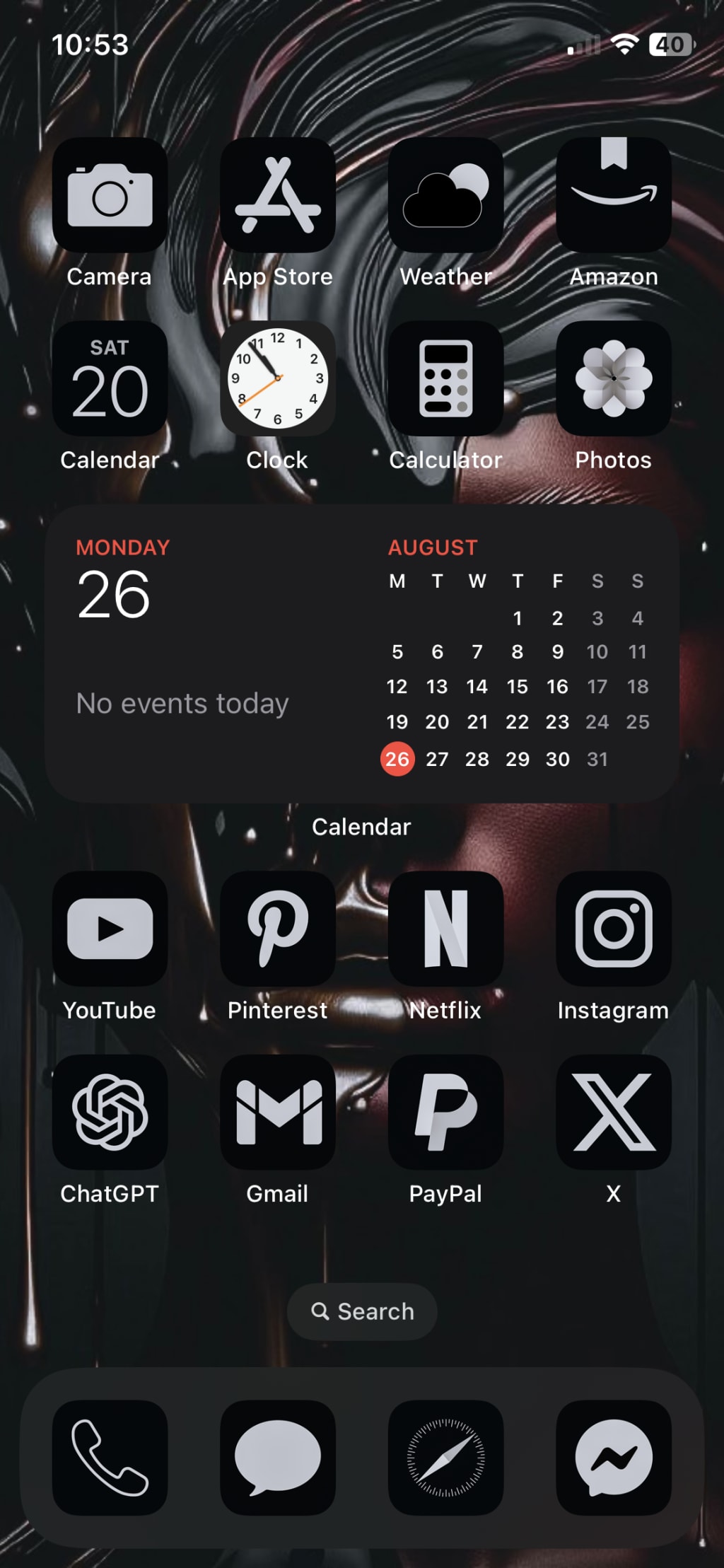
Which other colors would you like to see? Let me know in the comments! Also, feel free to share what other apps you use!
iPhone and iPad - Monochrome Matte Icon Set - Dark
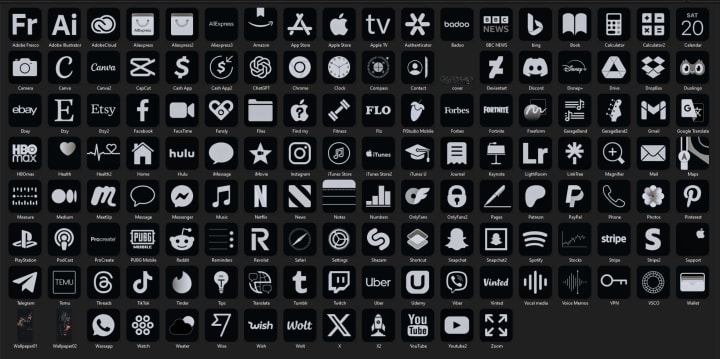
How to Create Custom App Icons on iOS 16+
To customize app icons on iOS 16 or later, the Shortcuts app is the best way to create custom icons for apps on your Home Screen. Follow these steps:
Open the Shortcuts App:
Open the Shortcuts app on your iOS device. If you can't find it, use the Search function to locate it.
Create a New Shortcut:
Tap the + icon in the top right corner to create a new shortcut.
Add the "Open App" Action:
Tap Add Action.
Search for the Open App action and select it.
Choose the App:
Tap Choose and select the app you want to customize with a new icon.
Customize the Shortcut:
Tap the three dots (…) next to the shortcut name.
Give the shortcut a name, such as the app name.
Set a Custom Icon:
Tap the Icon option.
Choose Choose Photo, where you can select a new image for the app icon. You can either choose an image from your photo gallery or take a new photo.
Add to Home Screen:
After customizing the icon, tap Add to Home Screen.
Give the icon a name if needed, and then tap Add in the top right corner.
Use Your New Icon:
You'll now see your new custom icon on the Home Screen with the name and image you selected. Tapping on this icon will launch the app.
Black x Yellow -100 icons Design | iPhone and iPad
How to Create Custom App Icons on iOS 16+
To customize app icons on iOS 16 or later, the Shortcuts app is the best way to create custom icons for apps on your Home Screen. Follow these steps:
Open the Shortcuts App:
Open the Shortcuts app on your iOS device. If you can't find it, use the Search function to locate it.
Create a New Shortcut:
Tap the + icon in the top right corner to create a new shortcut.
Add the "Open App" Action:
Tap Add Action.
Search for the Open App action and select it.
Choose the App:
Tap Choose and select the app you want to customize with a new icon.
Customize the Shortcut:
Tap the three dots (…) next to the shortcut name.
Give the shortcut a name, such as the app name.
Set a Custom Icon:
Tap the Icon option.
Choose Choose Photo, where you can select a new image for the app icon. You can either choose an image from your photo gallery or take a new photo.
Add to Home Screen:
After customizing the icon, tap Add to Home Screen.
Give the icon a name if needed, and then tap Add in the top right corner.
Use Your New Icon:
You'll now see your new custom icon on the Home Screen with the name and image you selected. Tapping on this icon will launch the app.
Full Matte Black iOS icons Design + Wallpapers
How to Create Custom App Icons on iOS 16+
To customize app icons on iOS 16 or later, the Shortcuts app is the best way to create custom icons for apps on your Home Screen. Follow these steps:
Open the Shortcuts App:
Open the Shortcuts app on your iOS device. If you can't find it, use the Search function to locate it.
Create a New Shortcut:
Tap the + icon in the top right corner to create a new shortcut.
Add the "Open App" Action:
Tap Add Action.
Search for the Open App action and select it.
Choose the App:
Tap Choose and select the app you want to customize with a new icon.
Customize the Shortcut:
Tap the three dots (…) next to the shortcut name.
Give the shortcut a name, such as the app name.
Set a Custom Icon:
Tap the Icon option.
Choose Choose Photo, where you can select a new image for the app icon. You can either choose an image from your photo gallery or take a new photo.
Add to Home Screen:
After customizing the icon, tap Add to Home Screen.
Give the icon a name if needed, and then tap Add in the top right corner.
Use Your New Icon:
You'll now see your new custom icon on the Home Screen with the name and image you selected. Tapping on this icon will launch the app.
About the Creator
Oliver Green
❤️ 30 Years old
💰 Sink ( Single income, no kids)
👔 I work as a Blogger
📊 I love ChatGPT and AI
💻 Hobbies: Gamer, and the Reading.
Keep reading
More stories from Oliver Green and writers in 01 and other communities.
Trending Now: Amazon’s Best Sellers for June 2024
As we reach the midpoint of 2024, Amazon continues to be a retail powerhouse, offering a vast array of products that cater to every need and interest. In June 2024, several products have captured the attention of shoppers, standing out as the best sellers of the month. From innovative gadgets to everyday essentials, here are the top 10 best-selling products on Amazon in June 2024.
By Oliver Green2 years ago in 01
From Unemployed Teacher to $15,000/Month Freelance Writer...
Sarah Chen was thirty-four years old when the COVID-19 pandemic cost her the teaching position she had held for nine years at a private school in Seattle, and like millions of Americans in March 2020 she suddenly found herself unemployed with bills to pay and a job market that had essentially frozen overnight, leaving her with a master's degree in education that felt useless in a world where schools were closing and hiring freezes were universal. She had exactly four thousand dollars in savings, a mortgage payment of eighteen hundred dollars per month, and a growing sense of panic about how she would survive if she couldn't find work quickly, and the traditional job search was yielding nothing but automated rejection emails and positions that had hundreds of applicants for every opening.
By The Curious Writerabout 13 hours ago in 01


Comments
There are no comments for this story
Be the first to respond and start the conversation.