
Step-by-Step Guide: How to Import PST to Office 365
How to import PST to Office 365?


Outlook users know that their email data is stored in a PST file that is used when importing or migrating data to other platforms. If you’re one of the businesses on the edge of migrating email data to Office 365, you must be looking for techniques that allow you to transfer PST to Office 365. There are several ways available, but identifying and picking the best one requires thorough research.
To save your time and eliminate extra steps from your process, this article will guide you on how to effectively perform the data transfer, preserving the entire hierarchy.
How to prepare for moving PST files from Outlook?
PST is a file format used by Outlook to store mailbox data, including emails, contacts, calendars, etc., saved locally on the computer. These files often encounter several challenges, such as corruption, data loss, and other data security risks. Many organizations move or import PST files to Office 365 to manage and secure their files within a centralized platform. Here is what you need to do before moving PST files:
- Make sure you have all the necessary permissions assigned in advance.
- Set up the import settings within Office 365 and assign licenses.
- Backup all the necessary data before you import PST to Office 365.
- Review the Office 365 mailbox size and split PST files before import if required.
- Organize the PST mailbox folders to make sure the hierarchy is retained.
How to import PST files to Office 365?
Here we’ll discuss top three methods to move PST file data to Office 365. You can choose any of these methods to import the data.
Method 1: Use Import/ Export technique
Here are the steps to import PST as described below:
1. Open Outlook and Go to File.
2. Click Open & Export and then Import/Export.
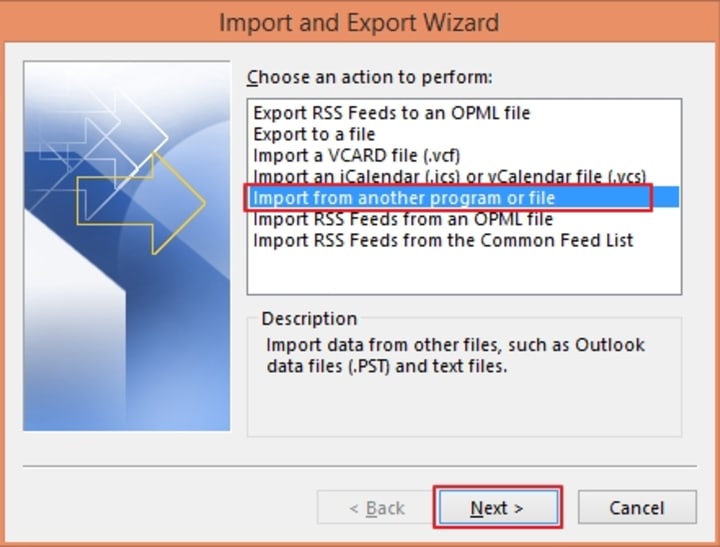
3. Choose Import from another program or file and click Next.
4. Select Outlook Data file (.pst) from “Import a file.”

5. Click Browse to define the file location, select options and click Next.

6. Select “Import items into the same folder in:” and choose Office 365 mailbox. Click Finish.

This will begin the import process, which will take some time. To import multiple PST files, repeat the process and browse different PST files.
Method 2: Use Drive Shipping Method
Drive Shipping is a method for importing PST files to Office 365 involving shipping of a storage device (USB drive, hard drive, etc.) to Microsoft. This means PST files will first be copied to a storage device and then shipped to Office 365. This method allows you to ship bulk PST files to Office.
- Arrange all the prerequisites, such as internet connectivity, a storage device, and the latest Azure AzCopy tool on your computer.
- Prepare the storage device and create a separate folder to import PST data. Name the folder same as import job.
- In Office 365 Security & Compliance, create a new Import job, use the drive shipping method, and provide the necessary information.
- Create an import mapping file to map PST file with Office 365 mailboxes.
- Copy all the desired PST files to the storage media and ship them to the address given by Microsoft.
Once Microsoft receive the package, they will begin the import, and you can see the progress and troubleshoot if there are issues. After the process completion, you can check the data to see if it’s correctly imported to the Office 365 tenant.
Drawbacks of manual methods
Some shortcomings or errors that can occur when using these methods include:
- Only one PST can be imported at once with the Import/ Export method.
- You can only use 10 storage drives as a ship for one import job.
- Drive shipping does not support PST files containing 300 or more embedded folders.
- The processes are time-consuming.
- There is a need for technical understanding to execute the processes.
Conclusion
The process to import PST to Office 365 is simple and straightforward when you have the required technical knowledge and prerequisites arranged. However, the process can often seem complicated to non-technical users. To avoid this and migrate hassle-free, use Kernel Import PST to Office 365, which is a professional solution to import data from PST files to Office 365. Use it to transfer everything, such as emails, contacts, attachments, etc., with metadata and hierarchy.
About the Creator
Xanthe Clay
Xanthe Clay is a highly skilled Technical Content Writer at Kernel Data Recovery, headquartered in New York, USA.
Keep reading
More stories from Xanthe Clay and writers in 01 and other communities.
How to Minimize Downtime During SharePoint to SharePoint Migration?
Migration of data between cloud platforms is never a lift-and-shift endeavor. It involves a multi-level planning followed by detailed research and a well-drafted migration strategy. This will help you unlock access to maximum benefits, boosting collaboration and productivity among your teams.
By Xanthe Clay3 months ago in 01
Understanding Flexible LED Wall Washers and Wallwasher Lighting
Wallwashing is a well-established architectural lighting technique used to evenly illuminate vertical surfaces such as walls, facades, and large structural elements. The primary goal of wallwasher lighting is to create uniform brightness across a surface, reducing harsh shadows and visual distractions while enhancing the perception of space and texture.
By charliesamuel5 days ago in 01
Ford F-150 Tonneau Cover Install in Under 10 Minutes
Installing a tonneau cover on a Ford F-150 doesn’t have to be complicated or time-consuming. Many modern tonneau covers are designed so that truck owners can install them quickly without special tools or professional help.
By Bison Tonneau Covers3 days ago in 01
FPS: The Last Flame Challenge Winners
Welcome to our first Winners Announcement of the year and to the final challenge in the Fall Poetry Series. The Last Flame invited writers to sit with endings, using fire as a central image to consider what remains when something burns out: ash, warmth, memory, silence, or the faint promise of what comes next. The strongest pieces treated endings as gradual rather than sudden, allowing them to flicker, dim, and linger.
By Vocal Curation Team4 days ago in Resources


Comments
There are no comments for this story
Be the first to respond and start the conversation.