
Migrate from G Suite to Office 365 While Preserving Metadata & Permissions
Due to the involved challenges, G Suite to Office 365 migration may carry the risk of losing metadata. Here’s how to plan migration, preserving metadata & permissions.

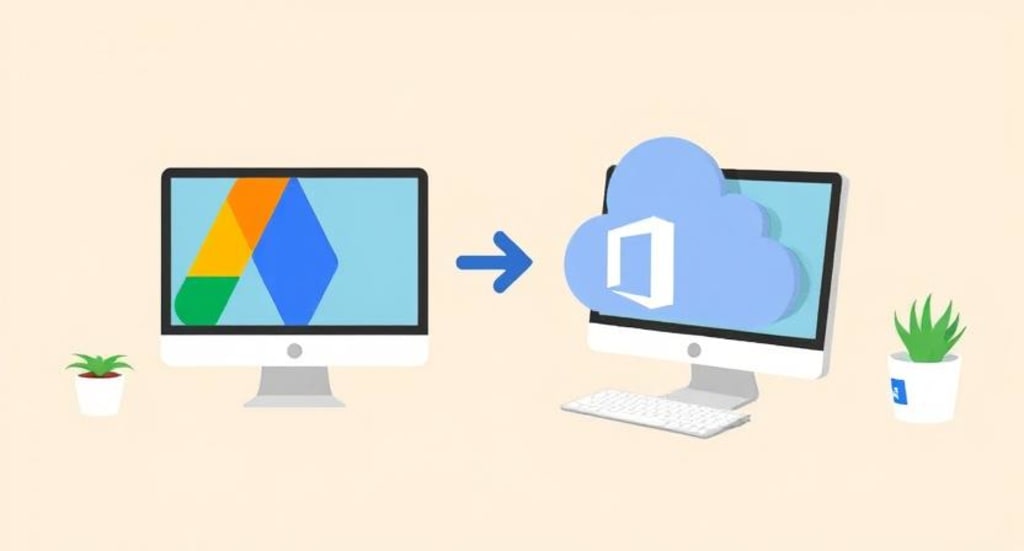
With the growing business size, the storage and resource requirements also start to evolve. Several aspiring businesses migrate from Google Workspace to Office 365 to access advanced collaboration and communication tools. Google Workspace and Office 365, both are feature-rich SaaS platforms, designed to boost the efficiency of business operations. However, they are still quite different from each other and can experience challenges during the shift.
To overcome the issue, the process requires deep understanding and strategy building to avoid losing productivity due to lost permissions and metadata. Let’s learn about the practices that will help you perform migration of data from G Suite components to Microsoft 365.
How to move from Google to Office 365?
When you migrate G Suite to Office 365, you’re actually transferring data between components, such as Google Docs, Sheets, Gmail, and Drive to Microsoft Word, Excel, Outlook, and OneDrive respectively.
- Verify domain ownership
Start by verifying the domain ownership of your Google Workspace accounts. It is a crucial step to set up Microsoft 365. This step provides a TXT record that you can add to your domain hosting provider.
- Add users to Office 365
The next step is to add users to the Microsoft 365 tenant. Whether you add single or multiple users, make sure to assign them licenses simultaneously. Allocate mailboxes to the users before migrating Gmail emails.
- Identify Gmail mailboxes to migrate
Now, you need to create a file with the list of all the Gmail mailboxes you want to migrate. You can use an Excel file to create this list, and for this, you must be the administrator with the passwords of all the intended Gmail mailboxes you wish to migrate. The file can have 50,000 mailboxes and be as large as 10MB. Make sure not to migrate all the mailboxes at once, but rather create batches to migrate conveniently.
- Start with your data migration
Before proceeding, don’t forget to save an absolute backup of the entire organization to avoid data loss if you miss any step. With the selected phased migration, connect Microsoft 365 to Gmail using a migration endpoint, map the users between source and destination, and create migration batches.
Once the migration is complete, you can see the status of the listed batch as Completed.
- Post-migration approach
Once you’ve migrated data from Google Workspace, log in to Microsoft 365 and verify that all mailboxes are carefully migrated. During the email migration, the DNS records used by the email system were pointing towards the G Suite email system. After the completion, you need to make sure that the records are pointing to Office 365.
After the confirmation that your emails are now routed to Office 365, delete the migration batch and eliminate the synchronization between Google and Office 365 mailboxes. Now, you can export contacts and calendars from G Suite to Office 365.
- Decommission Google Workspace
Managing two different environments can be hectic for you as an administrator. Therefore, now that you have everything migrated to Microsoft 365, you can decommission Google Workspace. This will help you save your resources invested in managing the platform and the cost of buying the licenses and storage.
Common Google Workspace to Office 365 migration challenges
Google Workspace to Office 365 migration often poses challenges that might lead not just to process failure but also cause significant data loss. Let’s check them out:
- Show difficulties in preserving metadata, such as timestamps, multiple file versions, file path, etc., during migration.
- Smooth user adoption often seems to be impossible, therefore, providing training and learning material for easy onboarding.
- Migration of users and group permissions is tricky and often results in data inaccessibility.
- Data corruption is one of the biggest challenges faced by the admins during transition.
- Businesses migrating huge data volumes might find the process time-consuming.
With the proper handling of these complications and challenges, you can migrate data without losing productivity. To mitigate such challenges, plan the migration in advance, choose a phased migration approach, and do effective end-user management. These tactics will support smart execution, eliminating chances of errors.
Conclusion
Being an administrator, you can face a lot of challenges in transferring data from G Suite to Office 365. Therefore, you need to plan the shift in a manner that you do not end up losing all the data. To avoid this, use a professional Google Workspace to Office 365 migration solution. The solution will help in moving all the data, including emails, contacts, calendars, etc., to Office, along with the permissions and metadata.
About the Creator
Xanthe Clay
Xanthe Clay is a highly skilled Technical Content Writer at Kernel Data Recovery, headquartered in New York, USA.
Keep reading
More stories from Xanthe Clay and writers in 01 and other communities.
How to Plan a Flawless SharePoint to SharePoint Migration?
SharePoint migrations might be complex, especially if you're not an IT expert or a professional user. Whether migrating from SharePoint to SharePoint Online or simply restructuring site collections between tenants, the process involves detailed planning and precision.
By Xanthe Claya day ago in 01
Five Steps to Turn Prospects into Lifetime Customers
Introduction Every business owner knows that acquiring new customers costs significantly more than retaining existing ones. Studies consistently show that it's five to twenty-five times more expensive to attract a new customer than to keep a current one. Yet many businesses focus their energy and resources almost exclusively on customer acquisition, treating each sale as a one-time transaction rather than the beginning of a potentially lifelong relationship.
By Start My Business5 days ago in 01
Best React Datetime Pickers for 2026: Top Libraries
Look, I get it. You're staring at your React project right now, wondering why picking a stupid date has to be this complicated. Should've been simple, yeah? But here we are in 2026, and somehow we've got more datetime picker options than there are days in a bloody year.
By Sherry Walkera day ago in 01


Comments
There are no comments for this story
Be the first to respond and start the conversation.