

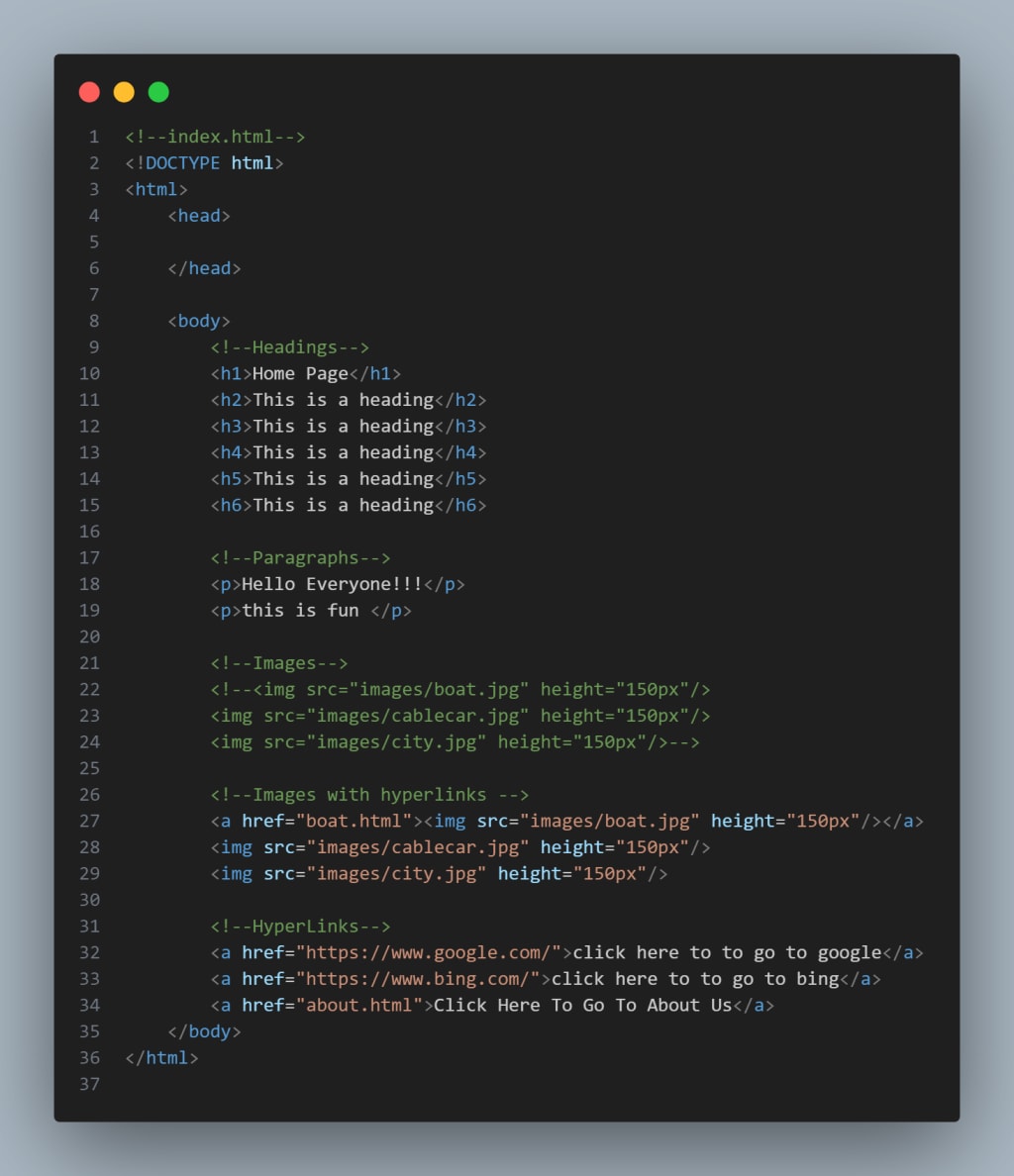
If you’ve ever opened a website and wondered how that page came to life—what makes it look the way it does, how the browser knows what to show—then you’ve already brushed up against the core language of the web: HTML.
Welcome to Day 1 of the 🚀 100-Day Fullstack Developer Challenge (React, Firebase & Node.js Edition)! This journey will take you from complete beginner to fullstack developer, and it all starts with learning the foundation of all websites—HTML.
What is HTML?
HTML stands for HyperText Markup Language. It’s not a programming language. Instead, it's a markup language that tells your web browser how to display content like text, images, links, and more.
Think of HTML as the skeleton of a webpage. It defines the structure and layout, while other technologies like CSS (for styling) and JavaScript (for interactivity) build upon that foundation.
Why Is HTML Important?
Whether you’re building a simple blog, an e-commerce site, or a complex web application using React and Firebase, HTML is always there underneath. Even when you’re writing JSX in React, you’re using HTML-like syntax. Without understanding HTML, you're building a house without knowing what a wall or a roof is.
The Basic Structure of an HTML Document
Let’s look at a basic HTML template that represents a simple webpage.
```html
<!DOCTYPE html>
<html>
<head>
<title>My First Webpage</title>
</head>
<body>
<h1>Hello, world!</h1>
<p>This is my first HTML page.</p>
</body>
</html>
```
Let’s break it down and understand what each part means.
1. DOCTYPE html – Declaring the Document Type
This is the very first line in any HTML document.
```html
<!DOCTYPE html>
```
This line tells the browser, “Hey, this is an HTML5 document.” HTML5 is the current version of the HTML standard, and the <!DOCTYPE> declaration ensures that the browser renders the page in standards-compliant mode rather than quirks mode (which can cause weird behaviour).
Fun Fact:
Older versions of HTML used longer declarations like:
```html
<!DOCTYPE HTML PUBLIC "-//W3C//DTD HTML 4.01//EN">
```
But with HTML5, things were simplified—making it beginner-friendly.
2. html – The Root of the Page
```html
<html>
...
</html>
```
The <html> tag wraps everything you write on your webpage. It is the root element and is the parent of every other HTML element in the document.
You can also specify a language for the document:
```html
<html lang="en">
```
This helps with accessibility and SEO (Search Engine Optimization).
3. head – Metadata, Links, and Scripts
```html
<head>
<title>My First Webpage</title>
</head>
```
The <head> tag contains metadata—information about the page that isn’t displayed directly on the screen. It's where you link external stylesheets, fonts, set the title of the page, and more.
Common Elements Inside head:
- title: Sets the title in the browser tab
- meta: Defines metadata like character encoding or viewport settings
- link: Connects external resources like stylesheets or icons
- style: Adds internal CSS styling
- script: Includes JavaScript (though it's better placed at the bottom of <body>)
Example:
```html
<head>
<meta charset="UTF-8">
<meta name="viewport" content="width=device-width, initial-scale=1.0">
<title>Learning HTML</title>
</head>
```
4. body – The Visible Content
```html
<body>
<h1>Hello, world!</h1>
<p>This is my first HTML page.</p>
</body>
```
The body tag contains all the content that the user sees on the screen. This includes:
- Headings (h1 to h6)
- Paragraphs (p)
- Images (img)
- Links (a)
- Lists (ul, ol, li)
- Forms, buttons, and more
Everything that appears in your browser window lives inside body.
Full Template Breakdown
Let’s revisit the full structure now that we’ve explained the parts.
```html
<!DOCTYPE html>
<html lang="en">
<head>
<meta charset="UTF-8" />
<meta name="viewport" content="width=device-width, initial-scale=1.0" />
<title>Welcome to Day 1!</title>
</head>
<body>
<h1>HTML is Awesome!</h1>
<p>This is my very first webpage using HTML. Let’s learn together!</p>
</body>
</html>
```
This is the simplest, yet complete, HTML document you can create. You could copy and paste this into any text editor, save it with a .html extension, and open it in your browser to see it in action.
Why These Three Tags Matter Most
html
- Declares the start and end of the document.
- Acts as a wrapper for everything else.
head
- Includes data that affects the page but is not directly visible.
- Crucial for SEO, responsive design, and linking styles/scripts.
body
- The heart of the page.
- All the visible content goes here.
Tools You Can Use to Start Coding HTML
- CodePen (online editor) – https://codepen.io
- Replit (cloud-based) – https://replit.com
- Visual Studio Code (desktop app) – Most recommended
- Live Server (VS Code Extension) – Gives you real-time preview in the browser.
Practice Time: Try It Yourself!
Here’s a quick exercise for you:
Task:
Create a simple HTML page with the following:
- Title: “About Me”
- Heading: “Hi, I’m [Your Name]”
- Paragraph: Describe yourself in a few lines
- Bonus: Add a list of your hobbies using <ul>
Sample Code:
```html
<!DOCTYPE html>
<html lang="en">
<head>
<meta charset="UTF-8">
<title>About Me</title>
</head>
<body>
<h1>Hi, I’m Codebloom</h1>
<p>I’m learning fullstack web development. This is my first HTML page!</p>
<h2>My Hobbies:</h2>
<ul>
<li>Coding</li>
<li>Reading tech blogs</li>
<li>Exploring AI</li>
</ul>
</body>
</html>
```
Common Beginner Mistakes to Avoid
- Forgetting the DOCTYPE declaration: Browsers might not interpret your HTML correctly.
- Placing visible content in head instead of body
- Misspelling tags: titel instead of title won't work!
- Not closing tags: pThis is a paragraph ← this is incomplete and causes display issues.
- Improper nesting: Tags must be properly nested. For example:
```html
<p><strong>This is bold text inside a paragraph.</strong></p>
```
How This Helps Later in React & Firebase
Even though frameworks like React allow you to write components in JSX, you’re still writing HTML-like structures. Here’s how what you learn today connects to your future work:
- HTML Concept: div, p | React Equivalent: div, p (in JSX)
- HTML Concept: h1 | React Equivalent: h1 in components
- HTML Concept: head and title | React Equivalent: React Helmet or Next.js Head
- HTML Concept: body | React Equivalent: Root element (usually #root div in index.html)
Understanding these basics ensures you won’t be confused when React apps render HTML elements dynamically.
Pro Tip: Use Semantic HTML
As you build bigger applications, use semantic HTML to improve accessibility and SEO.
- Instead of div, use semantic tags like header, main, footer, section, etc.
- Instead of b, use strong for meaningful emphasis.
- Instead of i, use em to indicate emphasis or importance.
Example:
```html
<body>
<header>
<h1>My Blog</h1>
</header>
<main>
<p>Welcome to my personal blog where I write about coding!</p>
</main>
<footer>
<p>© 2025 Codebloom</p>
</footer>
</body>
```
Main Tags in HTML
- Headings
- Paragraphs
- Links
- Images
These elements form the building blocks of any modern webpage, whether you’re coding a personal blog, a product landing page, or building dynamic content with React and Firebase later in your journey.
HTML Headings (<h1> to <h6>)
Headings are like titles and subtitles in a document. They help break content into readable sections. In HTML, headings range from <h1> (the most important) to <h6> (the least important).
Here’s a breakdown of each:
<h1>Main Title</h1>
<h2>Subsection Title</h2>
<h3>Sub-subsection</h3>
<h4>Even Smaller Title</h4>
<h5>Smaller Still</h5>
<h6>Tiniest Title</h6>
Visual Hierarchy Example:
<body>
<h1>My Travel Blog</h1>
<h2>Europe</h2>
<h3>France</h3>
<h3>Germany</h3>
<h2>Asia</h2>
<h3>Japan</h3>
<h3>Thailand</h3>
</body>
Key Points:
- Only one <h1> should exist per page to define the main topic.
- Use <h2> to <h6> for subsections.
- Do not use headings purely for styling (use CSS for that).
Accessibility and SEO
Search engines use headings to understand page structure. Similarly, screen readers use them for navigation, so proper usage improves accessibility and SEO.
HTML Paragraphs (<p>)
- Paragraph tags are used to display blocks of text content.
- <p>This is a paragraph of text. It is separated from other content and has space above and below it.</p>
- Each <p> tag creates a new block of text. You cannot nest other paragraph tags inside one.
Example:
<body>
<h1>About Me</h1>
<p>My name is Alex, and I’m a self-taught fullstack developer. I love building things with code.</p>
<p>In my spare time, I enjoy hiking, photography, and reading science fiction novels.</p>
</body>
HTML Line Break (<br>):
If you want to break lines within a paragraph:
<p>
This is the first line.<br>
This is the second line.
</p>
Note that <br> is a void tag (no closing tag).
Avoid This Mistake:
<p>This is a paragraph <p>This is another paragraph</p> </p>
Nesting paragraphs is not valid HTML and causes rendering issues. Use separate <p> tags instead.
HTML Links (<a>)
One of the most powerful features of the web is the ability to link from one page to another. That’s done using the anchor tag (<a>).
The basic syntax looks like this:
<a href="https://www.example.com">Visit Example</a>
Explanation:
- <a> is the anchor element.
- href (short for “hypertext reference”) is the attribute that holds the URL.
- The text between the tags is the clickable link text.
Opening Links in a New Tab:
<a href="https://www.google.com" target="_blank">Open Google</a>
target="_blank" opens the link in a new browser tab.
Consider also adding rel="noopener noreferrer" for security:
<a href="https://www.google.com" target="_blank" rel="noopener noreferrer">Open Google</a>
Linking Within the Same Page:
You can use id attributes to jump to sections on the same page:
<a href="#contact">Go to Contact</a>
...
<h2 id="contact">Contact Me</h2>
Example: Navigation Bar
<nav>
<a href="#home">Home</a> |
<a href="#about">About</a> |
<a href="#contact">Contact</a>
</nav>
HTML Images (<img>)
Images add life and visual clarity to web pages. HTML uses the <img> tag to display them.
<img src="path-to-image.jpg" alt="A description of the image">
Explanation:
- src (source): Path to the image file (URL or local).
- alt (alternative text): Describes the image for screen readers and is shown when the image doesn’t load.
Example:
<img src="https://example.com/logo.png" alt="Company Logo">
Local Image Example:
If you have a file called dog.jpg in your project folder:
<img src="dog.jpg" alt="A cute dog">
Adding Dimensions:
You can set width and height:
<img src="dog.jpg" alt="A dog" width="300" height="200">
However, it's often better to style size via CSS for responsiveness.
Making Images Responsive:
```HTML
<style>
img {
max-width: 100%;
height: auto;
}
</style>
```
This ensures the image scales with the browser width—important for mobile-friendly designs.
Combining Everything: A Mini Webpage
```html
<!DOCTYPE html>
<html lang="en">
<head>
<meta charset="UTF-8">
<title>My Personal Webpage</title>
</head>
<body>
<h1>Welcome to My Website</h1>
<img src="https://placekitten.com/400/300" alt="Cute Kitten" />
<h2>About Me</h2>
<p>Hi! My name is Jamie. I’m learning web development and love creating beautiful websites.</p>
<h2>My Projects</h2>
<p>Check out my latest project on GitHub:</p>
<a href="https://github.com/yourusername" target="_blank" rel="noopener noreferrer">My GitHub Profile</a>
<h2>Contact</h2>
<p>If you want to get in touch, send me an email at: <a href="mailto:[email protected]">[email protected]</a></p>
</body>
</html>
```
This code contains:
- Headings
- Paragraphs
- Links
- An image
This mini project brings together everything you learned today.
Practical Tips for Beginners
- Use Meaningful Headings: Avoid using <h1> multiple times or skipping heading levels.
- Write Descriptive Alt Text: This helps screen readers and boosts SEO.
- Keep Paragraphs Concise: Break long text into multiple <p> blocks.
- Test Links: Make sure they point to live, correct URLs.
- Don’t Use Images as Text: Use real text for important content, not embedded in images.
- Avoid Using Images Without alt: Even if you think it's decorative, add at least alt="" for compliance.
Common Mistakes to Avoid
- Using multiple h1 tags: Confuses search engines and screen readers
- Nesting a inside a: Not allowed in HTML5
- Forgetting alt on img: Breaks accessibility
- Using br to add space between paragraphs: Use <p> or CSS margin instead
- Broken href links: Leads to 404 errors and a bad user experience
Real-World Use in Full-stack Development
Even though you'll use advanced frameworks like React and Node.js, these HTML tags remain foundational:
```React
In React (JSX syntax):
function Home() {
return (
<div>
<h1>Hello World</h1>
<p>This is a React component.</p>
<a href="https://reactjs.org" target="_blank" rel="noopener noreferrer">Learn React</a>
<img src="logo.png" alt="React Logo" />
</div>
);
}
```
React uses JSX, which is HTML-like syntax inside JavaScript. Your understanding of headings, links, and images will translate directly.
HTML Semantic Value
- Using these tags properly also improves the semantics of your site. It helps:
- Search engines understand your content.
- Screen readers provide better user experiences.
- Browsers display the content consistently.
- When combined with CSS and JavaScript, these basic tags evolve into rich, dynamic interfaces.
Conclusion: Laying the First Brick in Your Full-Stack Journey
HTML is more than just a mark-up language—it’s the foundation of the web. Every website you interact with, from personal blogs to advanced platforms like Facebook or Netflix, is built upon the structural scaffolding provided by HTML. Today, you took the first step in your full-stack development journey by understanding how to create that foundation yourself.
By learning how to use tags like html, head, body, and semantic elements like header and main, you’ve begun to think like a developer. You’re no longer just a consumer of websites—you’re a creator.
This knowledge is not just useful for HTML pages alone. As you dive deeper into React, Firebase, and Node.js, you’ll see these same concepts again—disguised in frameworks, components, and rendered views. Your ability to structure content clearly, use proper tags for accessibility, and understand how browsers interpret mark-up will give you a serious advantage as you start building full stack applications.
Here’s what you should take away from today:
- HTML gives shape and meaning to your content.
- Clean, semantic HTML is essential for accessibility, SEO, and future collaboration.
- Even the most powerful frameworks are built on top of HTML principles.
- Writing well-structured HTML is the first sign of a thoughtful, professional developer.
As we move forward in this 100-day challenge, we’ll build upon today’s lesson by incorporating styling with CSS, interactivity with JavaScript, and dynamic rendering with React and backend tools like Node.js and Firebase. But no matter how advanced we go, it all comes back to well-written, semantic HTML.
🚀 Your journey has officially begun. Keep practicing, keep coding, and keep learning—one day at a time.
About the Creator
CodeBloom
CodeBloom is a beginner coder sharing her journey, lessons, and small wins—growing and building through curiosity, one project at a time.
How to Become a Mobile App Developer in 2026
The Google ecosystem has undergone a tectonic shift where mobile development is no longer defined by syntax proficiency but by Agentic Optimization. This structural realignment means that risk exposure for developers now hinges on their integration into the Trust Graph rather than mere technical stack knowledge.
By Devin Rosarioa day ago in 01




Comments
There are no comments for this story
Be the first to respond and start the conversation.