
Know the Google Drive Folder Permissions after Migration
Confused about Google Drive Folder permissions after migration? Need complete info for smooth workflow! Check out this easy guide now.


Migrate files to a new location & feel like work is done here! If you are thinking the same, you are not on the right track. Because along with the location, folder permissions also change & it controls the flow of collaboration and determines which team member can access specific content & at what level.
Hence, it needs to be managed properly. Otherwise, it can make the Google Drive migration experience bitter through access issues, security gaps, & frustrated team members. Our expert guide helps you to know all the required information about the folder permissions in detail.
Google Drive Permissions: How does it Work?
Permission permits you to identify who can access the file or folder & what they can do with it. So, it is mainly at three levels:
Viewer: Users can only see but are not able to make any changes to the files or folders.
Commentor: In this, users can view & add comments with no editing access.
Editor: Helps users to view, comment & make any changes to the files or folders.
Important to Know: The user can apply permissions at the Folder level or at the individual file level, which may not be the same after the Google Drive folder sharing.
What Changes in Google Drive User Permissions after Migration?
Impact on permissions varies with the migration type. Let’s understand how:
Type 1. My Drive to Shared Drive Migration!
- Ownership Shift: In My Drive, access is managed by the File owner, whereas for a Shared Drive, it is managed by the team or organization.
- Role-based Access: Instead of setting editor / viewer at the file level, the Shared Drive provides options to manage broader roles such as Manager, content manager, Commentor, Contributor & Viewer.
- Inheritance: Whatever the assigned permissions will be, they will be inherited at the Drive level.
Type 2. Between Google Workspace Accounts!
- Loss of Sharing Links: After migration, there is a chance of losing the old, shared links.
- Reset Permissions: Some permissions altered to default during the migration.
- Domain Restrictions: Accessing the file might be challenging if the receiver's domain has strict sharing policies.
Important to Know: In most cases, Google retains the existing permissions if you use the “move” option rather than the “copy” one.
How to Verify the Permissions after the Migration?
Go through the following section to verify the Google Drive user permissions after migration:
- Start from the root folder & check the access at each level.
- You can use the Share tab to check out the listed users with their roles.
- It is necessary to ensure that the links are restricted to the intended audience.
- For Admin, you can run the Drive Audit log to check the unusual or risky sharing.
Best Practices for Setting Folder Permissions after Migration!
Here are some practices that will help you to migrate Google Drive without losing permissions:
- Make sure that you set permissions from the top level to keep things consistent. Override for exceptional cases only.
- Set the permission as the work required by the team personnel. Helps in reducing the risk of data leaks.
- Avoid permission conflicts by separating the internal & external folders.
- Create groups to assign the needed permissions. Avoid adding single users to multiple groups.
- Structure your complete document in terms of permissions to migrate Google Drive data smoothly.
Common Permission Issues after Migration!
There are some common permissions-related issues that users can face after migration. Go through the following section:
- The chance of overexposure arises when there is a discontinuity between the higher & lower-level groups' permissions.
- Improper permission mapping & invalid users’ accounts may lose further access.
- After migration, there can be a situation that outsiders will be blocked due to domain policies.
- Due to human or intended errors, unwanted users can access the broader editing privileges.
Note: If you are looking for a simple & 100% error-free solution, consider the Google Drive migration software.
Also Read: Top 5 Google Drive Migration Tool
Basic Security Considerations for Effective Management!
Go with the given considerations to transfer Google Drive files in an effective way.
- Apply domain-level restrictions to avoid any future ambiguity related to permissions.
- Make a regular practice of reviewing or auditing the permissions settings after a specific interval.
- Update the group membership as per the roles to minimize the risk of data breach.
- Enable the Admin alerts for publicly accessible files to reduce the risk of data loss.
- Train your team regarding the permissions from start to end for complete transparency.
Conclusion
Folder permissions are the most overlooked things in the Google Drive migration, but it is necessary for efficient & secure teamwork. So, we have highlighted all the needed information about the permissions. Always keep in mind that the correct permissions mean the right people get the right work that makes your data useful & protected.
About the Creator
Layla Darzi
I’m Layla, a content writer dedicated to creating meaningful, engaging, and results-driven content. I specialize in writing blogs, articles, website copy, and brand stories that blend creativity with strategy.
Keep reading
More stories from Layla Darzi and writers in 01 and other communities.
Common Challenges in Google Drive Migration
Undoubtedly, Google Drive is a reliable and powerful cloud-based service for storing, sharing, and managing files online. Since it has many features and capabilities, switching to Google Drive might be tedious sometimes. You may often face many Google Drive migration issues, from missing files to transfer errors, which can be complicated and frustrating.
By Layla Darzi6 months ago in 01
Brutality Before Peace: Ukraine Condemns Russian Strikes Amid Fragile Negotiations
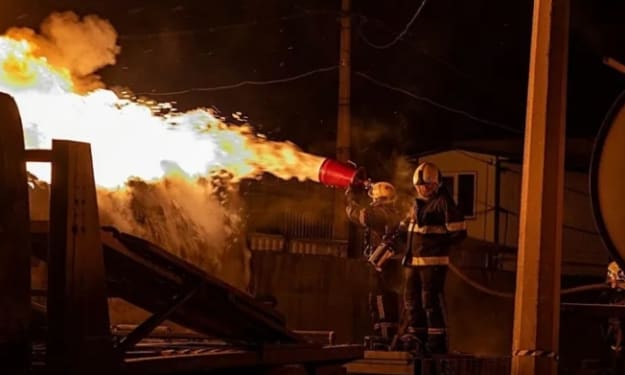
When Peace Is Shadowed by Violence Peace talks are meant to signal hope. They are supposed to mark a pause in bloodshed, a willingness to listen, and a fragile step toward ending human suffering. Yet, in the ongoing Russia-Ukraine war, peace has once again been overshadowed by violence. Ukraine has strongly condemned what it describes as “brutal” Russian strikes launched just ahead of the second day of peace negotiations, casting a dark cloud over diplomatic efforts that were already hanging by a thread. These attacks did not merely damage infrastructure or military positions; they struck at the heart of trust itself. When bombs fall before dialogue begins, the message sent is louder than any words spoken at a negotiating table. This contradiction—talking peace while waging war—has become a recurring and deeply troubling pattern in modern conflicts. Background: A War That Refuses to Pause Since the outbreak of the Russia-Ukraine conflict, cycles of escalation and diplomacy have repeated themselves with painful predictability. Every announcement of talks is met with cautious optimism, only to be followed by renewed offensives, accusations, and shattered expectations. For Ukraine, these latest strikes represent more than a tactical move. Officials argue they are a deliberate attempt to weaken morale, pressure negotiators, and gain leverage before discussions even begin. The timing—just hours before a critical day of peace talks—has intensified suspicions about Russia’s true intentions. From Ukraine’s perspective, peace cannot be negotiated under fire. Diplomacy, they insist, requires at least a temporary respect for civilian life and international norms. The Meaning of “Brutal”: Beyond a Political Statement The word “brutal” is not used lightly in international diplomacy. When Ukraine labeled the strikes as such, it was acknowledging not only the physical destruction but also the psychological and humanitarian impact. Reports from affected regions described explosions near residential areas, damaged energy infrastructure, and terrified civilians seeking shelter. Winter conditions in parts of Ukraine have made these strikes especially devastating, cutting off heat, electricity, and essential services for vulnerable populations. In war, numbers often dominate headlines—casualty counts, missile totals, square kilometers gained or lost. But brutality is felt most deeply in moments unseen by cameras: a family huddled in darkness, hospitals running on emergency generators, children learning the sound of sirens before lullabies. Peace Talks Under Pressure The second day of peace talks was expected to focus on humanitarian corridors, ceasefire possibilities, and confidence-building measures. Instead, the renewed violence shifted attention back to survival and damage control. Negotiations conducted in the shadow of active strikes are inherently compromised. Trust erodes, positions harden, and compromise becomes politically dangerous. Ukrainian negotiators now face the impossible task of advocating dialogue while their nation absorbs fresh wounds. Historically, peace processes that begin under active military pressure rarely succeed. Violence before or during talks often signals that one party views diplomacy not as a path to resolution, but as a strategic tool to legitimize gains or stall for time. International Reactions: Condemnation and Concern The global response to Ukraine’s condemnation was swift but familiar. Western allies expressed deep concern, reiterating calls for restraint and respect for international law. Statements emphasized the need for genuine commitment to peace rather than symbolic negotiations. However, critics argue that repeated condemnations without decisive consequences have lost their deterrent effect. Strong words, they say, cannot compete with missiles unless backed by meaningful action. At the same time, some nations urged continued dialogue, fearing that abandoning talks altogether would lead to further escalation. This delicate balance—condemning violence while clinging to diplomacy—highlights the international community’s limited options in influencing a conflict driven by power, security fears, and national identity. Civilian Cost: The True Measure of Failure While diplomats debate language and leverage, civilians pay the price. Each strike ahead of peace talks undermines the very purpose of negotiation: to protect lives. In affected Ukrainian cities and towns, residents have grown weary of promises. For many, peace talks feel distant and abstract compared to the immediate reality of explosions, displacement, and loss. Trust in international processes weakens when violence appears unchecked. Children miss school, families are separated, and communities fracture under prolonged stress. Mental health experts warn of long-term trauma that will persist long after the last shot is fired. These invisible scars may ultimately prove harder to heal than destroyed buildings. Strategic Calculations: Why Strike Before Talks? Analysts suggest several reasons why such strikes occur before negotiations: Leverage Building – Demonstrating military capability to strengthen negotiating positions. Psychological Pressure – Undermining morale and confidence on the opposing side. Domestic Messaging – Appearing strong to internal audiences. Testing Limits – Gauging international reaction and tolerance. Yet these short-term gains often come at the expense of long-term peace. Violence hardens narratives, fuels resentment, and makes reconciliation more difficult. A Pattern Repeated Across History The Ukraine-Russia conflict is not unique in this pattern. History is filled with examples where peace talks were preceded—or accompanied—by intensified fighting. From the Balkans to the Middle East, such strategies have repeatedly delayed resolution and deepened suffering. What history also teaches is that sustainable peace rarely emerges from fear. It requires mutual recognition of humanity, security guarantees, and accountability. Strikes before talks may alter maps, but they rarely heal nations. The Role of Media and Public Perception Media coverage plays a critical role in shaping how such moments are understood. Headlines about “brutal strikes” influence public opinion, political pressure, and diplomatic tone. For Ukraine, speaking out forcefully is not only about international advocacy but also about maintaining domestic unity. Silence could be interpreted as weakness or acceptance. Condemnation becomes a necessary act of resistance in the information battlefield. However, constant exposure to violence also risks desensitization. The world watches, reacts briefly, and moves on—while the war continues. Is Peace Still Possible? Despite the grim timing of these strikes, abandoning hope entirely would mean surrendering to endless war. Peace remains possible, but it demands more than talks scheduled on calendars. It requires: Genuine ceasefires, not symbolic pauses Protection of civilians as a non-negotiable principle Accountability for violations International mediation with real leverage Without these elements, negotiations risk becoming rituals devoid of meaning. Conclusion: A Test of Intentions Ukraine’s condemnation of the “brutal” Russian strikes ahead of peace talks is more than a diplomatic statement—it is a test of intentions. It asks a simple but profound question: can peace be pursued honestly while violence continues? Every strike before dialogue answers that question, at least temporarily, with destruction rather than dialogue. Yet history reminds us that even the darkest conflicts can change course when courage replaces coercion. Until then, peace talks held under fire will remain what they are now—fragile, painful reminders of how far the world still has to go.
By Zahid Hussain3 days ago in 01



Comments
There are no comments for this story
Be the first to respond and start the conversation.