
How To Troubleshoot Mac Flashing Question Mark Folder
Question mark flashing folder on mac problem.
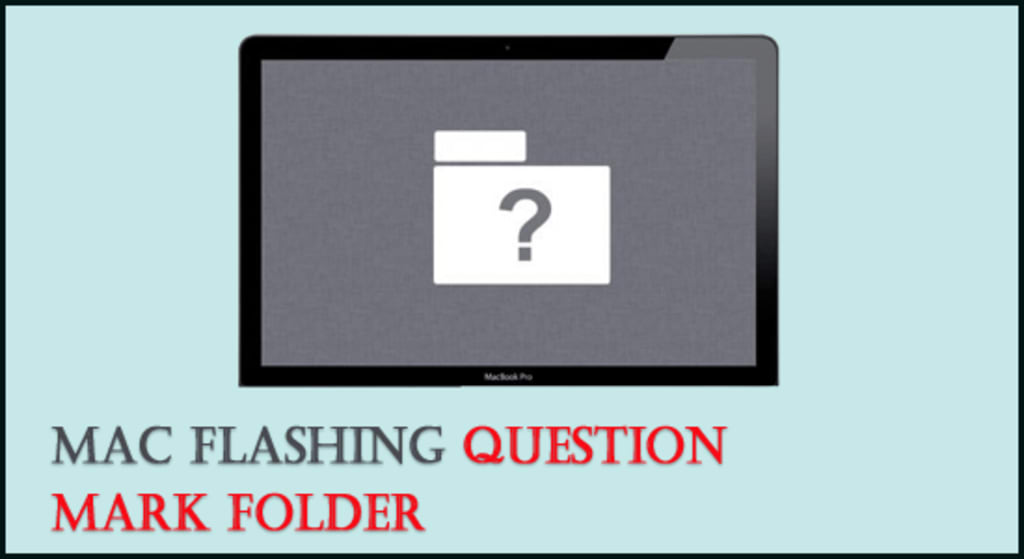
Many MAC users reported that while starting their MAC system they encountering Mac flashing question mark folder. Do you know why this happens? Let us discus, the Mac flashing question mark folder pops up when you restart your PC that time your PC can't find the setup disk. This problem is very irritating, But don't worry, there are some tested solutions mention below where you can solve this flashing folder with a question mark problem on MAC easily.
But first, take a look at the reason behind this folder with the question mark problem on Mac.
What are the reasons behind Flashing Question Mark Folder MacBook Startup?
There are numerous reasons behind this Mac Flashing question mark error. I have mentioned some common reasons behind - flashing folder with a question mark problem on MAC:
1. Corrupted or Damaged Hard Disk: Sometimes, System can't find Hard Disk, and then it is not a Startup problem. It could happen due to bad cable or hard disk faller.
2. Using Damage System Software: Sometimes, an outdated system’s software or incomplete installation can lead you to this flashing folder with a question mark problem.
3. Power Surges: Fluctuation of power can lead to SSD/Hard disk corruption, and then you can get question mark problem.
4. Device Age: Sometimes, you use the old system for a long time, which can also lead you to this problem.
So now you know the region behind this Folder with the Question Mark issue on Mac. Let’s see how we can fix this error.
How To Troubleshoot Flashing Folder With A Question Mark Problem On MAC
# SOLUTION 1 – Reboot Your Mac
If you encounter any type of error or bug on your MAC PC, then first reboot the device. Rebooting the PC can help you to fix some major problems even you don’t need any technical help.
Therefore, I will suggest you to restart your PC. After restarting you can check your PC, and see that problem is solved or not. If it remains the same then move down to the next solution and fix this question mark flashing folder on mac problem.
# SOLUTION 2- Using Mac Recovery Mode Boot your device
The best way to troubleshoot the Mac question mark folder of death problems is to boot the Mac OS in recovery mode. Follow the instruction given below:
• Press the power button till your Mac OS turns off
• Now, switch on the Mac
• Press together Command + R key until you get an Apple logo, firmware password prompt, or spinning globe appears.
• Once prompted, appears to the Wi-Fi network. Then, you have to enter into recovery mode.
• After mac OS Utilities appears, click on the Apple menu and then Startup your Disk.
• Click on the Macintosh HD Startup Disk and then click on Restart button.
# SOLUTION 3: Update Mac Operating System Firmware
Well, you are facing this Mac Flashing Question Mark Folder problem after you update your macOS recently, it happens due to incomplete firmware.
So, you have to update firmware again, and then you have to erase the disk and reinstall your mac operating system using good internet connection and enough space available on your hard disk. After updating your Mac operating system your Mac Flashing Question Mark Folder problem will automatically resolved.
Time to conclude:
In this blog, you learn how to fix the Mac question mark folder of death problems. All the above mention solutions are well tested and effective to perform and you can try them according to your situation.
If you find this post helpful, then don't forget to share this post with your friends and loved ones.
Thank you...
About the Creator
Keep reading
More stories from daniel franco and writers in 01 and other communities.
Find The Best Characters Ranked In Skullgirls Tier List Game
Skullgirl game is one of the most treading and captivated games which seeks the attention of teenagers. In this game, the warriors or fighters are classified into numerous tiers based on their skillset and utility allocated to each and every character.
By daniel franco4 years ago in Gamers
Smart Cloud Security Tips for a Safer Home Network
In these days’s virtual age, cloud offerings have come to be an imperative part of our personal and professional lives. From storing a circle of relatives' snap shots to coping with economic statistics and smart home devices, the cloud offers convenience and accessibility like by no means before. However, with comfort comes a chance. Cyber threats are evolving swiftly, and domestic customers are increasingly turning into targets. Ensuring your house cloud surroundings are secure is now not optionally available—it’s crucial. Here are smart cloud protection recommendations that will help you shield your private home community and private data.
By Muhammad Hanzla5 days ago in 01
Rachel Reviews: The Spiral Archive by Pieter Hendrik
It's difficult for me to know where to start with a review of this book as it was, for me, an entirely unique experience and one that I'll probably never have again. I don't want that to be interpreted as unenjoyable but it has left me scratching my head a little and ruminating on its content, its themes and its characters.
By Rachel Deeming2 days ago in BookClub




Comments
There are no comments for this story
Be the first to respond and start the conversation.