
How to Split and Compact Microsoft Outlook PST Files for Speed and Space?
Personal Storage Table or PST files are Outlook data files that store mailbox items, such as email, contacts, attachments, tasks, notes, calendar items, etc., on your local machine.
Personal Storage Table or PST files are Outlook data files that store mailbox items, such as email, contacts, attachments, tasks, notes, calendar items, etc., on your local machine. The PST file may grow larger and exceed the recommended limit depending on your usage.
When the PST file grows larger and exceeds the limit, Outlook starts getting slower, and its performance degrades significantly. In addition, it starts taking longer to open Outlook, and search results are also delayed. Users may also encounter errors and issues while sending or receiving new emails.
Besides, a large PST file is also prone to inconsistencies that can lead to corruption and data loss.
Thus, keeping the PST size smaller and under recommended limits is critical. Keeping the PST file size can safeguard the file from corruption due to oversizing and ensure consistent Outlook performance and speed.
In this article, we will share some methods that you can use to keep your PST size smaller by splitting your large PST file into multiple smaller PSTs or compacting it using the Outlook options. You may also use a third-party tool to Split PST file or compact the PST file automatically.
Methods to Split and Compact Outlook PST Files
Below, we have shared four methods to manually or automatically split and compact Microsoft PST files for consistent speed and performance.
Method 1: Archive Older Emails to a Separate PST File
Archiving older messages to a PST file is the most efficient way to reduce the Outlook PST file size. It’s like splitting your large file into smaller PST as you move emails from your current PST file to a new PST file. This new PST is added to your Outlook account, and thus, you can access all your mail items after archiving.
The steps are as follow,
1. Open Outlook 2010 or later and navigate to File> Info.
2. Click Cleanup Tools and choose Archive…
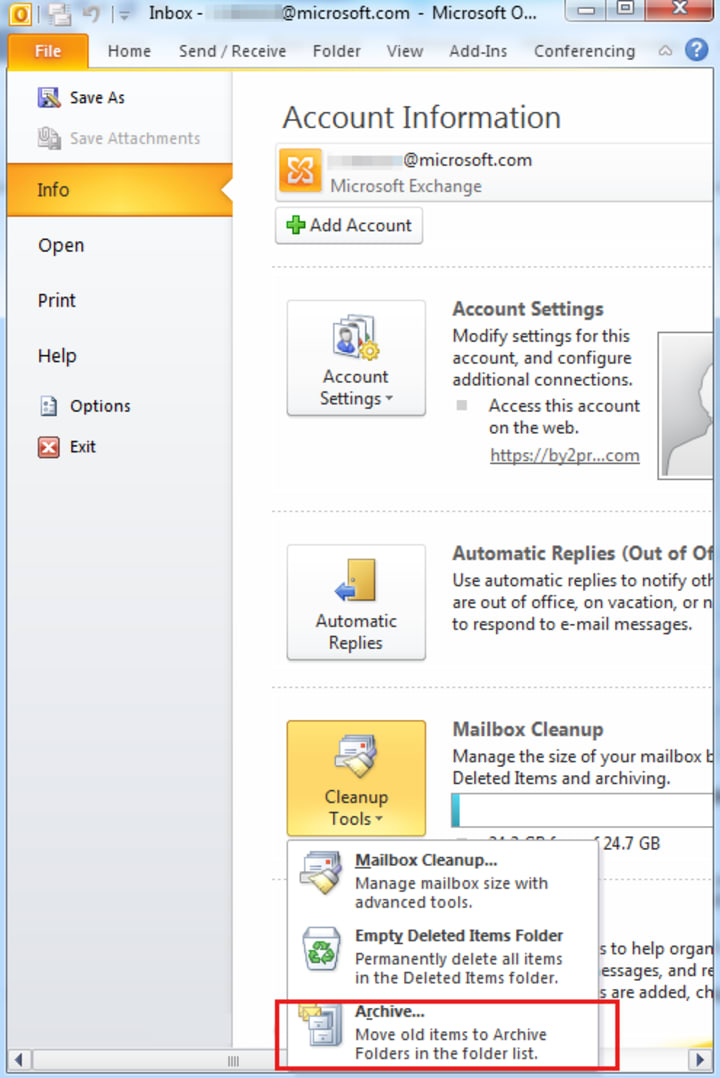
3. In the Archive dialog box, select Archive this folder and all subfolders: and then select the date in Archive items older than:
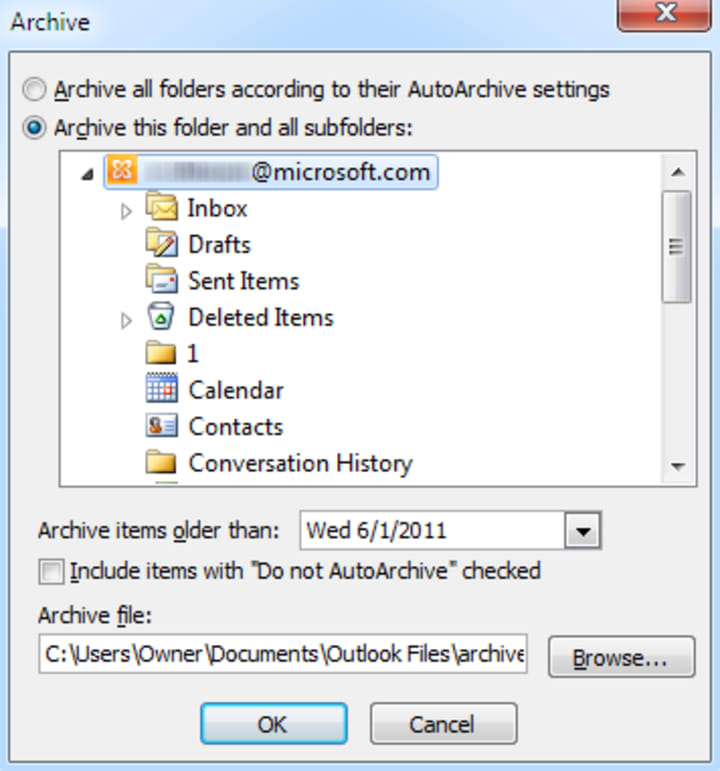
4. Click Browse to choose a location where the archive PST file will be saved and click OK.
Choose a new PST file to save the archived items and keep the PST file size smaller.
Method 2: Manually Move Mail Items to new PST File
Alternatively, you may also split your mailbox items by moving mail items from the current PST file to a new PST file in Outlook. Both PST files will be accessible from your Outlook account and help keep the PST file smaller.
The steps are as follow,
• In Outlook, click File> Account Settings> Account Settings
• Go to the Data Files tab and click Add.
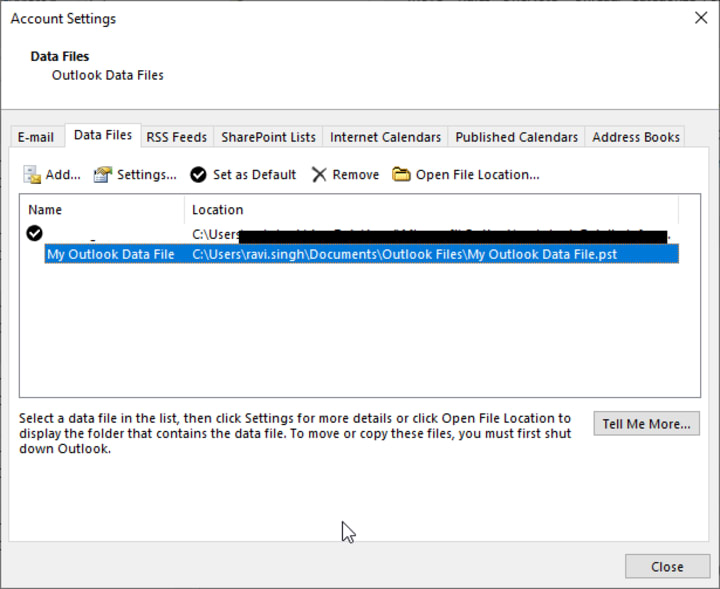
• Type the PST file name and click OK.
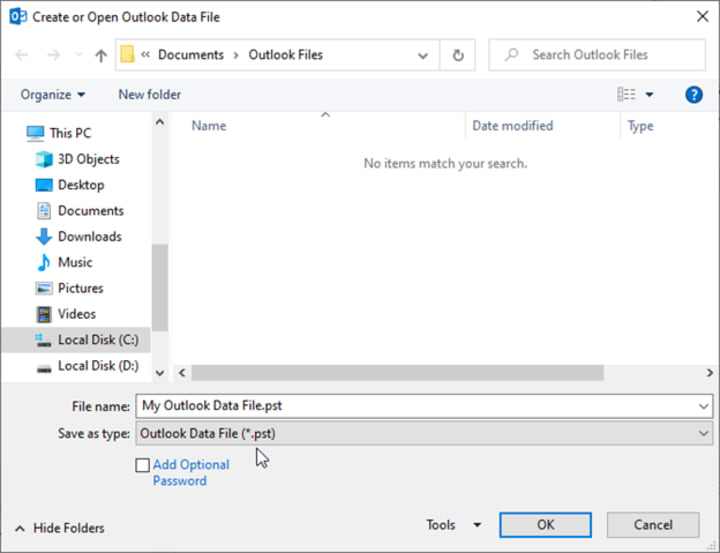
• The Outlook PST file will be added to your Outlook account and visible in the left folder pane.
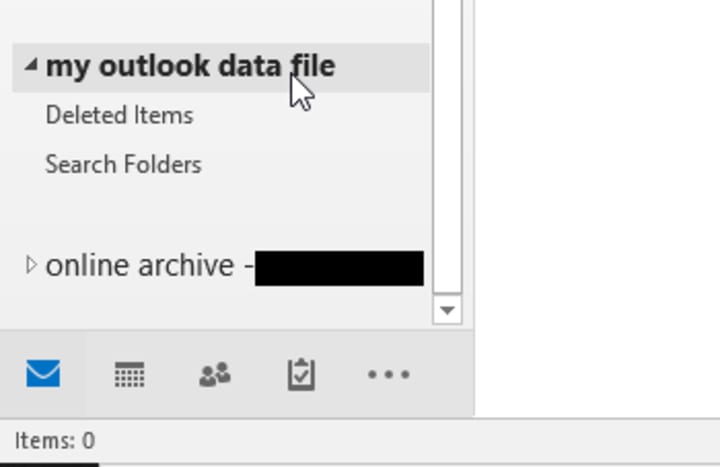
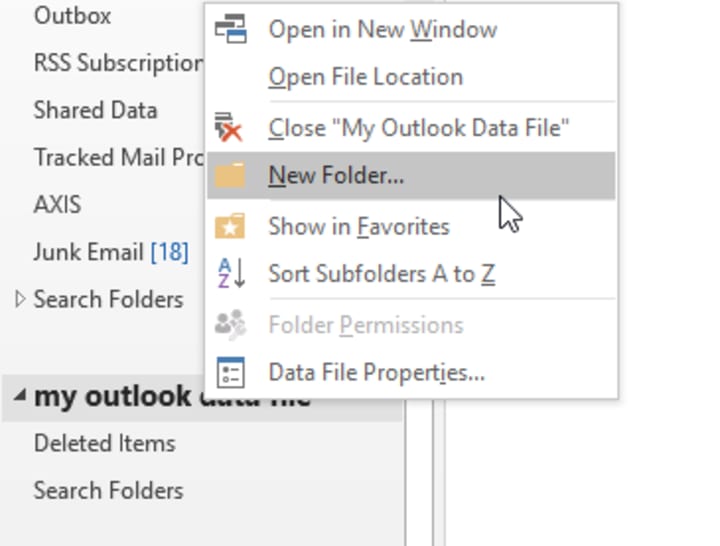
• Right-click on the Outlook data file and choose New Folder…
• You can now move email folders or mail items from your default PST file to this new Outlook data file folders using CTRL+X and CTRL+V or drag & drop.
• Once moved, the default PST file size will be automatically reduced.
Method 3: Use Outlook Compact Option
Outlook also provides an option to compact Outlook data files (PST). However, the compact option in Outlook works only when the ‘white space’ (unused space) in the PST file is more than 20%.
After moving the mail items from default PST to the new PST file, you can further compress the PST file and clear white space.
The steps are as follow,
• Open Outlook, go to File> Account Settings> Account Settings and click the Data Files tab.
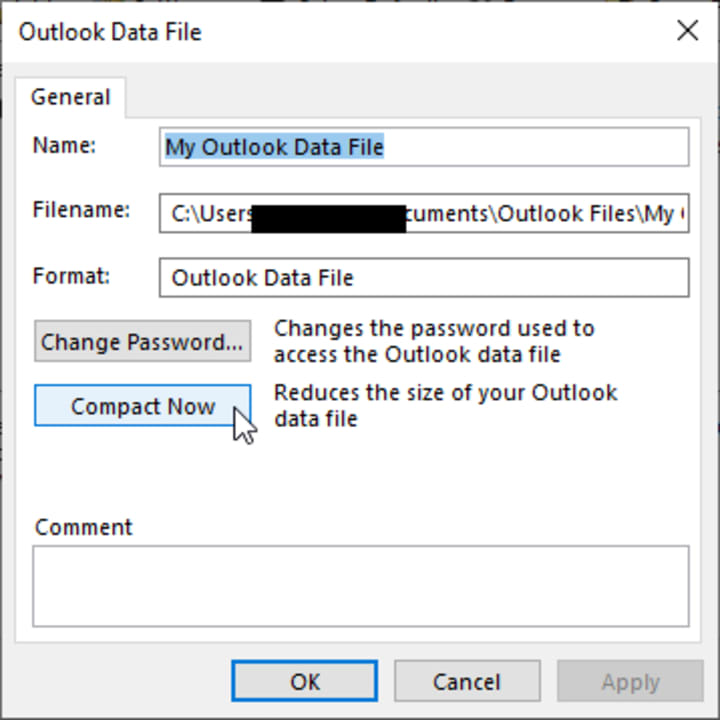
• Double click on your PST file and then click ‘Compact Now.’
• Click OK and then restart Outlook.
Method 4: Save Attachments to Separate Folder
If the compact option didn’t compress the PST file enough, you may file large mail items and save their attachments in a separate folder. After saving the attachments, you can delete them from the email, significantly compacting the PST file.
The steps are as follow,
• Open Outlook and navigate to an email folder such as Inbox.
• Click on the By date and choose Size
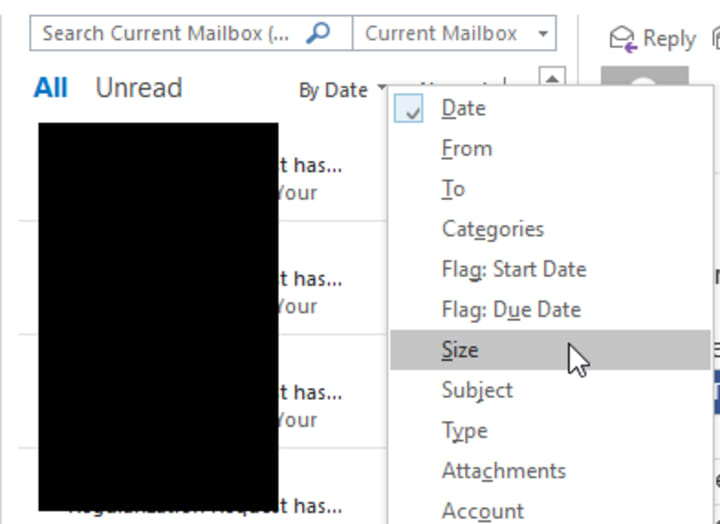
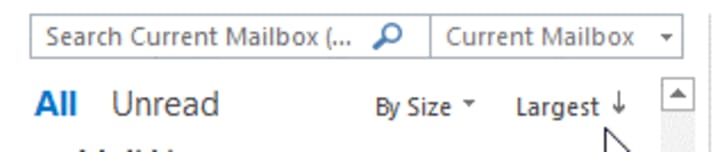
• Sort the email from largest to smallest.
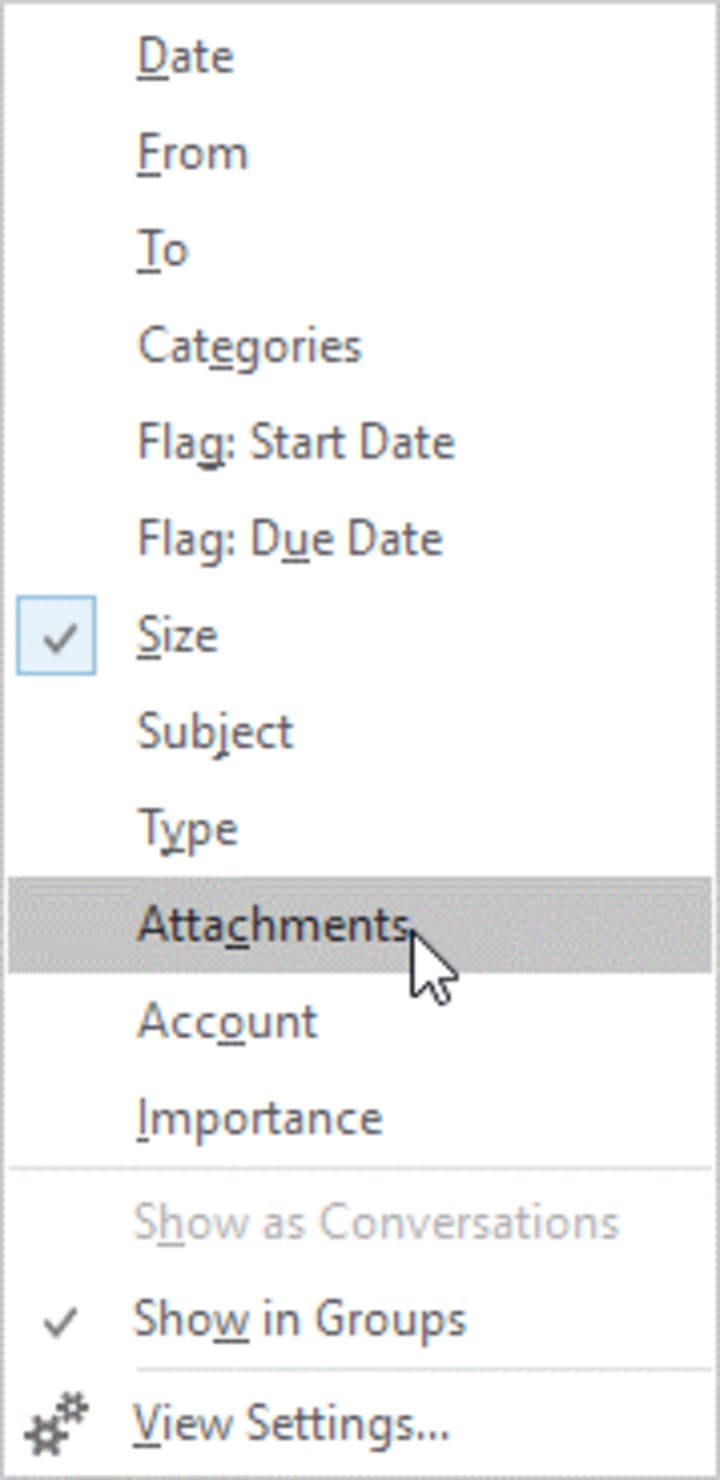
• You may also sort emails based on attachments.
• Once sorted, open the email, right-click on the attachment and choose Save All Attachments…
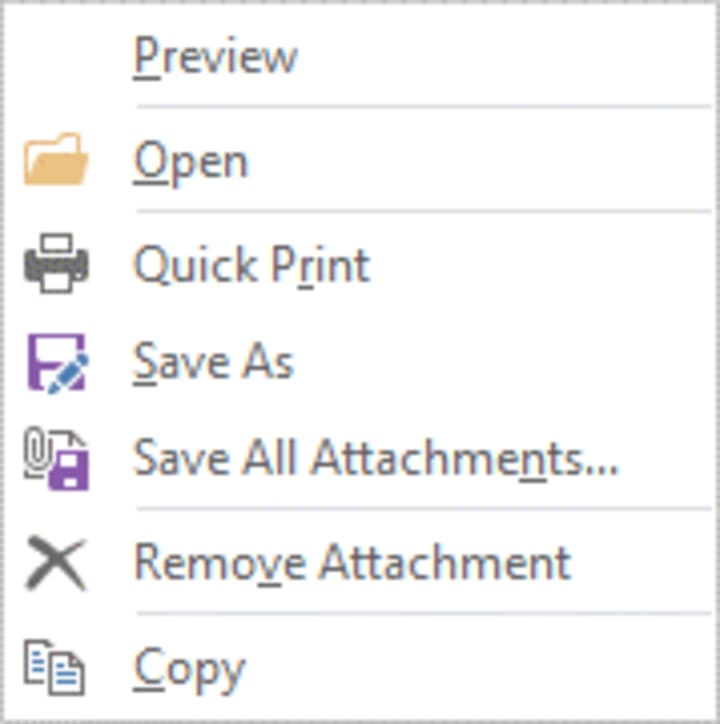
• Choose a location to save the attachments. After saving, delete the attachments from the email using Right-click> Remove Attachment.
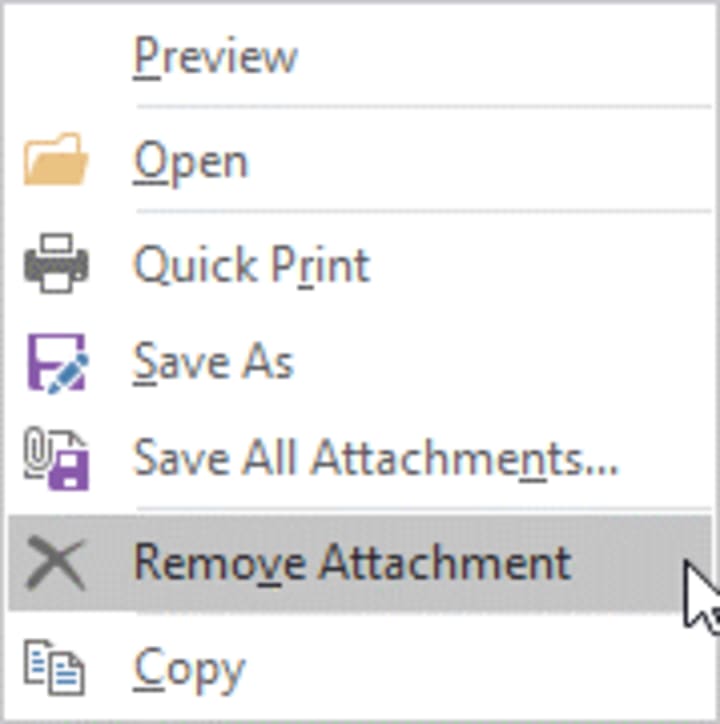
• Repeat the step to save the attachments in a separate folder and remove attachments from the emails to compact the PST file.
This may take a while to complete and could be hectic. Alternatively, you can use Splitter or Compactor for Outlook to split or compact the PST file automatically.
Final Thoughts
In this article, we shared methods to split and compact large Outlook PST file manually using Outlook options. These methods can help you effectively reduce the PST file size and improve Outlook speed. However, you need to perform these tasks repeatedly and every once in a while that could be cumbersome if you often receive multiple emails or large attachments.
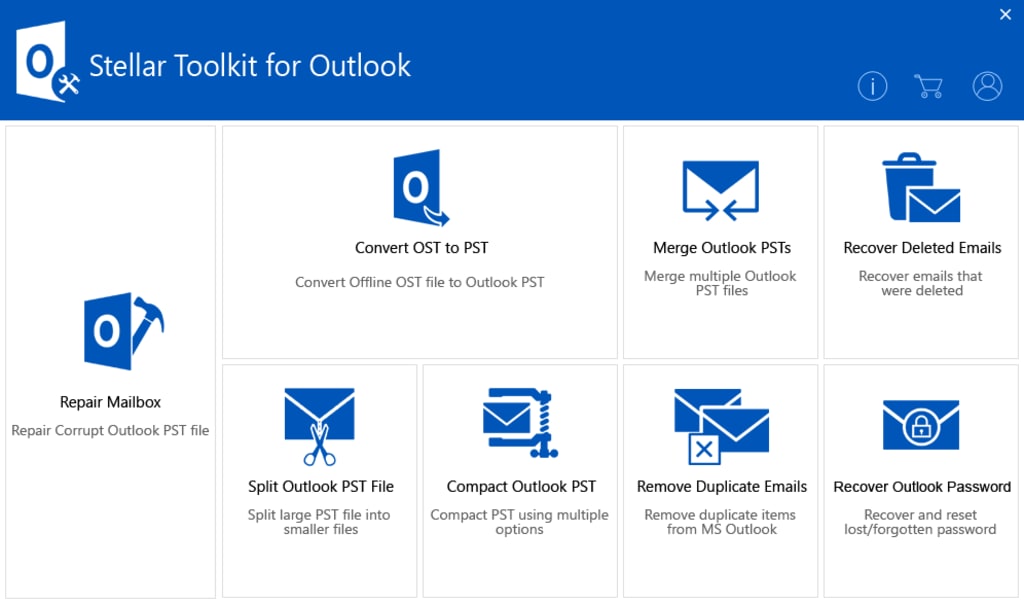
In such cases, you can use an Outlook toolkit, such as Stellar Toolkit for Outlook, to manage (split, compact, or repair) large Outlook data files (PST and OST). It comes with multiple tools, such as Splitter for Outlook and Compactor for Outlook, to automatically split or compact large PST files in a few clicks. For example, you can split a large PST file based on size or data and compact PST file by saving all attachments in a separate folder interlinked with your emails. This way, you don’t need to delete an attachment from your email, and you can directly access the attachments from emails without worrying about the PST file size. Additionally, if something goes wrong with the PST file, you can repair the damaged PST file with complete integrity and precision.
About the Creator
Keep reading
More stories from writers in 01 and other communities.
No, Jeff Bezos didn't predict the future of the home PC would see it being swept away into the cloud
If there's one thing that the tech industry really loves to do, it's speculate on the future, especially if someone of note in the sector has made some newsworthy remark. Of late, there seems to be quite a bit of talk about the future of the home PC and that it might end up going the way of the dodo, all because of something Jeff Bezos said.
By Dena Falken Esq6 days ago in 01
Jeff Bezos Denies Polymarket Claim, Rekindling Debate Over Fake News on Betting Platforms Camila Grigera Naón
Polymarket has become embroiled in a scandal regarding a social media post it made about Amazon founder Jeff Bezos. The prediction market claimed he had recently recommended younger entrepreneurs to work regular jobs before starting a business.
By Dena Falken Esqa day ago in 01


Comments
There are no comments for this story
Be the first to respond and start the conversation.