
How to Recover Deleted Yahoo Email: Step by Step Solution
How to Recover Deleted Yahoo Email: A Comprehensive Guide
Losing important emails can be a stressful experience, especially if they contain crucial information or sentimental value. If you’re wondering how to recover deleted Yahoo email, you’ve come to the right place. Yahoo Mail offers several methods to help users restore lost emails, whether they were deleted accidentally or disappeared due to technical glitches. This comprehensive guide will walk you through various strategies to retrieve your emails effectively.
Understanding Yahoo Mail’s Email Deletion Policies
Before diving into recovery methods, it’s essential to understand how Yahoo Mail handles deleted emails. Yahoo Mail keeps deleted emails in the "Trash" folder for 7 days unless you empty the folder manually. After this period, recovering emails becomes more challenging but still possible with the right steps.
Methods to Recover Deleted Yahoo Emails
1. Check the Trash Folder
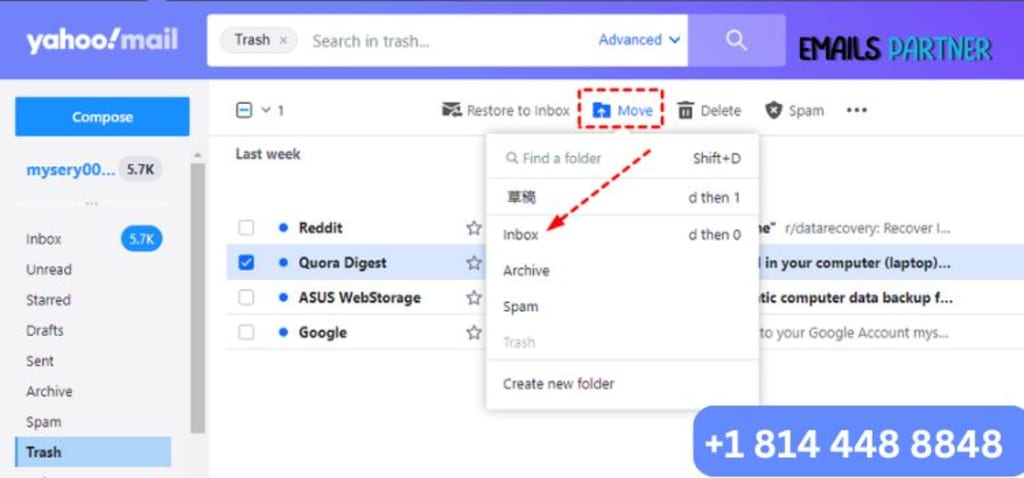
The first and simplest step is to look in the Trash folder, where deleted emails are stored temporarily.
Steps:
Log in to your Yahoo Mail account.
Navigate to the "Trash" folder in the left-hand menu.
Look for the deleted email(s) you want to recover.
Select the email(s) and click the "Move" button.
Choose the desired folder (e.g., Inbox) to restore the email(s).
Pro Tip:
Act quickly, as emails in the Trash folder are only retained for 7 days.
2. Use Yahoo Mail’s Recover Lost Emails Feature
If your deleted emails are not in the Trash folder, Yahoo offers a recovery tool to restore lost emails from the past 7 days.
Steps:
- Visit Yahoo’s "Recover lost or deleted emails" help page.
- Fill out the "Restore Request" form with details like:
- The time frame during which the emails were deleted.
- Your Yahoo Mail ID.
- Any additional information to assist the support team.
- Submit the form and wait for Yahoo’s support team to respond.
Important Notes:
This recovery process cannot guarantee success but is often effective for recent deletions.
Emails restored through this method are sent to your Inbox.
3. Restore Emails from a Backup
If you use a third-party email client like Microsoft Outlook or Thunderbird to access Yahoo Mail, you might have backups stored locally.
Steps:
- Open your email client.
- Search for the missing email in your local folders.
- If found, move it back to the Yahoo Mail server by re-uploading it to your Inbox or another folder.
Pro Tip:
Regularly back up your emails using email clients or third-party tools to prevent data loss.
4. Check Linked Devices
If your Yahoo Mail is synced with other devices, such as smartphones or tablets, the missing email might still be available there.
Steps:
- Open the Yahoo Mail app or email client on your device.
- Search for the missing email in your folders.
- If found, forward or save the email to ensure its availability on the server.
5. Contact Yahoo Support
If all else fails, contacting Yahoo’s customer support team is your best bet. They have the tools and expertise to assist with email recovery.
Steps:
- Log in to your Yahoo account.
- Visit Yahoo’s Help Center.
- Use the live chat or email support option to explain your issue.
- Provide as much detail as possible to expedite the process.
Pro Tip:
Keep your account credentials and recent email activity details handy when contacting support.
Preventing Future Email Loss
To avoid losing emails in the future, follow these best practices:
1. Regular Backups
Use third-party email clients or tools to back up your Yahoo Mail regularly.
2. Archive Important Emails
Instead of deleting, archive emails you may need later. Archiving keeps your Inbox clutter-free while retaining access to your messages.
3. Enable Two-Factor Authentication (2FA)
Protect your Yahoo account from unauthorized access by enabling 2FA. This ensures your emails are safe from malicious attacks.
4. Avoid Emptying the Trash Folder
Be cautious when emptying the Trash folder to prevent accidental deletions.
5. Use Email Filters
Set up filters to organize your emails and avoid accidental deletion of important messages.
FAQs
Q1: Can I recover emails deleted more than 7 days ago?
Yahoo’s recovery tools primarily focus on emails deleted within the past 7 days. However, if you use an email client with backups, you may retrieve older emails from there.
Q2: What if I don’t remember deleting an email?
Emails can sometimes disappear due to syncing issues or accidental deletions. Follow the recovery methods outlined above to locate the missing email.
Q3: Is there a cost for using Yahoo’s recovery tools?
No, Yahoo’s email recovery tools are free to use. However, third-party services may charge fees for advanced recovery options.
Conclusion
Losing emails doesn’t have to be a permanent setback. With tools like the Trash folder, Yahoo’s Restore Request, and email backups, you can recover your lost messages effectively. Remember to act quickly and follow preventive measures to safeguard your emails in the future.
By following this guide on how to recover deleted Yahoo email, you’ll increase your chances of successfully retrieving lost messages. If you’re ever in doubt, reach out to Yahoo’s support team for further assistance.
About the Creator
Smart Logistics Platforms: The Technology Powering Modern Supply Chain Operations
The logistics industry has experienced a dramatic transformation over the past decade. As global trade expands and customer expectations grow, companies are under increasing pressure to deliver goods faster, cheaper, and more efficiently. Traditional logistics systems that relied on manual tracking, spreadsheets, and fragmented communication channels are no longer sufficient for modern supply chain operations. To address these challenges, businesses are turning toward smart logistics platforms powered by advanced software technologies.
By Nayel Basim Al Shehhia day ago in 01
Why Choosing a Professional Crypto Exchange Builder in 2026 Is More Important Than Ever
The cryptocurrency industry in 2026 is more advanced, regulated, and competitive than ever before. What began as a decentralized experiment has evolved into a global financial ecosystem attracting institutional investors, fintech startups, and established enterprises. As digital asset adoption accelerates, launching a crypto exchange is no longer simply about deploying a trading platform. It requires robust security architecture, regulatory awareness, scalable infrastructure, and seamless user experience. In this environment, choosing a professional crypto exchange builder is not just beneficial, it is essential.
By smithtaylor3 days ago in 01



Comments (1)
Good to know how to recover emails. Good work