
How to Play Spotify Music on Nintendo Switch
Using Spotify on a Nintendo Switch with Background Playback
The Nintendo Switch is a versatile gaming console, but many users wonder if they can enhance their gaming experience by streaming Spotify music on it. While the Nintendo Switch does not have a native Spotify app, there are workarounds to enjoy your favorite tunes while gaming. This article explores the possibilities, limitations, and step-by-step methods to play Spotify music on your Nintendo Switch.
Can You Use Spotify Directly on Nintendo Switch?
Unfortunately, the Nintendo Switch does not support a dedicated Spotify app. Unlike platforms like PlayStation or Xbox, which offer Spotify integration, the Switch's eShop and system software lack direct access to music streaming services. Nintendo has focused primarily on gaming functionality, with limited multimedia apps available (e.g., YouTube). However, you can still play Spotify music in the background or during gameplay using alternative methods involving other devices.
Methods to Play Spotify Music on Nintendo Switch
Here are the most effective ways to enjoy Spotify music while using your Nintendo Switch:
First Method: Download Spotify Music to MP3 Using Macsome Spotify Downloader for Playback on Nintendo Switch
For Nintendo Switch users eager to enjoy Spotify music without relying on a secondary device, downloading Spotify tracks as MP3 files and transferring them to the Switch’s SD card is a viable solution. Since the Nintendo Switch lacks a native Spotify app, tools like Macsome Spotify Downloader allow you to convert Spotify music to MP3 or AAC formats, which can then be played on the Switch using a compatible music player like TriPlayer.
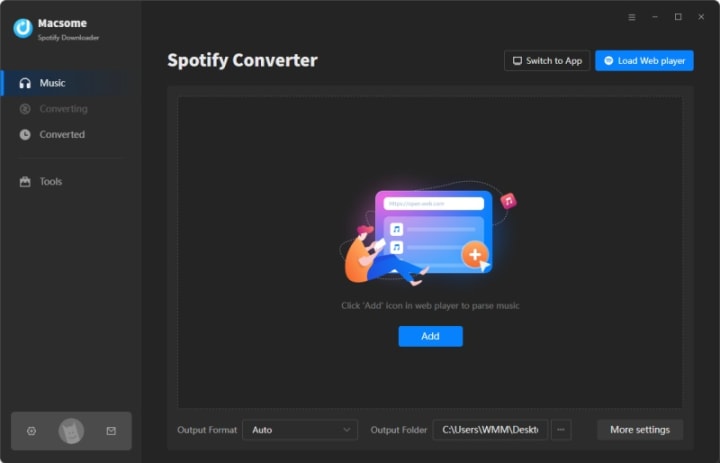
Step 1: Download and Install Macsome Spotify Downloader
Step 2: Add Spotify Songs or Playlists
In Macsome, choose your download mode: “Spotify App” for best quality or “WebPlayer Download” for up to 10x faster downloads.
Open Spotify (app or web player) and navigate to the songs, playlists, or albums you want to download.
Step 3: Configure Output Settings
Click the “Settings” icon in Macsome to customize output parameters.
Set the Output Format to MP3 or AAC, as these are supported by the Nintendo Switch for playback via TriPlayer or Nintendo 3DS Sound.
Adjust the Output Quality (e.g., 320kbps for high quality, 256kbps, or 128kbps) and select an Output Folder for the downloaded files.
Optionally, organize files by artist or album for easier navigation.
Step 4: Download Spotify Music
Click the “Convert” button to start downloading and converting the selected Spotify tracks to MP3 or AAC.
Step 5: Transfer Music to the Nintendo Switch
Insert SD Card: Remove the microSD card from your Nintendo Switch and insert it into your computer’s card reader.
Locate Music Folder: Open the SD card on your computer and find or create a “Music” folder in the root directory.
Copy Files: Drag and drop the downloaded MP3 or AAC files from the Macsome output folder to the SD card’s “Music” folder.
Eject SD Card: Safely eject the SD card from your computer and reinsert it into your Nintendo Switch.
Step 6: Play Music on Nintendo Switch
Install TriPlayer (Optional): To play music in the background while gaming, install TriPlayer, a homebrew music player that supports MP3, AAC, FLAC, and WAV formats. Note that installing TriPlayer requires homebrew, which involves modifying your Switch and carries risks (see below).
Use Nintendo 3DS Sound: Alternatively, use the built-in “Nintendo 3DS Sound” app (available on some Switch models):
On the Switch’s HOME Menu, tap the “Nintendo 3DS Sound” icon and select “Open.”
Navigate to the “Music” folder on the SD card using the lower screen.
Select a track and tap “Play” to start playback.
Method 1: Using a Secondary Device (Phone, Tablet, or Computer)
The simplest way to play Spotify music while gaming on the Switch is to use a separate device, such as a smartphone, tablet, or computer, to stream music. You can connect this device to external speakers, earphones, or a headset for an immersive experience.
Steps:
Open Spotify on Your Secondary Device: Launch the Spotify app on your phone, tablet, or computer and sign in to your account (free or premium).
Connect to Audio Output:
Wired Earphones/Headset: Use a 3.5mm audio splitter to connect both your Switch and your secondary device to the same earphones or headset. Plug the splitter into your devices’ headphone jacks and connect your earphones.
Bluetooth Audio: If your Switch is in handheld mode, pair Bluetooth earphones with your secondary device to stream Spotify music. Note that the Switch supports Bluetooth audio (post-2021 update), but it cannot pair with Spotify directly.
External Speakers: Connect your secondary device to Bluetooth or wired speakers to play Spotify music in the background.
Start Playing Music: Select a playlist, album, or song on Spotify and start playback.
Play Your Game on Switch: Launch your game on the Nintendo Switch. Adjust the volume balance between the game audio (from the Switch) and Spotify music (from the secondary device) as needed.
Pros:
Easy to set up with minimal equipment.
Works with both docked and handheld modes.
No additional software or hacking required.
Cons:
Requires managing two devices.
Audio mixing may require manual volume adjustments.
Wired setups with splitters can be cumbersome.
Method 2: Using Spotify on a Nearby Device with Background Playback
If you don’t want to deal with wired connections or Bluetooth, you can play Spotify music through a nearby speaker or device while gaming on your Switch. This method is ideal for docked mode, where the Switch is connected to a TV.
Steps:
Set Up Spotify on a Speaker or Device: Use a smart speaker (e.g., Amazon Echo, Google Home), a Bluetooth speaker, or another device with Spotify Connect to play music.
Select Music: Choose your desired Spotify playlist or album.
Play on Switch: Start your game on the Nintendo Switch. Ensure the game’s volume is balanced with the music from the speaker.
Pros:
Wireless and hassle-free.
High-quality audio if using good speakers.
Ideal for social gaming sessions.
Cons:
Music and game audio are separate, which may affect immersion.
Requires a compatible speaker or device.
Method 3: Modding the Nintendo Switch (Advanced, Not Recommended)
Some users explore homebrew or modding solutions to run Spotify on the Switch itself. This involves installing custom firmware or homebrew applications to enable Android apps, including Spotify, on the Switch. However, this method comes with significant risks.
Steps (High-Level Overview):
Mod Your Switch: Install custom firmware (e.g., Atmosphere) or homebrew software to enable Android or Linux environments on the Switch.
Install Spotify: Download and install the Spotify APK within the custom environment.
Run Spotify: Launch Spotify and play music while running games (if supported by the mod).
Pros:
Direct Spotify integration on the Switch.
Potential for background music during gameplay.
Cons:
Risk of Bricking: Modding can permanently damage your Switch or render it unusable.
Ban Risk: Nintendo may ban your console from online services if modding is detected.
Technical Expertise Required: Not suitable for casual users.
Legal Concerns: Modding violates Nintendo’s terms of service and may infringe on intellectual property rights.
Warning: Modding is not recommended due to the high risk of bans, legal issues, and hardware damage. Proceed at your own risk, and consider safer alternatives.
Conclusion
While you can't play Spotify music directly on the Nintendo Switch due to the lack of a native app, using a secondary device with wired or wireless audio solutions offers a practical way to enjoy music while gaming. Avoid risky modding methods unless you’re an advanced user willing to accept the consequences. By setting up a phone, tablet, or speaker to stream Spotify, you can create the perfect gaming atmosphere with your favorite tracks.
You can also download Spotify music to MP3 with the help of Macsome Spotify Downloader, then you can play Spotify unti on Nintendo via TriPlayer. Happy gaming and listening!
About the Creator
2026 Platform Choice Mobile App Development Native vs Hybrid
In 2026, mobile app development native vs hybrid is no longer a framework debate. It reflects a tectonic shift inside the Google ecosystem where AI Retrieval, Zero Click discovery, and entity-level evaluation now shape risk exposure, authority loss, and strategic realignment for every mobile product.
By Samantha Blake2 days ago in 01
How James Kodrowski Builds Scalable Businesses and Long-Term Investments
James Kodrowski is widely recognized as an Entrepreneur, Business Leader & Investor known for building scalable businesses while maintaining a disciplined, long-term investment mindset. His approach combines financial intelligence, operational excellence, and leadership-driven strategy, making his work highly relevant across Finance & Financial Services, Business Strategy & Operations, and Entrepreneurship & Leadership.
By James Kodrowski2 days ago in 01


Comments (1)
The Switch doesn't have a native Spotify app, but downloading tracks as MP3 with Macsome and transferring them is a good workaround. I've used similar methods for other media.