
How to fix and reduce a Laptop from overheating
How to Fix and Reduce a Laptop from Overheating

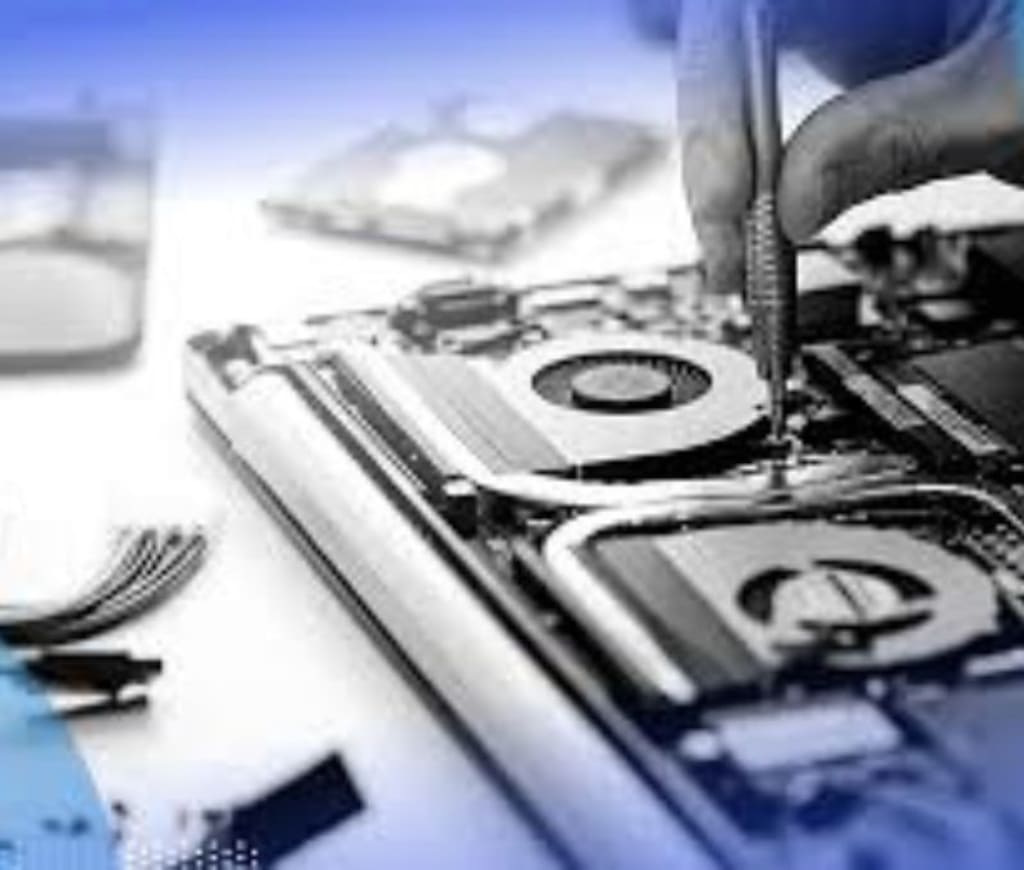
Laptops are powerful, compact machines designed to offer flexibility and portability. However, one of the most common issues users face is overheating. This can lead to system slowdowns, hardware damage, automatic shutdowns, and decreased overall lifespan of the laptop. If your laptop often feels hot to the touch, makes loud fan noises, or shuts down unexpectedly, it’s time to take action.
In this detailed guide, we’ll walk you through the common causes of laptop overheating, how to fix it, and ways to prevent it from happening in the future. Notebook repair involves diagnosing and fixing hardware or software issues to restore the device's functionality and performance.
Why Do Laptops Overheat?
Before jumping into fixes, it’s important to understand why laptops overheat. Here are the most common causes:
1. Dust and Dirt Buildup
Over time, dust and debris can accumulate inside your laptop, clogging air vents and fans. This restricts airflow, making it harder for the system to cool itself.
2. Poor Ventilation
Using your laptop on soft surfaces like a bed, pillow, or couch can block air vents. When airflow is restricted, heat gets trapped inside the system.
3. Overloaded CPU or GPU
Running heavy applications like video editing software, games, or too many programs at once can push your processor or graphics card to their limits, producing excessive heat.
4. Thermal Paste Degradation
Thermal paste helps transfer heat from the CPU and GPU to the heatsink. Over time, this paste can dry out, reducing its effectiveness.
5. Aging Hardware
Older laptops often struggle with overheating due to worn-out fans, slower components, and outdated cooling technology.
How to Check If Your Laptop Is Overheating
You can usually tell if your laptop is overheating based on symptoms like:
Fan running constantly or loudly
Laptop feels very hot to touch, especially near the bottom or keyboard
Random shutdowns or restarts
Lag or performance drops
Warning messages like “Your system is getting hot”
You can also use software to monitor temperature:
Windows: Use tools like HWMonitor, Speccy, or Core Temp
macOS: Use iStat Menus or Macs Fan Control
Linux: Use Psensor or lm-sensors
Safe temperature range:
CPU: 45°C – 70°C (idle to moderate use); under 90°C during intense tasks
GPU: Up to 85°C (max)
Step-by-Step Guide: How to Fix an Overheating Laptop
Step 1: Clean the Air Vents and Fans
Dust is often the #1 cause of overheating.
What You Need:
A can of compressed air
Small screwdriver (optional)
Soft brush or microfiber cloth
How to Clean:
Turn off your laptop and unplug it.
Use the compressed air to blow out the vents. Aim the air at the intake and exhaust ports.
If you're comfortable opening your laptop:
Remove the bottom panel using a screwdriver.
Gently clean the fans and internal components using compressed air or a soft brush.
Reassemble your laptop and power it on.
Tip: Clean your laptop every 3–6 months.
Step 2: Use a Laptop Cooling Pad
Cooling pads provide extra airflow from underneath the laptop.
Benefits:
Increases airflow and reduces heat buildup
Lift the laptop for better ventilation
Adds extra USB ports (in some models)
Place your laptop on the cooling pad, plug it in, and let it assist the laptop’s internal cooling.
Step 3: Elevate the Rear of the Laptop
If you don’t have a cooling pad, simply raising the back of your laptop by placing a small object underneath can improve airflow significantly.
Options:
Laptop stands
DIY solutions like bottle caps or pencil erasers
Books or boxes (as long as they don’t block the vents)
Step 4: Close Unnecessary Programs
Running too many applications uses more CPU and RAM, causing heat generation.
How to Reduce Load:
Windows: Press Ctrl + Shift + Esc to open Task Manager → check CPU usage → end high-resource tasks.
Mac: Open “Activity Monitor” and do the same.
Disable startup apps you don’t need using msconfig or Task Manager.
Use lighter alternatives to heavy software (e.g., use Notepad instead of Word for simple tasks).
Step 5: Update BIOS and Drivers
Manufacturers often release updates to improve fan control and power efficiency.
How:
Go to the official website of your laptop brand.
Enter your model number.
Download and install the latest BIOS and chipset drivers.
Warning: Follow BIOS update instructions carefully. A failed update can cause system failure.
Step 6: Adjust Power Settings
Lowering performance levels during casual use can reduce heat.
On Windows:
Go to Control Panel → Power Options
Select Power Saver or create a custom plan
In advanced settings:
Reduce Maximum Processor State to 80–90%
Turn off the display and the hard disk sooner when idle
On macOS:
Go to System Settings → Battery
Turn on Low Power Mode
Reduce brightness and close background apps
Step 7: Replace Thermal Paste
If your laptop is old and still overheating after cleaning, degraded thermal paste may be the cause.
What You Need:
Thermal paste (e.g., Arctic MX-4)
Isopropyl alcohol (90%+)
Cotton swabs or a microfiber cloth
Screwdriver
Steps:
Disassemble your laptop to access the CPU and GPU.
Remove the heatsink carefully.
Clean old thermal paste using alcohol.
Apply a small amount (size of a pea) of new thermal paste on the CPU.
Reinstall the heatsink and reassemble your laptop.
Caution: Only do this if you’re experienced. If unsure, ask a technician.
Step 8: Replace or Repair the Cooling Fan
A faulty or weak fan can’t cool your system properly.
Signs of a Failing Fan:
Loud grinding noises
Fan not spinning at all
Fan runs at full speed constantly
Visit a technician or laptop repair centre to replace the fan.
How to Prevent Laptop Overheating in the Future
Once you’ve fixed the issue, follow these tips to keep your laptop cool and avoid damage:
1. Use It on a Hard, Flat Surface
Avoid soft surfaces like beds or sofas. Use a table, laptop tray, or cooling pad to ensure airflow.
2. Keep the Room Cool
If the room temperature is high, your laptop will naturally run hotter. Use a fan or air conditioner to keep the ambient temperature low.
3. Monitor Temperatures Regularly
Install monitoring software and set alerts if temperatures exceed safe limits.
4. Don’t Block Vents
Make sure nothing is obstructing the vents. Avoid placing stickers or books/papers around them.
5. Limit Gaming or Rendering on Laptops Not Designed for It
If your laptop isn’t built for gaming or rendering, avoid running these types of tasks. Use a desktop or gaming laptop for such workloads.
6. Unplug When Fully Charged
Overcharging doesn't overheat modern laptops, but keeping them plugged in during heavy use can increase heat due to the power supply and battery charging simultaneously.
7. Enable Battery Saver Mode
This reduces CPU usage, screen brightness, and background activity, all of which generate less heat.
When to Seek Professional Help
Sometimes, overheating is due to hardware damage or deep internal issues. Contact a technician if:
You hear strange noises from the fan
Your laptop shuts off frequently
Thermal paste application doesn’t help
The motherboard or GPU feels abnormally hot
Conclusion
Overheating is a common but preventable issue for laptops. Whether caused by dust buildup, excessive usage, or aging components, the problem can often be resolved with regular maintenance and good usage habits. Start with simple fixes like cleaning and improving ventilation, and only move to advanced solutions like thermal paste replacement if necessary.
By following the steps outlined in this guide, you can not only fix an overheating laptop but also prolong its lifespan and improve its overall performance.
About the Creator
Muhammad Atif
provide information about products and his details.
Keep reading
More stories from Muhammad Atif and writers in 01 and other communities.
How much do SEO services typically cost?
Search Engine Optimization (SEO) is an essential digital marketing strategy that helps businesses improve their online visibility, drive organic traffic, and increase revenue. However, one of the most common questions businesses and website owners have is: How much do SEO services cost?
By Muhammad Atif11 months ago in Blush
Italian Brainrot: Gen Alpha
If you walk through a bustling piazza in Milan or stand near a school gate in Rome during the afternoon rush, you might hear a conversation that feels like a glitch in the linguistic matrix. You’ll see a group of twelve-year-olds, dressed in matching tech-fleece tracksuits, shouting about "Skibidi," debating who has the most "Aura," and accusing each other of being from "Ohio." To anyone born before the year 2010, this sounds like a collective mental breakdown. But to the architects of this new reality—Generation Alpha—it is the only language that makes sense.
By Teodor Monescu4 days ago in 01



Comments
There are no comments for this story
Be the first to respond and start the conversation.