
How to Create a Sticker Mockup
How to Create a Sticker Mockup

Stickers are a fun and creative way to express ideas, promote a brand, or decorate products. But before printing your sticker designs, it’s important to see how they will actually look in the real world. That’s where sticker mockups come in. A sticker mockup lets you preview your design on different surfaces, backgrounds, and packaging – without printing a single copy.
Whether you are a designer, business owner, or hobbyist, mockups help you present your work in a polished and professional way. In this guide, we’ll show you how to create a sticker mockup step by step. You don’t need to be a design expert or buy expensive software. All you need is your design and a free tool like Mockey.
Mockey is a free AI mockup generator that makes the process incredibly easy and fast. With just a few clicks, you can turn your flat sticker design into a realistic presentation. Let’s get started!
What is a Sticker Mockup?

A sticker mockup is a visual preview of your sticker design placed in a realistic setting. Instead of just showing a flat image, mockups let you display your design as if it were printed and applied to a real object.
For example, you can show your sticker on a water bottle, laptop, notebook, or packaging box. There are different types of sticker mockups such as:
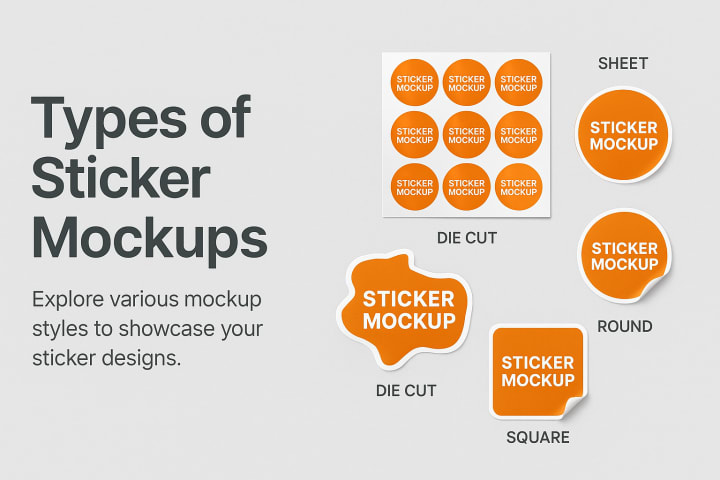
- Round sticker mockups
- Square sticker mockups
- Die-cut or custom shape mockups
- Peel-off effect mockups
- Transparent sticker previews
Mockups help turn your design into a final product preview, making it easier for others to understand and appreciate your work.
Why Use Sticker Mockups?
Using sticker mockups gives you many advantages, especially if you are showcasing your work to clients, adding it to a portfolio, or uploading it to an online store.
Here’s why mockups are important:
- Professional presentation: They make your designs look clean, real, and polished.
- Saves time and cost: No need to print physical stickers for every idea.
- Boosts confidence: Helps you see your design in action before committing to print.
- Easy sharing: Use them on social media, portfolios, or product listings.
- Client approval: Clients can better understand how the final product will look.
And best of all, you don’t need expensive tools to make mockups. Free tools like Mockey offer everything you need in one place.
Mockey also provides 3D mockups, video mockups, and Print-on-Demand (POD) mockups, so you can create realistic previews across different formats and surfaces.
What You Need Before You Start
Before creating your sticker mockup, make sure you have the following ready:
- Sticker design – Save it as a high-quality PNG or JPG. PNG is better if you want a transparent background.
- A mockup generator – We recommend using Mockey because it is simple, free, and browser-based.
- Basic idea of how you want your sticker to appear – Decide whether you want a flat look, a peel-off effect, or a sticker on a product.
- Internet connection – If you’re using an online tool like Mockey.
Once you have these, you’re ready to start creating your sticker mockup.
How to Create a Sticker Mockup (Step-by-Step)
Let’s walk through the process of creating a sticker mockup using Mockey.
Step 1: Visit Mockey and Choose a Sticker Template
Go to Mockey.ai and click on the Sticker Mockup section. You’ll find a wide range of mockup templates such as:
- Round stickers on packaging
- Stickers on laptops or notebooks
- Peel-off effects
- Multiple sticker mockup scenes
Browse through and pick one that fits your style.
Step 2: Upload Your Sticker Design
Once you’ve selected a template, click the Upload Design button. Choose your PNG or JPG file from your device. Mockey will instantly place your design on the selected mockup.
You’ll see a live preview of how it looks.
Step 3: Customize Your Mockup
Now comes the fun part — customizing your sticker mockup. With Mockey, you can:
- Adjust the size and position of the sticker
- Rotate or flip it
- Change the background color
- Add realistic shadows and lighting
- Try 3D angles or flat views
You don’t need any design skills. Everything works through simple drag and drop.
Step 4: Download Your Final Mockup
Happy with the design? Click the Download button to save your mockup in high resolution. You can use it anywhere — from product listings to social media posts.
No watermark, no cost, just a clean and professional-looking mockup.
Pro Tips to Make Your Sticker Mockups Stand Out
Want your sticker mockups to look even better? Follow these simple tips:
Use realistic scenes: Choose mockups that match how your sticker will be used
Keep it simple: Let your design shine — avoid too many distractions in the background
Try peel-off effects: Adds a real-life touch
Use clean backgrounds: Grey, white, or pastel colors work great
Experiment with different shapes: Round, square, or custom-cut stickers add variety
Preview before download: Always check how your design looks before finalizing
Where to Use Your Sticker Mockups
After creating your mockup, you can use it in many places:
- Online stores – Etsy, Shopify, Redbubble
- Social media – Instagram, Pinterest, Behance
- Client presentations – Show how their stickers will look in real life
- Marketing materials – Use in posters or flyers
- Packaging – Preview stickers on boxes or containers
- Portfolio – Add to your design portfolio to impress clients
Sticker mockups help you communicate your ideas visually, which is always more powerful than words.
Conclusion
Creating a sticker mockup doesn’t have to be complicated. With tools like Mockey, anyone can turn a simple design into a stunning visual presentation in just minutes.
You don’t need Photoshop, design skills, or a big budget. All you need is your creativity and a free tool that makes mockups effortless.
So next time you have a sticker design to show off, skip the flat files and try a realistic mockup instead. It’s easy, effective, and totally free. Try it out today and watch your designs come to life.
About the Creator
Keep reading
More stories from Zaheer Ansari and writers in 01 and other communities.
How to Create MacBook Mockups for Free
Creating a professional-looking presentation for your website or app design does not have to be expensive or complicated. Thanks to free online tools, even beginners can now generate high-quality MacBook mockups without needing design experience or software like Photoshop.
By Zaheer Ansari6 months ago in 01
What Really Drives Cryptocurrency Prices Over Time?
Cryptocurrency markets often appear unpredictable at first glance. Prices surge dramatically, correct sharply, and sometimes move sideways for months. While headlines frequently focus on short-term fluctuations, the long-term drivers of digital asset prices are usually far more structural. Understanding these forces can help investors move beyond daily volatility and focus on bigger-picture trends.
By Muhammad Irfan Afzal7 days ago in 01
Pearl
1980 something. we all hung out at Pearl and you and i were nothing special, or so i thought. i mean we all danced, drenched in our own sweat, our own saline solution of fear, too many beers, shots, laughter, tears, fucks in the bathroom and i don't know when we began to be afraid. do you?
By ROCK aka Andrea Polla (Simmons)3 days ago in Fiction




Comments
There are no comments for this story
Be the first to respond and start the conversation.