
How to Change the Look of Windows 10 Desktop
personalize your windows 10

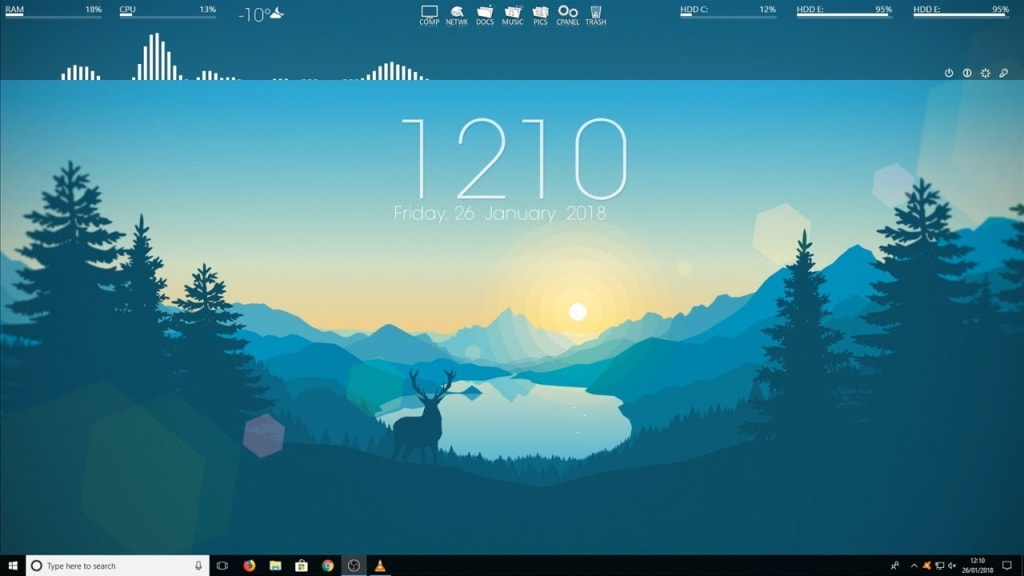
Windows operating system by Microsoft is one of the most popular and widely used OS around the world. With new versions and upgrades the OS gets better and more efficient. It is not only just the performance of the computer that matters, a lot of users also want to customize their computers and user interface according to their taste and hence they look for different options to modify it. Earlier the same was achieved with the use of custom theme packs which were widely available when the trendsetter Windows XP was ruling the market. As the new versions came out, new ways emerged for people to change the settings. Microsoft didn’t stay behind and also came out with lots of settings to make the user interface more customization. In this article I am going to share with you some of the tips and tricks in which you can change the look of your Windows operating system. Let’s get started.
Changing the look of Windows 10 Desktop
Personalize
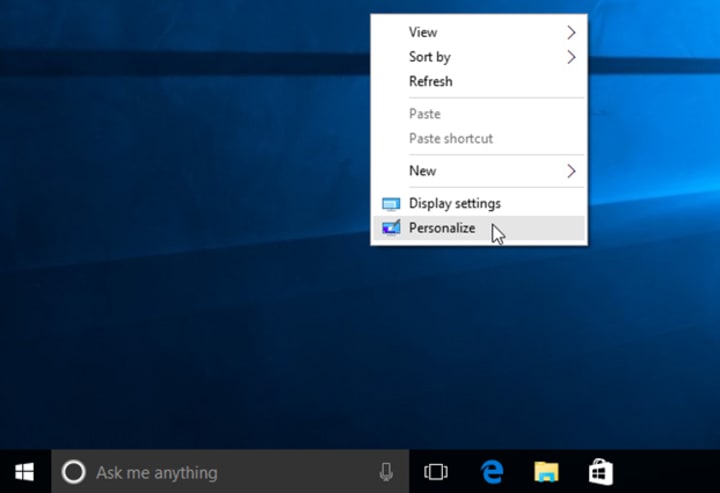
Right click anywhere on the desktop apart from the icons and select personalization from the popped list.
Here you will get a totally new window with many options. On the left side of the window you will have the list of options and on the other side you will have sub-options.
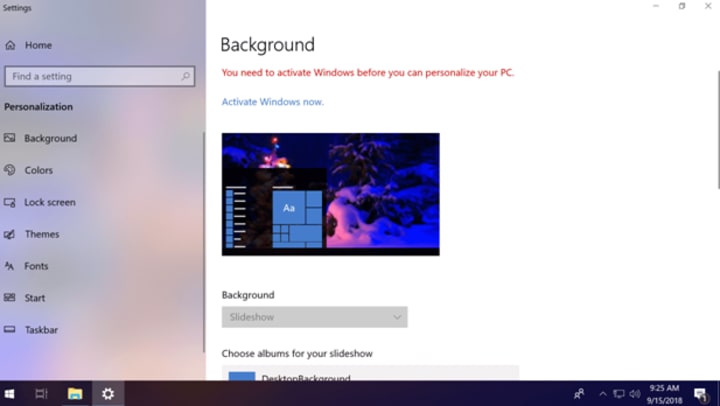
Here you will be able to:
● Change background as per your choice. You can even set background wallpapers that are provided by default by the company.
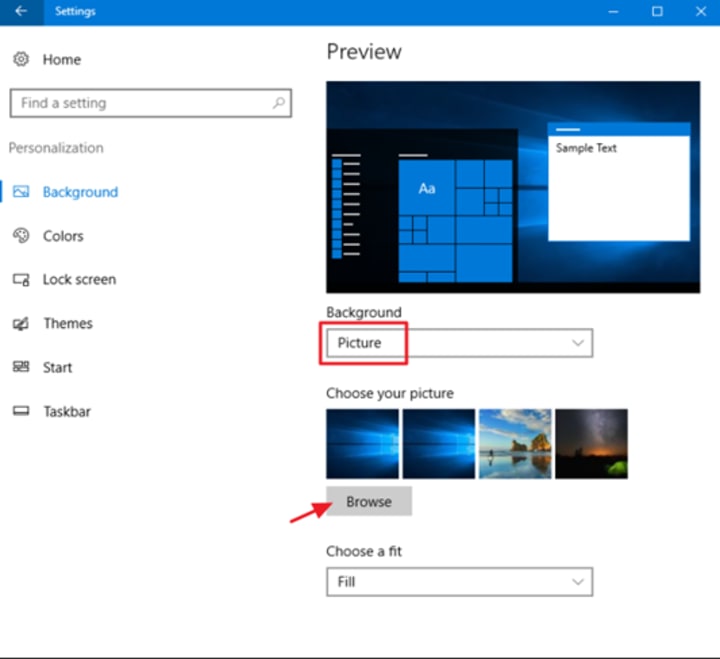
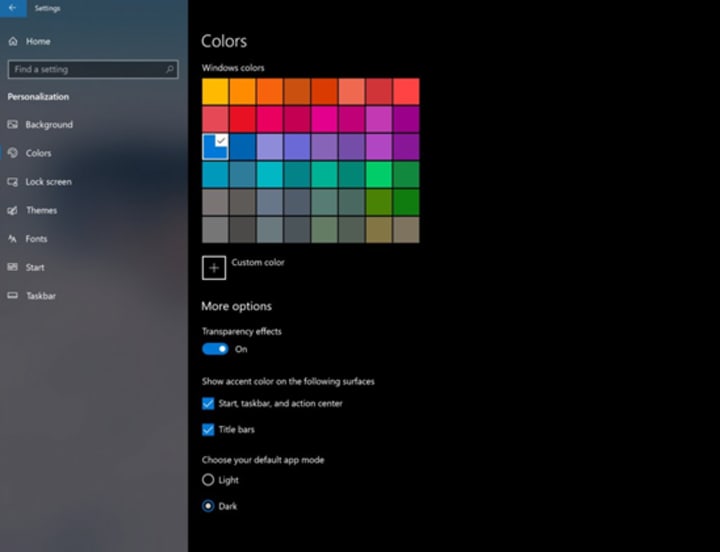
● Colors of taskbar, start menu, etc.
● Sounds.
● The way your mouse cursor looks.
You will get more options to change the colors and even themes in the second tab that is Colors. Here Windows offers you the options to set transparency effects, accent colors, dark theme, custom colors theme, and other options.
Next comes the option of Lock Screen, here you can set wallpaper for your lock screen, here too you set a personalized image or something which came with the factory settings. This will also provide you with the options to set which icons you want in your lockscreen, Cortana settings, screen saver, etc.
Themes
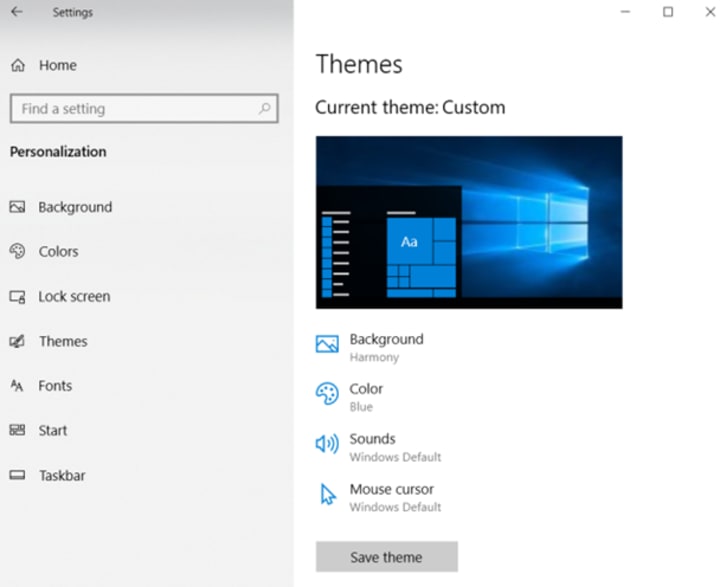
In this suboption you will get the options to change your settings for themes and you can also set some default themes provided with the OS in different genres. If you wish then you can also purchase more themes from the Microsoft Store. Then you have Fonts, Start, Taskbar, to change the settings related to fonts, start menu and taskbar respectively.
Install Custom Themes
Though the craze of customized themes have not been on the top of the pitch for sometime now, it should not stop you from giving a new look to your user interface. It is always a good idea to change the theme and look, if you are working daily on a computer then it can get pretty boring to look at the same screen day and night. Personalization is a great way to bring a change in pace but if you are only hanging up to the options provided with the OS then you have a limited control over the system but if you plan to go for customized themes then you open the doors to a lot of possibilities.
You like anime, movies, novels, cartoons, etc. if it is a bit famous then there are a good number of chances that you will find themes made on the particular fiction that you like. Such themes are quite good and completely change the look. You can also get themes on nature, party life, rap, gaming, etc. very easily. To know more about the best themes for Windows 10 check this.
Just a word of caution, don’t download any kind of theme pack from any unknown or unreliable source. It may be a malware or contain viruses that may infect your computer later on. It is not necessary that if something is paid then it is safe, a good source will get you better content even for free.
So these were some of the tips and tricks that I wanted to share with you regarding changing the look of Windows 10 desktop. I hope it helps. Do note that before installing and purchasing any kind of themes, make sure your system is capable enough to run the animations and still put out the needed efficiency for your work. Sometimes the animations are quite heavy and can even eat up the power of your CPU to perform, so take care.
Thanks for reading!
About the Creator
lucy taylor
I am Lucy Taylor who spent many years writing on tech-related topics. Apart from this, I love to cover the latest news and write opinionated articles. While not writing, I prefer to spend my time going to the beach or on long bike rides.
Keep reading
More stories from lucy taylor and writers in 01 and other communities.
Best Screen Sharing Application for Windows 2020
Screen sharing and recording are inevitable in the current fashion of technology. Screen recording is contributive to guiding the employee remotely, delivering online lectures to students and assisting the clients. This page will brief about distinct methods of on-screen recording and best screen sharing for windows. Zoom is the most widely used screen sharing application during these lockdown days to fulfill academic and official needs. Learn how to screen record zoom meetings.
By lucy taylor6 years ago in 01
How Long Does App Development Take in St. Louis 2026
St. Louis has solidified its reputation as a "Silicon Prairie" powerhouse. The city has moved beyond its historical manufacturing roots. It is now a sophisticated tech hub. Activity centers around Cortex and the 39 North innovation district. Entrepreneurs and established enterprises have one pressing question. How long does app development take in St. Louis 2026?
By Del Rosarioa day ago in 01




Comments
There are no comments for this story
Be the first to respond and start the conversation.