
Find Active Directory Groups a User Belongs To With PowerShell
Tutorial to find Active Directory groups a user belongs to for admins in charge of AD environments. Use PowerShell, native AD GUI, or an external tool.
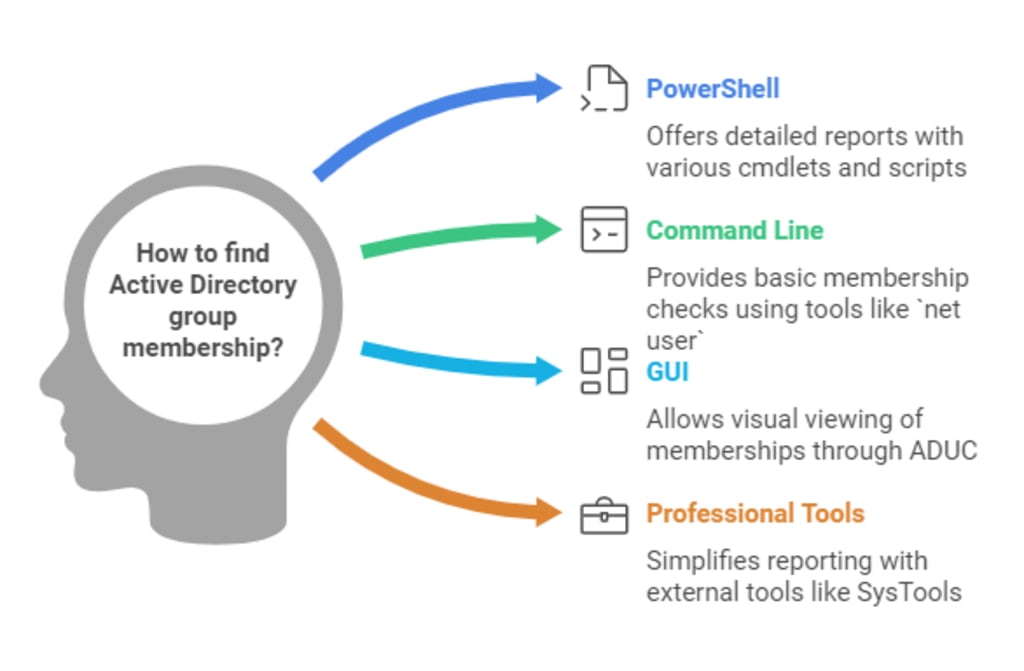
Those who manage an organization's Active Directory know how important groups are in the overall scheme of things. That is why when admins can’t find the Active Directory groups a user belongs to, it is a cause for concern. It diminishes a user's ability to coordinate and communicate with their team.
Moreover, it also raises a question about the overall structure of AD. Therefore, we provide admins with this writeup that contains multiple methods to get a list of AD groups for any user in the organization. Let's start with the most highly requested method which is the PowerShell
How to View Active Directory Group Membership Type in PowerShell Commands
Press Windows + Q to open the Search Bar type PowerShell and click on the first result.
This opens a new PowerShell instance there type:
Get-ADUser -Filter * -Properties memberOf |
Select-Object Name, @{Name='Belongs to';Expression={$_.MemberOf}}
This cmdlet gives you a list of containers that a user is part of
This includes Groups, Organizational Units, and more.
As this cmdlet is fairly limiting what you can do instead is use a custom script.
Here is a template to get you started add additional functionality as you see fit.
# Find every user in AD
$users = Get-ADUser -Filter * -Properties MemberOf
foreach ($user in $users) {
# Print the user's name
Write-Output "User: $($user.SamAccountName)"
# If block to see the groups this user belongs to
if ($user.MemberOf.Count -gt 0) {
# Loop through each group the user is a member of
foreach ($group in $user.MemberOf) {
# Get the group object to get the group name
$groupObj = Get-ADGroup -Identity $group
Write-Output " - User Belongs to Group: $($groupObj.Name)"
}
} else {
Write-Output " - Group Less User."
}
Write-Output "--------------------------------------"
}
You can find the explanation of the script below.
We start off by listing out all the users that are in the Active Directory domain.
Then, we loop through this list and at the same time find Active Directory groups this user belongs.
This data is printed out in real-time with the help of the Write-Output command.
The script covers certain edge cases like users with no group and separates every unique output with a dashed line.
Don’t run this script in the regular PowerShell instance. Instead, open a new Windows PowerShell ISE module and deploy the script.
If you are not comfortable with PowerShell another alternative code-based method is also there.
How to Check AD Group Membership from Command Line
In the same way we used to disable multiple users in AD press Windows Key + R.
Type cmd inside the Open bar of the dialog box
Then, Press Enter
Once the Command Line portal is available copy the command below and paste it as it is.
net user %username% | findstr /C:”Group”
Once you run the command every group that the user is part of will become visible
Keep changing the %username% placeholder to substitute usernames one by one.
If you feel that there are chance of mistakes in this manual command
Clear the screen with the cls command
And type
dsquery group domainroot | dsget group -members -expand | findstr /C:”CN”
If you run the query without the findstr parameter, it displays those Groups that have 0 users in it.
Sometimes admins may not prefer using code of any kind. Don’t worry we have just the right alternative for such scenarios.
Best Way to Find Active Directory Groups a User Belongs In an AD
Use SysTools Active Directory Reporting Tool. This software makes user group identification a piece of cake. Moreover, you can add multiple AD domains together and perform real-time reporting on each of them.
This removes the technical skill requirement that prevents regular Active Directory audits with a zero-code approach toward user group identification.
To access the script-free method follow these steps
Install and set up the tool on your workstation and click on the login button.
Register the Domain Controller
Put in Domain Friendly name & AD IP, press Save & Continue to proceed.
On the Next screen Enter the Domain Admin credentials and Validate.
In the Reports Tab scroll and select the Group Users option under the main Users workload.
Apply a preset time period or set a custom date range via the duration picker.
Hit the preview button to see the early right in the tool’s dashboard.
Expand the Download button and select CSV.
Save the results on your workstation.
Conclusion
In this blog, we talked about how admins can find active directory groups a user belongs to and what the results indicate. We went over multiple methods to get a list of AD groups and outlined the best method for the task. Which is none other than the tool we described earlier.
About the Creator
Keep reading
More stories from siddharth sharma and writers in 01 and other communities.
Discover How to Import PST to Office 365 in a Few Simple Steps
Many organizations choose Outlook 365 as their daily driver for email-related activities. It is because Outlook 365 is packed with a ton of features and uses a robust file type called PST. However, some users may have a query about how to import PST to Office 365 mailbox. Moreover, multiple reasons exist for asking such a question. And if this situation is not dealt with it can negatively affect business productivity.
By siddharth sharma3 years ago in 01
Catherine O’Hara
Catherine O’Hara—known for unforgettable performances in Schitt’s Creek, Home Alone, and Beetlejuice—was one of the most respected comedic actors of her generation. As Don Lemon news–style trending headlines often do, sudden celebrity reports can spark confusion and speculation. In this case, many online searches such as “catherine o'hara death,” “did catherine ohara die,” and “how did catherine o’hara die” reflect the public’s desire for accurate information.
By Saboor Brohi 4 days ago in 01


Comments
There are no comments for this story
Be the first to respond and start the conversation.