
Discussions: Enable Comments Button in Telegram Channel
How to enable comments on Telegram channel


Members on the Telegram channel will not be able to chat with other members and administrators on the channel until the comment option is enabled on the channel. Mostly users who are new to creating a channel on the Telegram do not know "how to enable comment button in Telegram channel?".
Telegram has added a comment button feature to every posts on the channels with discussion group. The comments by the members will show up in a thread of their own as well as in the discussion group “to keep everyone in the loop and make it easier for admins to keep the conversation civil.” Even if a person is not a member of the channel's discussion group, they will be notified about replies on their comments via a new chat called Replies.
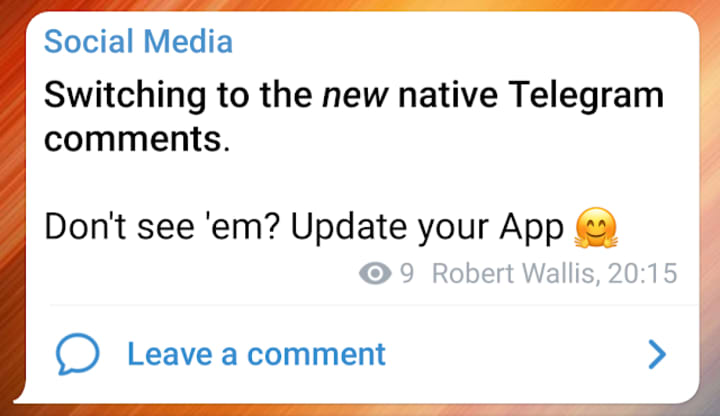
Enable comments on Telegram channel with discussion group:
First of all, you need a channel and you also need to link it to a discussion group. After that, native comments will appear automatically under all your posts except those created by bots. To enable comment feature on your own Telegram channel follow these steps,
- Open your own Telegram channel.
- Tap the channel header.
- Tap on the "discussion" section and link a discussion group to your channel.
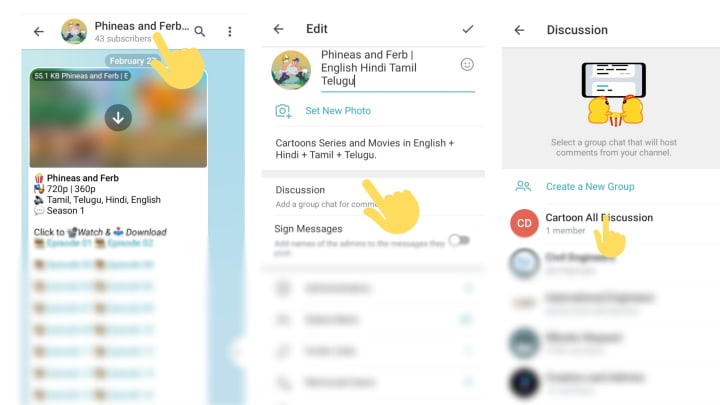
It is also possible to disable them by unlinking your discussion group from the channel.
Disable comments on Telegram channel:
Disabling comments on Telegram channels is as easy as adding them. You simply need to unlink your discussion group from the channel.
- Open your own Telegram channel.
- Tap the channel header.
- Tap on the "discussion" section and unlink a discussion group to your channel.
How does the comments work in Telegram!
After the user clicks on comments, he will appear in a separate comments chat where his and all other comments are visible. There it is also possible to reply to comments, send stickers links and other media. Even if the user is not a part of a discussion group, he will be able to read and post all comments related to the channel post.
At the same time, these comments will appear in the discussion group. Users in the discussion group may participate in comments discussion by replying to comments. And also, if group members simply post messages to the chat without replying, these messages won't appear in the comments chat.
If the discussion group has any chat restrictions enabled (like slow mode for example), these restrictions will be applied to comments as well.
How to create comment button on Telegram channel with bot
Without creating a discussion group, the member on Telegram channel can leave comments with Discuss Bot.
This method is not that efficient like native comments as it redirects you to new web page and also, you have a time lag between the comments section and receiving.
If you running a Telegram channel to redirect the traffics to your website or blog, then use Discuss Bot on your Telegram channel meanwhile adding Telegram comments to your site is as simple as adding one line of embed code.
Comments for Telegram channel
To add comment buttons under every post in the channel on Telegram,
- Open your own Telegram channel
- Tap the channel header
- Tap "administrator" section and search and add @discussbot as admin.

Once you added Discuss Bot on your channel, automatically the comment buttons will appear under every new post.
Comments for website
Using comments widget, add comments to every pages on your website.
- Visit Telegram comments website
- Enter your website name and domain
- Click "connect website"

This comment widget has a number of options to customize how it looks on your domain.
_______________________________________
If you found this article resourceful, make sure to click that little heart button! Tips are greatly appreciated.
About the Creator
Jakeedot
Story teller
How Do I Remove a Filter On Snapchat From Someone else's Photo?
Everyone is intrigued by the idea of altering their image into something different, and Snapchat grew in prominence as a result. Presently, several programs provide face effects and fascinate users, including Snapchat leading the field with countless products.
By Intelligent Creator7 days ago in 01
Winter Clothing: Practical Design, Materials, and Everyday Use
Winter clothing has long served a fundamental role in human survival and daily comfort. As temperatures drop, clothing becomes more than a style choice—it becomes a functional necessity designed to protect the body from cold, wind, and moisture. From traditional wool garments to modern insulated outerwear, winter clothing reflects both environmental demands and evolving lifestyles.
By charliesamuela day ago in 01



Comments
There are no comments for this story
Be the first to respond and start the conversation.