

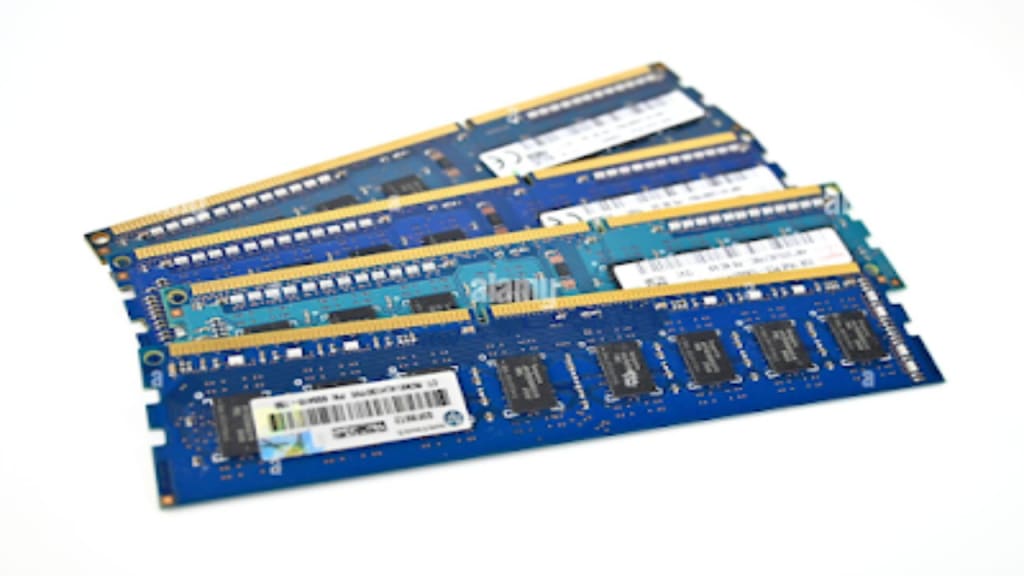
Best RAM for Laptops
Is your laptop running slow or freezing often? It might need more RAM! But what is RAM, and how do you choose the right one? Let’s make it simple and clear in this beginner-friendly guide.
________________________________________
What Is RAM, and Why Does It Matter?
RAM stands for Random Access Memory. Think of it as your laptop’s short-term memory.
When you open apps, files, or games, RAM helps your laptop keep everything ready to use quickly.
Imagine RAM as a work desk. The bigger the desk, the more space you have to spread out and work without feeling crowded. Small desks get messy fast, just like laptops with low RAM.
So, if you multitask a lot or run heavy programs, more RAM can make your laptop faster and smoother.
________________________________________
How Much RAM Do You Really Need?
4GB RAM – For Basic Tasks
• Good for web browsing, emails, and working on documents.
• Suitable for students and light users.
8GB RAM – Best for Most People
• Can handle multitasking, movies, and even light gaming.
• Ideal for regular users and office work.
16GB RAM – For Power Users
• Perfect for gamers, designers, and video editors.
• Handles large programs like Photoshop or video editing tools.
32GB RAM – For Heavy Work
• Best for programmers, engineers, or people working with 3D designs.
• Not necessary for most users but great for future-proofing.
________________________________________
Important Things to Look for in RAM
1. Compatibility
Check your laptop’s manual or settings to see:
• How much RAM it supports.
• What type of RAM it needs (DDR4 or DDR5).
Tip: Not all laptops allow RAM upgrades, so double-check before buying!
2. RAM Type
• DDR4: The most common type—fast and affordable.
• DDR5: Newer and faster but more expensive.
3. RAM Speed (MHz)
Speed is measured in MHz. Faster RAM means faster performance, but most users won’t notice much difference between 2400 MHz and 3200 MHz unless they’re gaming or editing videos.
4. Single vs. Dual RAM
• Single RAM: Uses one memory stick. Works fine for basic tasks.
• Dual RAM: Uses two sticks for better speed and performance.
________________________________________
Best RAM Brands for Laptops
1. Corsair Vengeance
• Fast and reliable.
• Great for gamers and professionals.
2. Kingston HyperX
• Easy to install and compatible with most laptops.
• Perfect for gaming and high-speed tasks.
3. Crucial RAM
• Affordable and works well for basic use.
• A great choice for budget-friendly upgrades.
4. G.Skill Ripjaws
• Known for speed and smooth performance.
• Ideal for heavy workloads and multitasking.
________________________________________
How to Upgrade RAM in a Laptop
Step 1: Check if your laptop supports RAM upgrades. Look up your laptop’s model online or in the manual.
Step 2: Buy RAM that fits your laptop. Match the type (DDR4 or DDR5) and speed (MHz).
Step 3: Turn off your laptop and unplug it. If possible, remove the battery.
Step 4: Open the back panel to find the RAM slot. Carefully insert the new RAM stick.
Step 5: Restart your laptop and check if it detects the new RAM. You’re done!
________________________________________
Do You Need More RAM or an SSD?
RAM helps with multitasking and running apps.
SSD (Solid State Drive) speeds up loading times and makes your laptop boot faster.
For the best performance, upgrading both RAM and SSD is ideal. But if you can only pick one, choose based on your needs—faster multitasking (RAM) or faster startup (SSD).
________________________________________
When Should You Upgrade Your RAM?
Wondering if you need more RAM? Look out for these signs:
• Your laptop freezes or lags while opening apps.
• It slows down when switching between multiple tabs or programs.
• Games or videos crash or don’t run smoothly.
• Your system shows low memory warnings often.
If any of these sound familiar, it’s time to upgrade!
________________________________________
Conclusion
Upgrading your laptop’s RAM can make it faster and better at handling tasks.
•4GB RAM is fine for simple tasks.
•8GB RAM works well for most users.
•16GB RAM is perfect for gamers and professionals.
•32GB RAM is best for advanced work like programming and 3D modeling.
Check your laptop’s compatibility, choose a trusted brand like Corsair, Kingston, or Crucial, and enjoy smoother performance.
If your laptop still feels slow after upgrading RAM, adding an SSD can make a huge difference too!
________________________________________
FAQs
1. Can I upgrade RAM on any laptop?
Not always. Some laptops have fixed RAM that can’t be upgraded. Check your laptop model online.
2. Is 8GB RAM enough for gaming?
For most games, yes. But for modern games, 16GB is better for smooth performance.
3. What’s the difference between DDR4 and DDR5?
DDR5 is faster and newer but costs more. DDR4 is cheaper and works well for most people.
4. How do I check how much RAM my laptop has?
On Windows, go to Task Manager > Performance > Memory. On Mac, click About This Mac > Memory.
5. Should I upgrade RAM or SSD first?
If your laptop is slow at multitasking, upgrade RAM first. If it’s slow at starting up or loading apps, upgrade the SSD first.
________________________________________
Summary
RAM is one of the easiest ways to speed up a laptop. Whether you need 4GB, 8GB, or 16GB, picking the right RAM depends on your usage. Reliable brands like Corsair and Kingston offer great options for every budget.
And if you want the best performance, combining more RAM with an SSD upgrade can make your laptop feel brand new!
About the Creator
Valuable Knowledge
See the growing technology of the world, Sub my profile to be connected to the world's Tech
Sub to Youtube Channel
https://www.youtube.com/@whatsnew9825?sub_confirmation=1
Keep reading
More stories from Valuable Knowledge and writers in 01 and other communities.
Best phones under 20,000
Best Phones Under ₹20,000 in 2024 Finding a great phone under ₹20,000 can feel like searching for a needle in a haystack with all the options available. Whether you're looking for stellar cameras, smooth performance, or long-lasting battery life, you’ll find plenty of value-packed options. Let’s dive into some of the best picks in this budget range to help you make an informed choice.
By Valuable Knowledgeabout a year ago in 01
How to Build a Fitness App That Keeps Users Coming Back
The fitness app market in 2026 is no longer a battle of content. It is no longer about who has the most workout videos. It is now a battle of who can sustain user motivation. Data from the 2025 Global Digital Health Report is clear. Initial downloads for health apps remain high. However, nearly 60% of users drop off within thirty days. This happens if the experience feels generic.
By Del Rosarioa day ago in 01



Comments (1)
Give me more tech suggestion for my next story