
A Step‑by‑Step Tutorial: How to Use FaceSwapAI for Video Swaps
Learn how to seamlessly replace faces in videos with this easy, step-by-step tutorial.


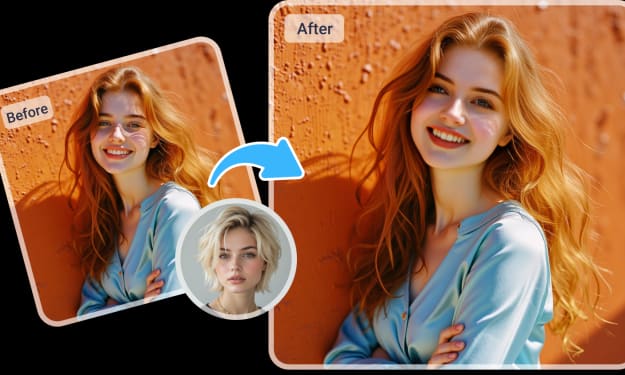
Swapping faces in videos can be fun, creative, or useful for storytelling. This guide will take you through how to use Face Swap AI for Video Swap step by step—easy to follow even if you are new to this.
What You’ll Need
- A computer or smartphone with internet access
- A video clip in which you want to replace a face (source video)
- A clear image of the face you want to swap in (target face)
- Access to the FaceSwapAI video swap tool
If your video is long or very high resolution, it may take more time or computing resources.
Step 1: Visit FaceSwapAI and Sign In
- Open your web browser and go to Face Swap AI.
- If required, create an account or sign in. Many platforms require users to sign in so that they can save progress, respect privacy, and manage uploads.
Step 2: Navigate to the Video Swap Tool
- Once you’re inside, look for the Video Swap section. You may also see an Image Swap tool.
- Click on Video Swap. If you want, you can also try Image Swap later to practice with still images first.
Step 3: Upload Your Source Video
- Upload the video that has the face you want to replace. This is the video that will be transformed.
- Use a video format that the site accepts (commonly MP4, MOV, etc.).
- Ideally, choose a video with good lighting and a clear view of the face you want to replace—this helps the swapping look more realistic.
Step 4: Upload the Target Face Image
- Next, upload a clear photo of the face you want to swap in.
- Try to pick a photo that matches the orientation, lighting, and angle of the face in your video.
- The better the match, the more natural the result will look.
Step 5: Review Settings & Adjustments
FaceSwapAI’s tools often let you tweak settings or parameters to improve the result. Common settings might include:
- Facial landmarks / alignment: ensure eyes, nose, mouth lines up correctly
- Skin tone and color blending: to make the new face’s skin match the video scene
- Lighting / shadows: to match the environmental light in the video
Take time to preview small sections if the tool allows—you may notice misalignment or color mismatch early.
Step 6: Process the Video
- Once your video and face image are uploaded and settings adjusted, submit the swap.
- The system will process the replacement. Depending on video length, resolution, and server load, this can take from a few seconds to several minutes or more.
- Stay patient—high quality takes time.
Step 7: Review & Refine
- After processing, review the swapped video carefully. Look for odd artifacts, flickering, weird lighting mismatches, or unnatural movements.
- If something looks off: go back to alignment settings, try a better face image, or adjust contrast/lighting blending.
- You might need a few attempts to get the result satisfying.
Step 8: Download or Share
Once happy with the video swap:
- Download your final video if the tool allows.
- Share it if you want—but always remember ethical and legal responsibilities: consent from people involved, and transparency (letting viewers know it’s AI‑created).
Tips for Best Results
- Choose video footage where the face is not blocked by hands, hair, or extreme angles.
- Use high‑quality images for the target face—clear, well‑lit.
- Match lighting and skin tone as close as possible.
- Use shorter videos when learning; larger clips may be harder to process.
- Make small adjustments rather than big leaps—iterative improvements often work better.
Summary
Using Face Swap AI for Video Swap is a powerful way to replace faces in videos with creative control. From visiting Face Swap AI (via Face Swap AI) to uploading your video, selecting a target face, adjusting settings, processing, reviewing, and downloading—you have full control over the process. You also have the option to try Image Swap (through Image Swap) to get used to how face replacement works on still images before moving into videos.
About the Creator
MUHAMMAD SHAFIE
Muhammad Shafie (BHK々SHAFiE) is a writer and blogger passionate about digital culture, tech, and storytelling. Through insightful articles and reflections, they explore the fusion of innovation and creativity in today’s ever-changing world.
Keep reading
More stories from MUHAMMAD SHAFIE and writers in 01 and other communities.
AI Trends Shaping the Future of On-Demand App Development
The on-demand economy is evolving rapidly as businesses integrate advanced technologies to meet the growing expectations of digital users. From ride-hailing to grocery and food services, mobile applications have transformed the way people access services instantly. Today, Artificial Intelligence (AI) is playing a major role in shaping the next generation of digital platforms. Companies investing in mobile app development are leveraging AI-driven tools to improve performance, automation, and user experience.
By keith lauranceabout 21 hours ago in 01



Comments
There are no comments for this story
Be the first to respond and start the conversation.