
5 Simple Tricks To Fix Can’t Read From The Source File Or Disk
Can’t Read From The Source File Or Disk
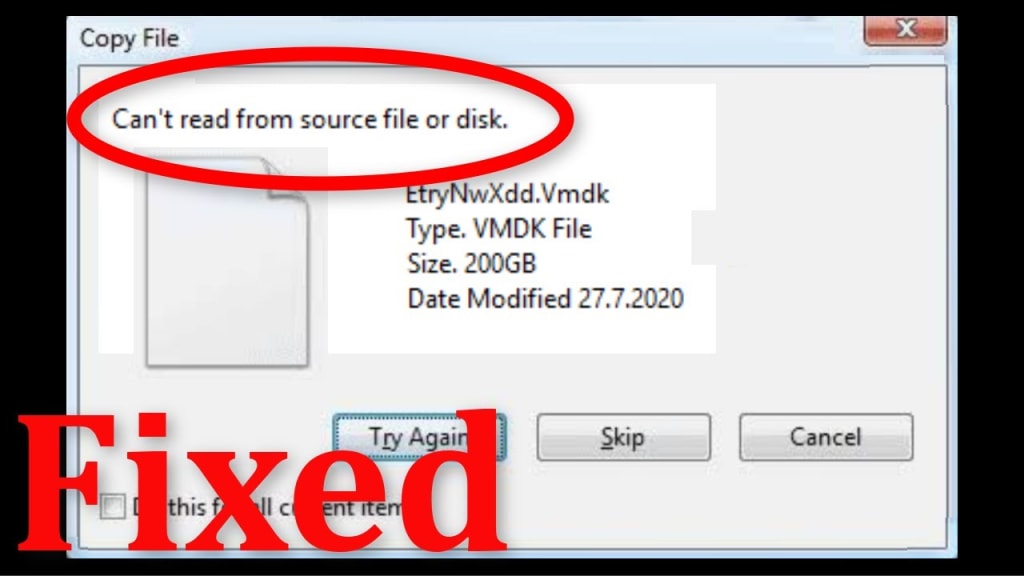
Want to fix can’t read from the source file or disk error when copying from external drive to PC? Seeking for some effective methods to tackle this situation? If so, then this article will surely help you to troubleshoot Windows 10 can’t read from source file or disk error with 5 best solutions.
But finding the solutions, let’s take a look at some the common causes for the occurrence of this error:
Why Can’t Read From The Source File Or Disk?
Generally, can’t read from the source file or disk error arises when you try to copy, move or delete the files. Here, are some of the major reasons for this problem:
1. Due to problem in connection cable or USB port.
2. The archive which you want to copy is corrupted.
3. The file is too large.
4. Bad sectors are present on a source external disk.
Now, let’s know how to fix cannot read from source file or disk when copying error with possible fixes.
Methods to Fix Can’t Read From The Source File Or Disk
Method 1: Check If The External Hard Disk Is Connected Properly

If you are encountering this issue just after connecting your external hard drive to computer, then very first you should check that the external drive is connected to PC properly or not. Most of the time, poor connection might also generate such sorts of errors.
Simply remove your hard drive from PC and again join it back to PC. This way you can eliminate this problem with ease.
Method 2: Restart Your Computer
Restarting the computer is an effective solution that Windows users are often doing when they receive any errors and issues on their PC. Since cannot read from source file or disk when copying error mostly appears on the Windows screen, so once you must reboot your PC.
It will fix all the minor glitches along with the errors and will bring it to its default state.
Method 3: Run Chkdsk Command
When it comes to fixing the file system or external drive corruption issues then using the CHKDSK utility could assist you to get rid of them.
Follow the below steps to run the chkdsk command:
• Press the Windows + R keys at the same time & open the run box.
• Open command prompt >> tap on run as an administrator.

• Under the command prompt window, type the command- chkdsk n: /r.

• Then hit Enter. >> click yes.
• Now, restart your PC & attempt to copy files again. See if the issue is resolved.
Method 4: Remove The Bad Sectors
Sometimes, bad sectors present on the drive can lead to the file is too large for the destination file system or unable to copy your files from external drive to PC. In such an instance, you have to remove the bad sectors from the drive which is the actual reason for this issue.
Here is how you can easily do so:
• Connect your drive to PC then choose a connected hard drive that you’re trying to copy the files from.
• Then, right-tap & go to Properties >> Tools options.

• Select Check button, let the procedure finish.
Method 5: Rename The File To Fix Windows 10 Can T Read From Source File Or Disk Error
If nothing worked, then the last option left for you to fix Windows 10 can’t read from source file or disk error is to rename the file.
Suppose, if your file is named as- ABC then change its name or try to save it with a different name like XYZ.
Conclusion
It’s time to end up this post…
I hope, after following the aforementioned solutions, you can easily handle “can't read from source file or disk" error on Windows 11/10/8.
Good luck…!
About the Creator
Keep reading
More stories from writers in 01 and other communities.
Cost to Develop an App Like TikTok: Full Guide (2026)
So, you reckon you have the next billion-dollar idea? You want to build a TikTok killer. Join the club, mate. In 2026, everyone and their grandmother is trying to pivot to video, thinking a simple app wrapper and a few API calls will print money.
By Sherry Walker3 days ago in 01
Understanding Flexible Packaging Bags and Films in Modern Manufacturing
Flexible packaging bags and films have become an essential part of modern packaging systems worldwide. Used across industries such as food, pharmaceuticals, agriculture, and personal care, flexible packaging supports efficient product handling while adapting to diverse functional needs. Unlike rigid formats, flexible packaging is characterized by its ability to change shape, offering practicality in storage, transport, and use.
By charliesamuel3 days ago in 01
The Blue Ridge Stalker
Tom had left the Ford down the way, its spark plugs finally exhausted and no mechanics for a dozen miles back through the foothills to Strossburg. No matter, he had worn his boots—almost as if he planned for this to happen. The puzzle he sought to solve emanated from the woods clinging to the slopes above; the valley behind held no mysteries.
By Stephen A. Roddewig4 days ago in Fiction




Comments
There are no comments for this story
Be the first to respond and start the conversation.